R161 Sprint: 2/2/2026 to 2/27/2026. To learn about product features that you may not recognize, contact ClientSpace Professional Services.
Release Schedule
Release updates are implemented by the group, as indicated in the following table.
The release schedule is subject to change and updated as required. To determine your group or ask questions, please log a case for ClientSpace Professional Services.
|
Sprint 2/2/2026 to 2/27/2026 |
||
|---|---|---|
|
Upgrade groups |
Date of upgrade |
Tentatively occurs on |
| Group 1 | Second Tuesday of the month | March 10, 2026 |
| Group 2 | Third Tuesday of the month | March 17, 2026 |
| Group 3 | Fourth Tuesday of the month | March 24, 2026 |
Enhancements
Enhancement groups are Change in Functionality, ClientSpace Premium (ClientSpace with additional modules), Advanced Administration, General, and Staffing.
ClientSpace Premium
Benefit Plan Manager (BPM)
|
Case |
Enhancement |
|---|---|
|
75478 |
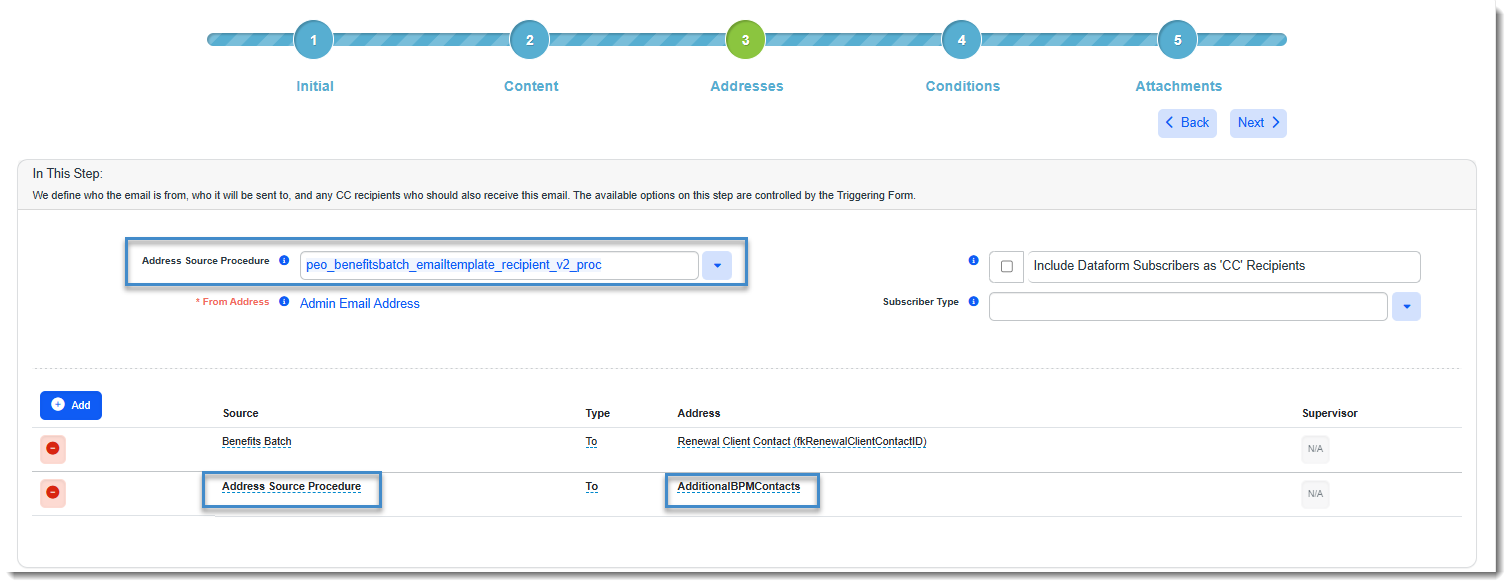
Added Ability to Send Emails to "Additional BPM Contacts" When Benefits Batch is the Triggering Form The peo_benefitsbatch_emailtemplate_recipient_v2_proc Address Stored Procedure has been updated to support sending Email Template emails to all active BPM contacts listed on the Benefits Batch > Additional BPM Contacts dataform when the Email Template Initial tab Triggering Form is set to Benefits Batch. Define recipients on the Email Template Addresses tab using Address Source Procedure under Source and AdditionalBPMContacts under Address.
|
|
75529 |
Added HE_PreventBPMDuplicate Business Rule on Benefits Batch to Prevent Duplicate BPM Contacts A business rule (System Admin Note: The rule is Active by default. |
|
75667 |
Removed the Ability to Edit the Renewal Client Contact on the Additional BPM Contacts Form Previously, you could change the BPM Contact field on the Additional BPM Contacts form for the Renewal Client Contact. This caused there to no longer be a corresponding BPM Contact record for the Renewal Client Contact and resulted in the Renewal Client Contact losing access to the renewal batch in BPM. Now, if a contact is specified as the Renewal Client Contact on the Benefits Batch, the BPM Contact field on the Additional BPM Contacts form cannot be edited. It appears dimmed or "grayed out". Note: If you want to change the Renewal Client Contact, please pick a new contact in the Renewal Client Contact field and allow ClientSpace to make the appropriate updates to the Additional BPM Contacts form, such as:
See Adding and Editing BPM Additional Contacts and Adding a Benefits Batch. |
| 75679 |
Added Renewal Client Contact Email Validation on the Benefits Batch for BPM Previously, you could select a Renewal Client Contact record on the Benefits Batch where the contact record had no email address. Now, the email address is required when selecting the Renewal Client Contact. A new business rule on the Benefits Batch dataform, Renewal Contact Has Email, has been added which uses the HE_RenewalContactEmail. If you attempt to select a contact record with no email address, the rule triggers the following hard error message: "A required email address for the Renewal Client Contact is missing. You must add an email before continuing." Note:
See Configuring BPM Business Rules and Adding a Benefits Batch. |
| 76731 |
Added Ability to Hide or Rename "Domestic Partner" Column on BPM Selection Summary/Signature Page In the prior release (ClientSpace Release 160), the Domestic Partner (EK) coverage level was added to Benefit Plan Manager (BPM). The Domestic Partner column always displayed on the BPM Selection Summary/Signature page in the "Selection Summary" section. Now, settings have been added to the BPM Config dataform to allow you to hide the column on the Selection Summary/Signature page by setting Do Not Show EK to Yes. Or, if you are using EK for a coverage level other than Domestic Partner, there is now a BPM Rename EK setting on the BPM Config dataform that allows you rename the column to match the name you gave to the coverage level on the Benefits Plan. Note:
|
 >
> Other ClientSpace Premium
|
Case |
Enhancement |
|---|---|
|
74011 |
Added Ability to Suppress Benefit Plans from Benefit Plan Export API and Benefit Rules Export Merge If you want to prevent an Offered Benefits Plan (OBP) from inclusion in a Benefit Plan export or Benefit Rules export, you can now select the Suppress from Entire Presentation option in the Suppress from Presentation field of the associated Benefit Plan record to keep the plan from being included. Note:
|
| 75736 |
Updated Apply Plan Group "All Classes" to "All Benefit Groups" The name of the All Classes field on the Apply Plan Group window has been changed to All Benefit Groups. |
| 75802 |
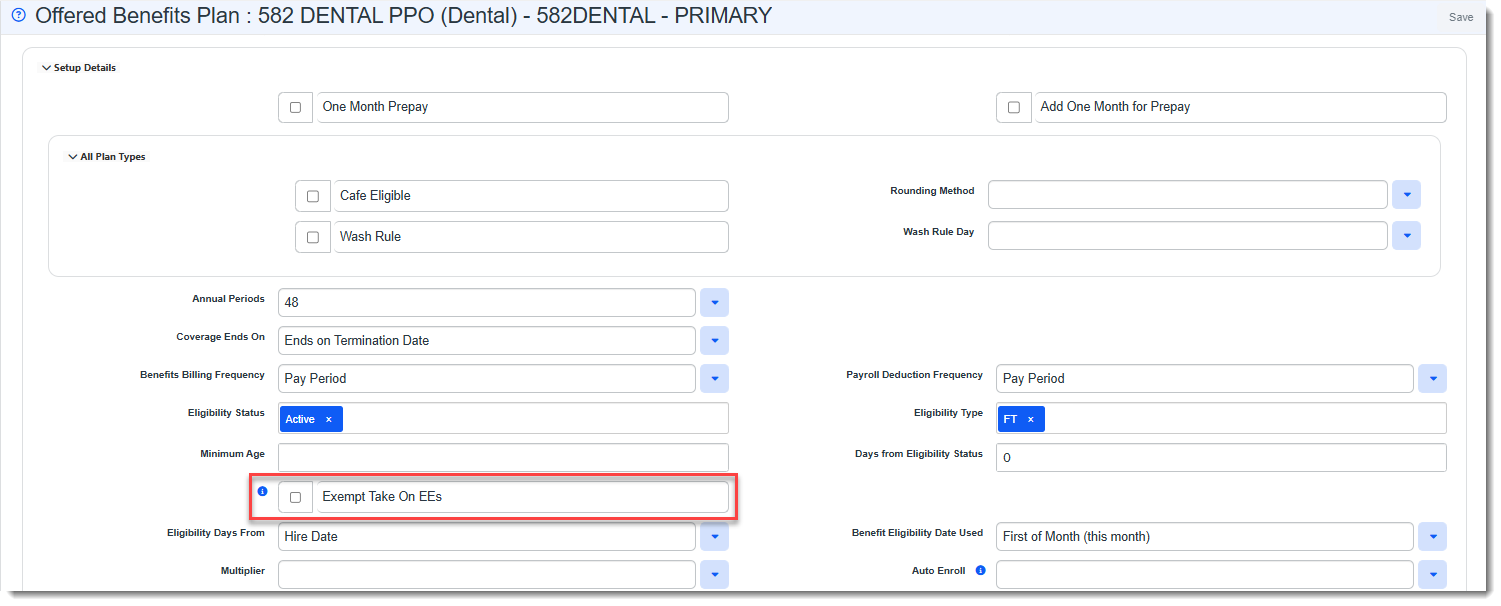
Added "Exempt Take on EEs" Field to OBP and Updated "Mass Update OBPs" and "Billing Rules Export" Functions to Support the New Field An Exempt Take on EEs checkbox has been added to the Offered Benefits Plan (OBP) dataform in the Setup Details fieldset.
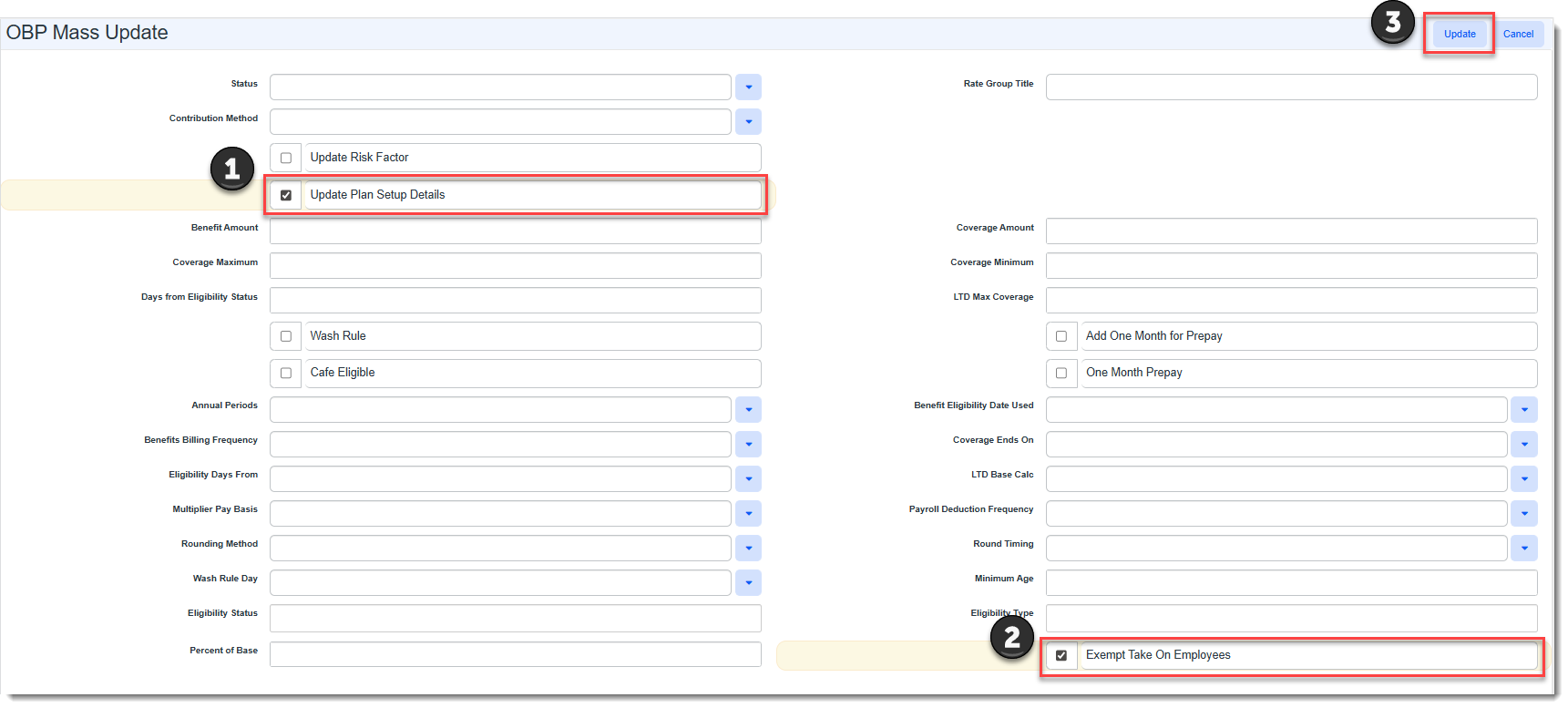
The ClientSpace Exempt Take on EEs field value is now exportable to PrismHR using the Billing Rules Export function on the Benefits Batch. The field corresponds to a PrismHR field of the same name. When checked, it is used to indicate that "take on" employees (i.e., employees who are being added to the system as part of a migration to PEO management and who are not "new" employees) enrolling in this plan are exempt from any waiting period requirements identified on the plan's Benefit Group record. The Mass Update OBPs feature can now be used to set the Exempt Take on EEs field on multiple selected OBPs at once. To apply the setting, on the OBP Mass Update window, first select Update Plan Setup Details to display fields in the Setup Details fieldset and then select Exempt Take On Employees.
See Manually Adding an Offered Benefit Plan and Using Mass Update from Benefits Batch OBPs Search |
|
75815 |
Added _HE_DateComparison Business Rules on Benefits Batch and Benefits Plan to Compare Expiration Date and Effective Date Two new business rules (System Admin Note: Both rules are Active by default. |
|
75852 |
Updated SetImportID Business Rules on Benefits-Related Forms to Apply to All Pipelines and Added SetImportID Rule for Benefit Plan Group Detail A new SetImportID business rule has been added to set the Import ID value on the Benefit Plan Group Detail dataform. It is configured to apply to all pipelines. Additionally, previously created benefits-related rules that use the SetImportID business rule method on the following dataforms have also been configured to apply to all pipelines for new ClientSpace Benefits module implementations:
Note: The change to update existing benefits-related SetImportID business rules to apply to all pipelines does not impact existing Benefits module users. |
|
76448 |
Updated OBP Risk Factor Field and OBP Mass Update Process to Accommodate Risk Factor Values of 12 Digits After Decimal Previously, the Offered Benefit Plan (OBP) Risk Factor field allowed up to 4 digits after the decimal. Now, up to 12 digits after the decimal are allowed in the Risk Factor field. Additionally, the OBP Mass Update process for import to PrismHR has been updated to support the new Risk Factor character limit. See Using Mass Update from Benefits Batch OBPs Search and Manually Adding an Offered Benefit Plan. |
Advanced Administration and System Administration
|
Case |
Enhancement |
|---|---|
| 66407 |
Added Exception Error Logging for DocuSign "Unable to Download Document" Previously, when the DocuSign signature process was complete and an "Unable to Download Document" error occurred when attempting to retrieve the signed document, exception error details were not recorded to provide troubleshooting assistance. Now, when an "Unable to Download Document" error occurs, details are recorded in the Exception Log (System Admin
Note: The level of exception detail recorded is controlled by the DocuSign API configuration Logging Level parameter. We recommend a Logging Level of Level 2 (Verbose) for DocuSign. |
|
68221 |
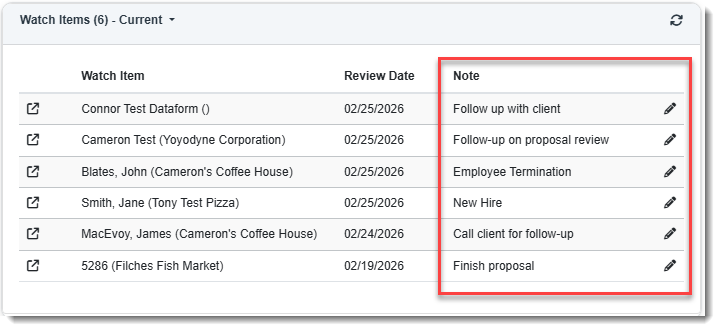
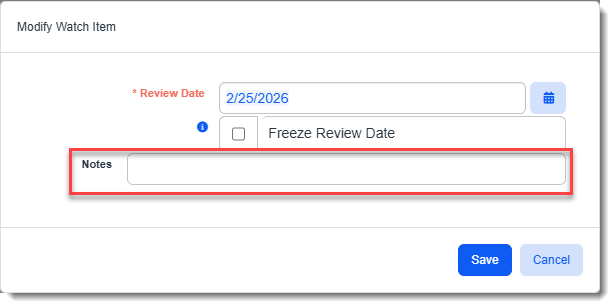
Added a Note Column to the Watch Widget A Note column has been added to the Watch Widget:
Use it to enter the reason for placing the dataform under watch. Populate the field by opening a pinned item and editing the Notes field on the Modify Watch Item window:
See Widget: Watch. |
| 74428 |
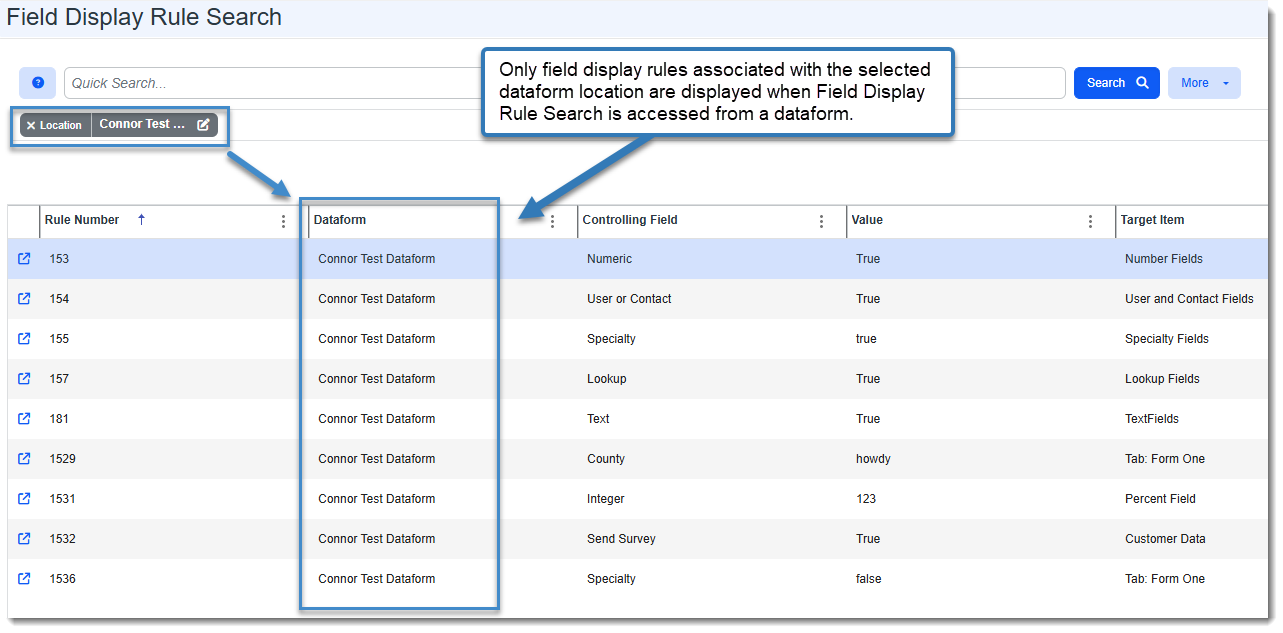
Saved/Pinned Searches No Longer Override Field Display Rule Search Previously, if you pinned a saved search on the Field Display Rule Search page in System Admin Note: There are two ways to access the Field Display Rule Search page from a dataform: From System Admin Now, when you access Field Display Rule Search page from a dataform, the page auto-filters by dataform location to only display rules associated with the selected dataform:
|
|
75404 |
Added Ability to Generate Import Mapping Template Files for Import Map Header and Import Map Detail Records You can now generate import template files containing import map header column names only or detailed import mapping information containing import header column names and field mapping details. The following import template file links have been added to the Import Map Header Detail record Action Center (System Admin
How this can help: When requesting assistance from ClientSpace support staff with import mapping, you can ensure that you are providing your import mapping information to them in a ClientSpace-supported format that they can use for troubleshooting. This eliminates time spent getting the file into a supported format which may result in shorter resolution times. |
|
75406 |
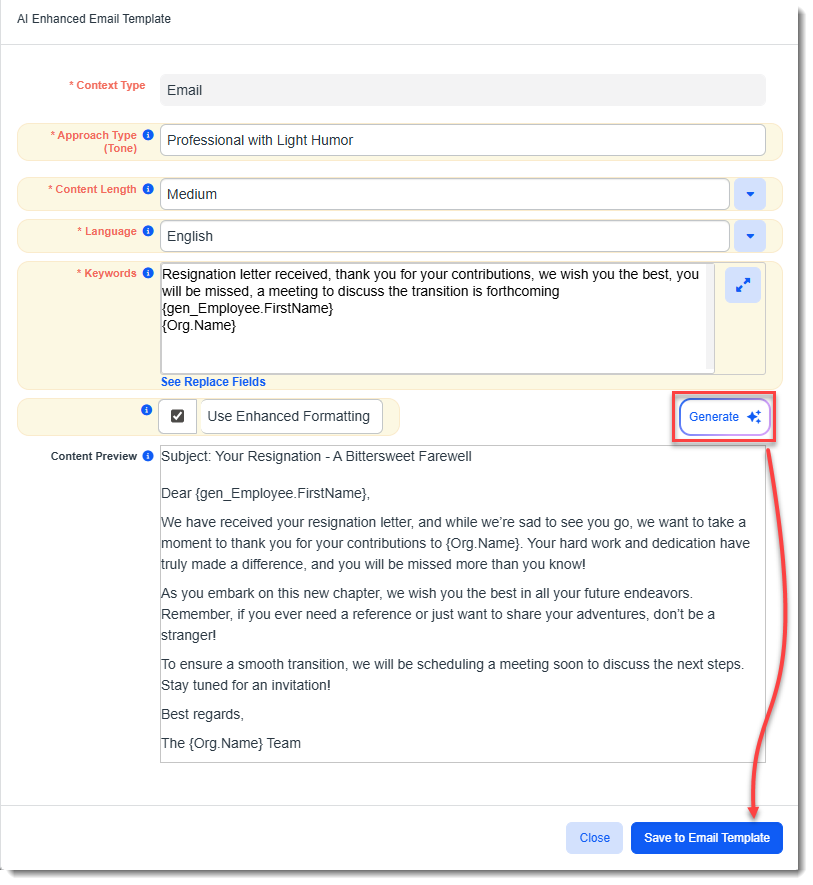
Added Generative AI Tool for Creating Email Template Body Text Email Template functionality has been enhanced to include a Generative AI tool for creating body text with or without Replace Fields:
Note:
SeeStep 2: Content and Using Generative AI to Create Email Template Body Text. |
|
75676 |
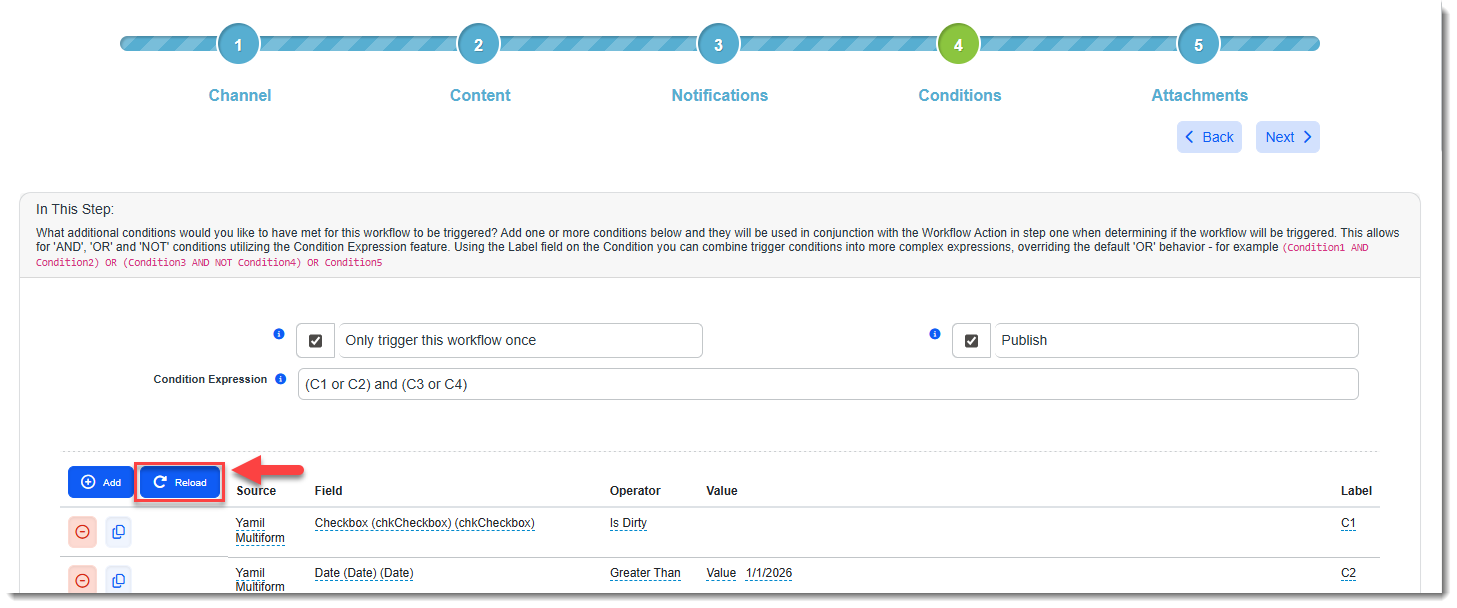
Added WFC "Reload" Button to Improve Issues Stemming from Improper Loading of Secondary Conditions Grids When Server Is Busy Previously, when opening a Workflow Channel (WFC) containing numerous complex secondary conditions (i.e., typically more than 50) during a time when ClientSpace server resources were low, conditions on the Conditions tab sometimes loaded improperly with portions of the condition statement, such as the Operator value, displayed as "Empty". Additionally, the WFC could be accidentally saved in this state, resulting in unintentional loss of the original Conditions tab configuration values. Now, a Reload button has been added to the WFC Conditions tab (above the secondary conditions grid).
It is used to restore all secondary conditions to the original state they were in when the page was first opened.
Note: If you applied any additions, edits or deletions to the secondary conditions grid, they will be discarded upon Reload. The goal of using Reload is to revert the grid to the orginal state it was in so that none of the secondary conditions are overwritten with empty values stemming from the current improper loading of the grid. Therefore, any changes that you made to the secondary conditions grid while it was in the improperly loaded state cannot be retained. See Step 4: Conditions. |
|
75693 |
Added Ability to Include or Exclude CORE Form Data in Global Search Index An Include in Global Search setting in the table metadata (System Admin
Data from excluded forms will not display in Global Search results. Note:
|
|
76313 |
Improved Graph API Email Integration Error Messages and Exception Error Logging Previously, Graph API email integration error and exception error logging that occurred during authentication failures lacked sufficient details or was not clear enough to support troubleshooting efforts. Now, error messages and error log entries are clearer and more detailed. For example, the following error message displays on the mailbox configuration record (System Admin "Unable to connect Please check your connection settings and try again. The access token is invalid. Please use the cloud icon in the Action Center to reauthenticate your email mailbox." In the Exception log (System Admin
|
|
76588 |
Added Backup and Restore Configuration Cloning Backup and Restore configuration cloning is now available from the following dashboards:
How this can help: If you have a test installation of ClientSpace, you can set up and test new email templates, workflows, widgets and APIs. Then, once the test configuration is working as desired, you can clone the configuration from the test environment to a backup file and restore it in the production environment (thereby alleviating the task of manually reconfiguring the settings in production.) You can also use Backup and Restore to back up a production configuration file before you make changes so that you can easily roll back to the original version if needed. Note: Please contact your Professional Services team representative or log an extranet case if you are interested in this feature. |
|
76595 |
Added Salesforce Attachments Import Attachments from Salesforce Account or Opportunity records can now be imported to ClientSpace. Salesforce Account records are added to the ClientSpace Organization Attachments pane in the Action Center. Salesforce Opportunity records are added on the associated Client Master Attachments pane in the Action Center. Once properly configured, when the Salesforce scheduled process (Salesforce Sync Rest API) runs, Salesforce work queue records with the Completed flag unchecked and the File Download Only flag checked are processed for import of file attachments into ClientSpace.
Note:
|
|
76827 |
Added Ability to Connect Multiple Salesforce Instances via the Salesforce API to a Single ClientSpace Installation The Salesforce integration in ClientSpace has been updated to support importing and exporting data to and from multiple Salesforce instances connected to a single ClientSpace installation. Note: This enhancement does not impact existing ClientSpace Salesforce API configurations. See Connecting Multiple Salesforce API Instances to a Single ClientSpace Installation. |



 >
> General User Enhancements
|
Case |
Enhancement |
|---|---|
|
73043 |
Disabled COI Report The Certificate of Insurance (COI) report has been disabled and is no longer supported as it is an unused report. Note: If you are interested in running this report, please log an extranet case. |
| 75585 |
Global Search Results Start at the Top For New Searches Previously, if you were reviewing Global Search results, cleared the search bar and then entered new search criteria, the new search results displayed but the focus remained where you were when you were viewing the previous search results. Now, when you enter new search criteria, the focus shifts to the top of the new search results. |
|
76923 |
Added Document Previewer Toolbar Enhancements Plus Bug Fix Multiple enhancements were made to the Document Previewer toolbar. In addition, a bug that allowed the Document Previewer to be opened multiple times when pressing Enter has been fixed.
Toolbar enhancement highlights include the following:
|

 to increase the zoom level,
  to decrease the zoom level.
Performance
|
Case |
Enhancement |
|---|---|
|
72852 |
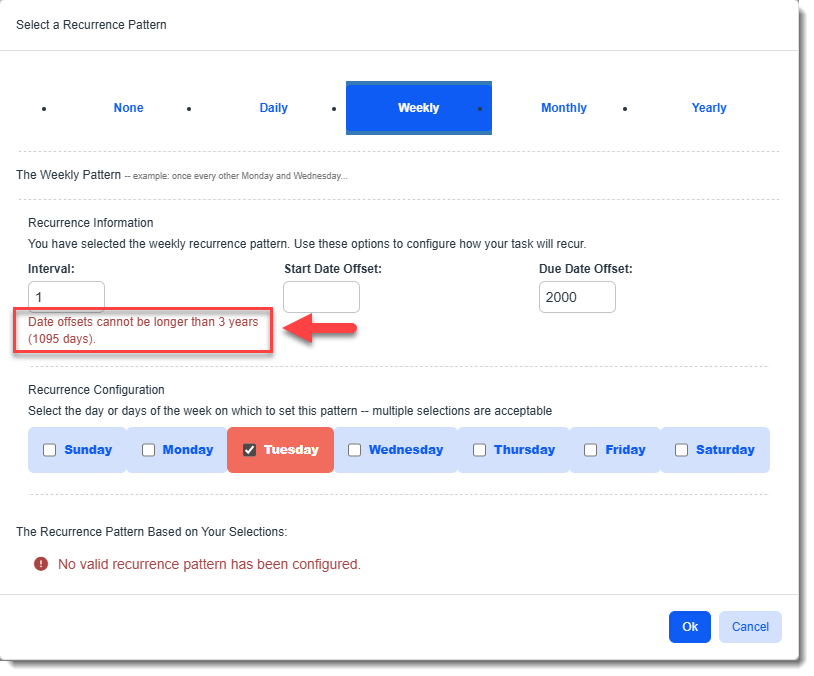
Improved Performance of "Generate Recurring Tasks" Scheduled Process The following performance improvement changes were made to the "Generate Recurring Tasks" scheduled process (System Admin
|

Fixes
|
Case |
Issue summary |
Resolution |
|---|---|---|
|
74457 |
Corrected Issue with Subscribers Continuing to Be Notified on Tasks After Being Removed as a Subscriber |
Previously, when a subscriber was removed from a task, they continued to receive task notifications. Now, former task subscribers are no longer notified unless they are added to the task subscribers list again. |
| 76410 |
Corrected Issue with PrismHR API Not Updating the Employee Count on the Completed ClientSpace Payroll Batch Record |
Previously, after the PrismHR Import Payroll Batch Sync scheduled process ran to process a payroll batch, if you opened the completed Payroll Batch record in the associated ClientSpace workspace, the Employee Count field on the record was 0. This issue has been corrected. The Employee Count field of the completed ClientSpace Payroll Batch record now reflects the number of employees processed in the batch. |
| 76718 |
Corrected Issue with PrismHR Ongoing API Not Generating Import Queue Records for the Employee Benefits Detail Import Map When the Employee Benefits Import Map Was Also Active |
The PrismHR Ongoing API (Employee Benefit Detail PHRAPI_ee_benefits_detail*.csv) was not generating import queue records if the Emp Benefits PHRAPI_emp_benefits*.csv import map was also Active. Now, two import queue records are created for each import map when both are Active. One is created for PHRAPI_emp_benefits*.csv and another for PHRAPI_ee_benefits_detail*.csv. |