BPM Site Configuration
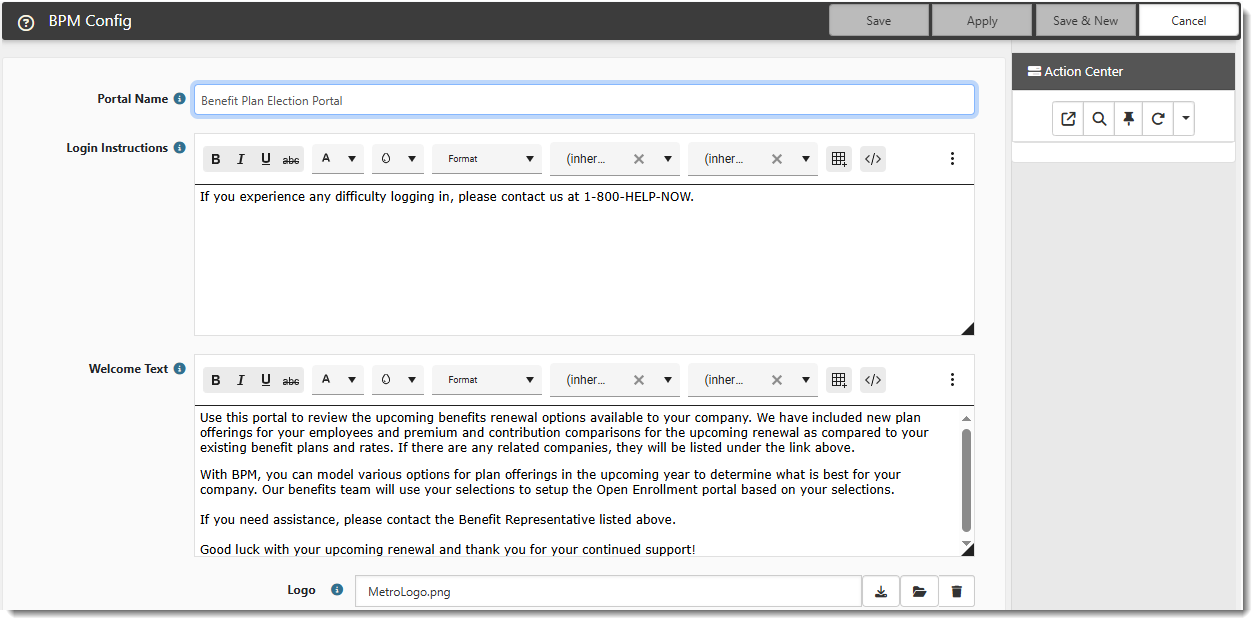
The BPM Config dataform, located in the Admin Workspace, is used to configure the Benefit Plan Manager (BPM) login page and Welcome page that all of your clients will see. It includes fields for the Portal Name, Login Instructions, Welcome Text and Logo. Adding your company logo is optional, but recommended.
There are additional configuration settings on the BPM Config dataform, including:
-
A Do Not Show on BPM multi-select lookup field which allows you to always hide one or more of the following plans if you do not offer them: HSA, FSA, Commuter Plan.
-
Settings for hiding or renaming the Domestic Partner (EK) column on the BPM Selection Summary/Signature page.
-
A View Only on BPM multi-select lookup field which allows you to make one or more of the following options read-only in BPM: HSA, FSA, Commuter Plan, and Waiting Period.
Accessing the Admin Workspace
There is more than one way to access the Admin Workspace:
-
From the modules bar, click
 Workspaces.
The Workspace Search dashboard opens.
-
Type %Admin in the search box to filter the list of workspaces and locate Admin Workspace.
OR
-
On the modules bar, on the right side, click <username> > Modules.
The Modules Search dashboard opens. If the Admin Workspace has been saved as a module for easy access, it is listed at the top of the dashboard.
Double-click the row of the Admin Workspace in the Workspace Search or Modules Search grid or click  (Open) next to the workspace name.
Configuring the BPM Welcome and Login Pages
To configure the BPM Welcome and Login pages:
-
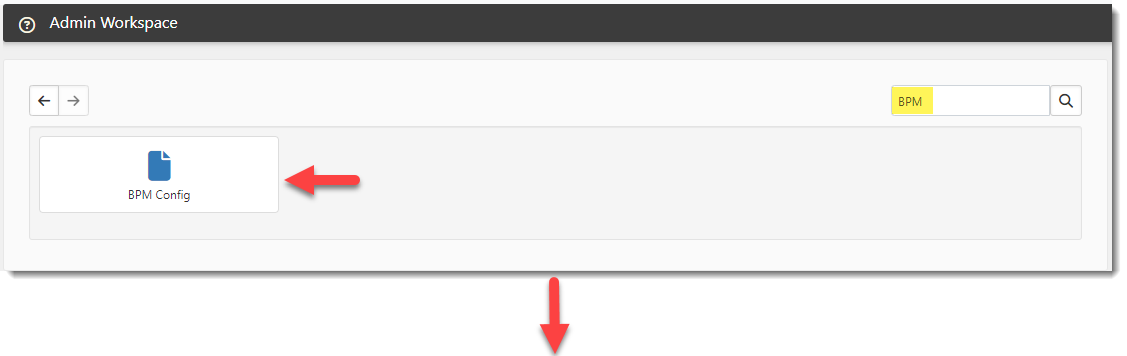
Once in the Admin Workspace, type "BPM" in the "search for dataform" box and then press Enter or click the magnifying glass icon
 to display the to display the BPM Config tile.
 -
Click the tile to open the BPM Config dataform.
-
Complete the following fields as necessary.
|
Portal Name |
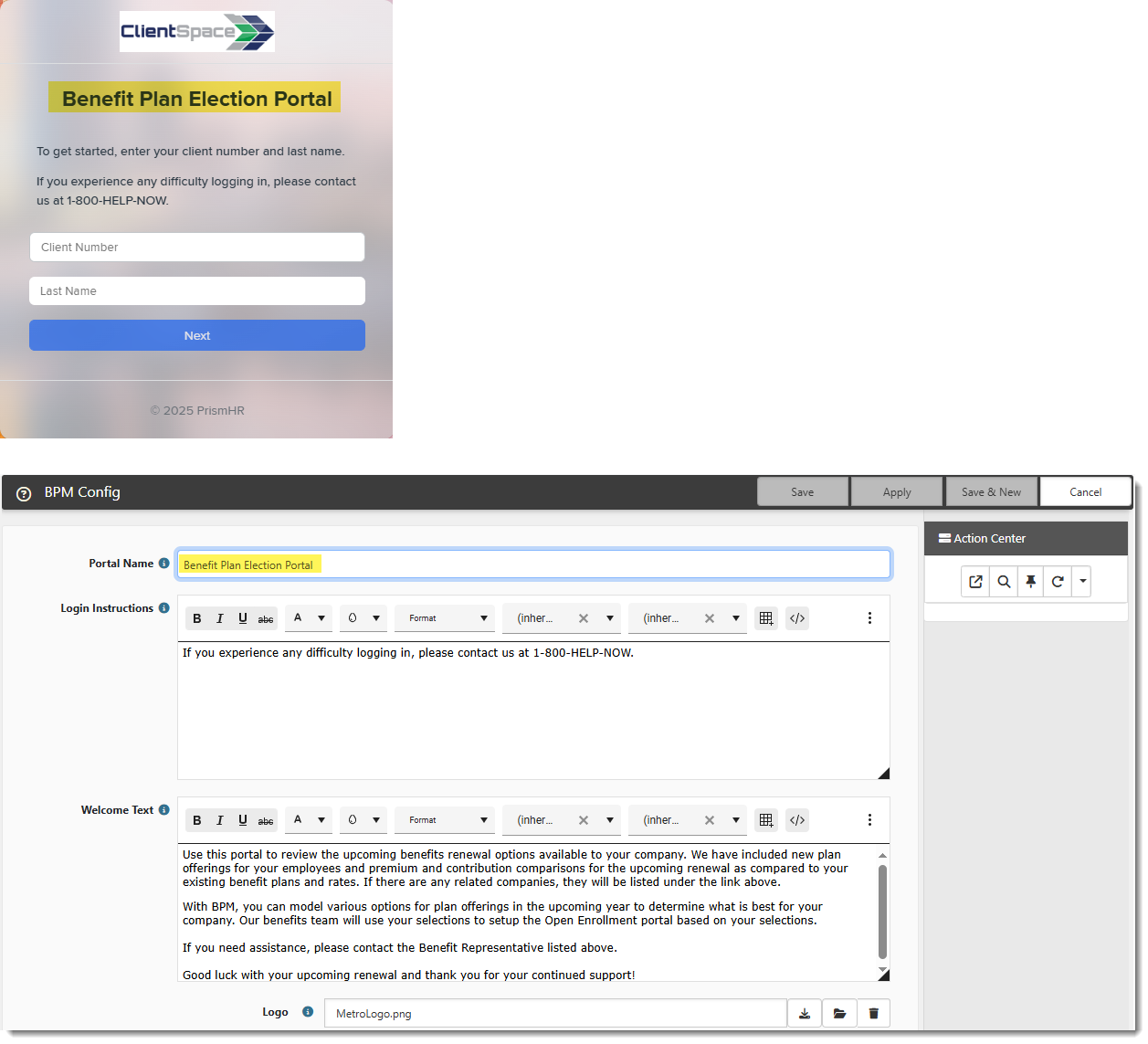
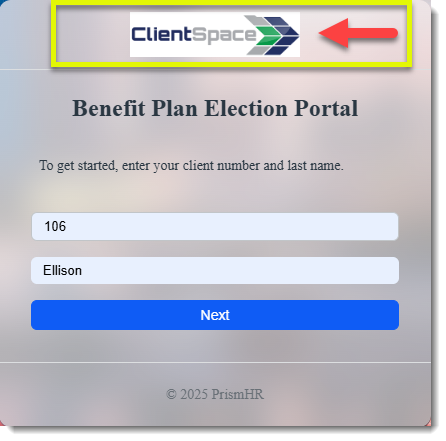
Optionally, add the name of the web portal that displays to your customers. This name displays on the Login page and on the Welcome page:
|
|
Login Instructions |
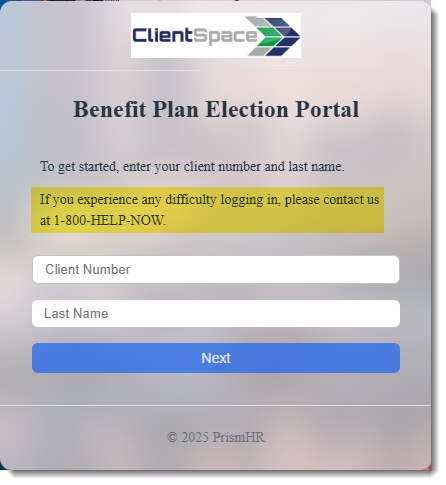
Optionally, add extra details instructing your customers how to log in or how to receive support if they are unable to login. This additional text displays under the hard coded, default login instructions "To get started, enter your client number and last name."
|
|
Welcome Text |
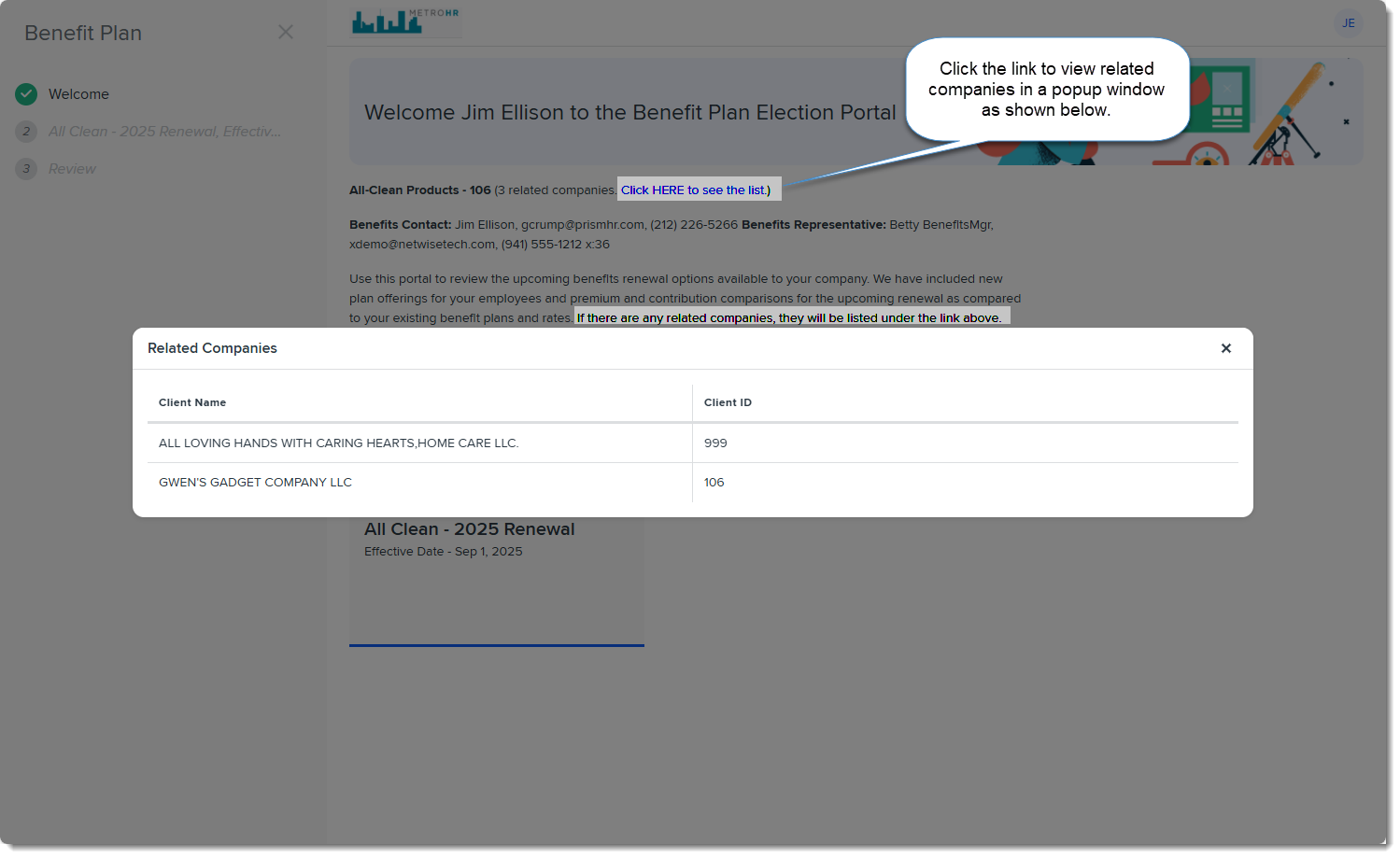
Displays on the Welcome page of the BPM portal. This friendly message should welcome users to your page and explain additional details such as how to navigate the page, how the page works, who to contact for assistance or any additional instructions you want to add. Please refer to the sample text below.
Note: Be sure to describe the basic functionality. For instance, in the example below, we made sure to explain the related companies link.
|
|
Logo |
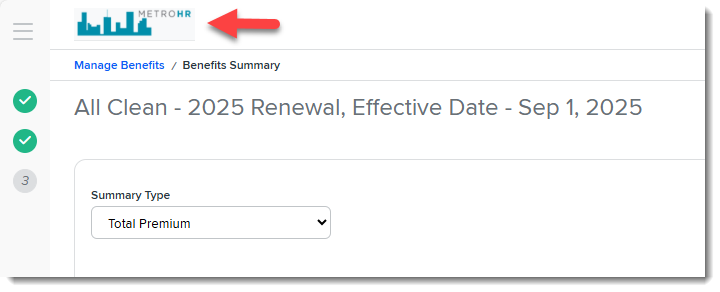
Optionally, add your company logo. The logo displays on the BPM Login window and in the header area throughout BPM:
To add a logo:
|
|
Do Not Show on BPM |
The Do Not Show on BPM multi-select lookup field allows you to always hide one or more of the following plans in BPM if you do not offer them: HSA, FSA, Commuter Plan. Select one or more plans as applicable. The selected plans will not appear on the Selection Summary/Signature page of BPM.
|
|
Do Not Show EK |
Select Yes to hide the Domestic Partner (EK) column on the BPM Selection Summary/Signature page of BPM. Select No to display the Domestic Partner (EK) column on the BPM Selection Summary/Signature page. Note: If you want to also hide the Domestic Partner coverage level in the BPM Group Summary and Plan Comparison grids, see Configuring the Benefits Plan Prism Coverage Levels Fieldset. |
|
BPM Rename EK |
Enter a column name to replace the Domestic Partner column label on the on the BPM Selection Summary/Signature page. Note: If you want to also rename the Domestic Partner coverage level in the BPM Group Summary and Plan Comparison grids, see Configuring the Benefits Plan Prism Coverage Levels Fieldset. |
|
View Only on BPM |
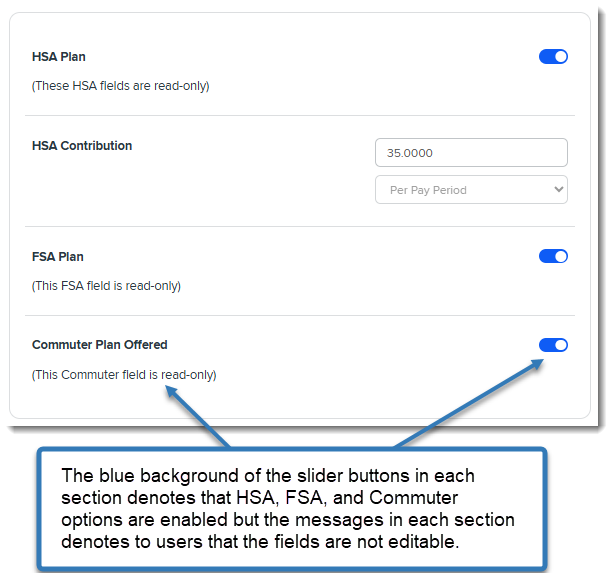
The View Only on BPM multi-select lookup field allows you to make the Waiting Period, HSA Plan, HSA Contribution, FSA Plan, and Commuter Plan Offered options read-only for clients in BPM. Clients can view the selected items in BPM but cannot change them, and a message in each area indicates that it is read-only. If all options in a panel are set to read-only, the Save button is hidden as shown in the example excerpt from the BPM Selection/Summary page where the HSA Plan, HSA Contribution, FSA Plan, and Commuter Plan Offered areas are all read-only:
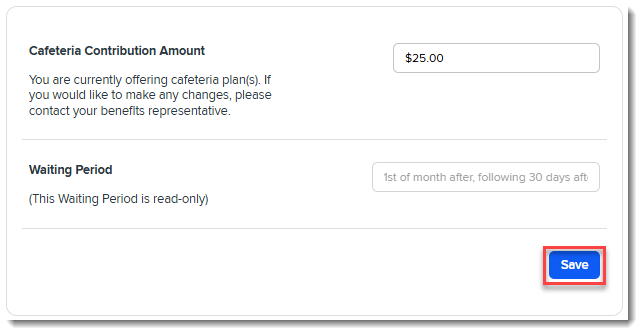
The Save button is available when at least one option in the panel is not read-only as shown in the excerpted panel from the Group Summary page below where Waiting Period is read-only the editable Cafeteria Plan option is also present in the panel:
Note: If HSA, FSA, or Commuter Plan is also selected in the Do Not Show on BPM multi-select lookup field, this setting will take precedence. Selected options will not display at all in BPM. |
 (
(
-
Click Save on the BPM Config dataform.