Configuring BPM Business Rules
The following table lists BPM business rule methods and their definitions:
| Method | Description | Parameters/Configuration Details |
|---|---|---|
| _SetFieldValue |
This business rule method is not specific to BPM but is used in the following two, preconfigured BPM business rules on the Benefits Batch dataform used to automatically set the value in the ClientSpace Open to BPM field to Yes or No:
|
See the Open to BPM Rules section below. |
|
RejectOBPs |
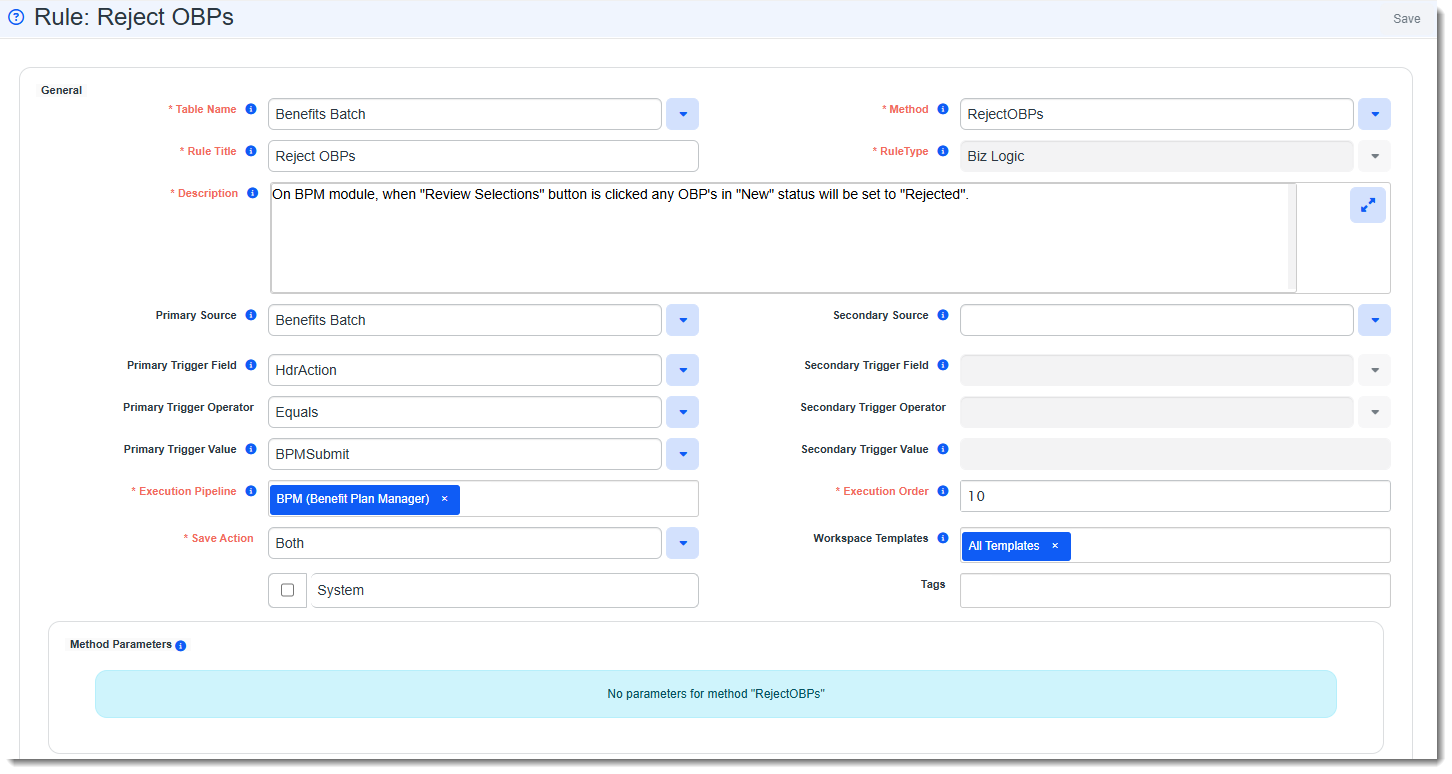
The RejectOBPs business rule method is used to create the Reject OBPs business rule, a Save operation rule that uses the BPM pipeline and the BPMSubmit Header Action(HdrAction). This is one of the six HdrAction triggers used to create Save operation business rules in BPM. Each unique HdrAction allows tracking of the Save operation source. |
See the Reject OPBs and Other Save Operation Rules section below. |
|
HE_PreventBPMDuplicate |
The HE_PreventBPMDuplicate business rule method is used to configure the Prevent BPM Duplicate Records From Add BPM business rule. This rule prevents duplicate BPM contact records from being added to the Renewal Client Contact field or Additional BPM Contacts window of the Benefits Batch. It searches all Active and Inactive contact records for the PKID, Email or Mobile number of the record being added or updated. If one or more duplicate values exist, the following error message displays: "A BPM Contact record already exists for this user. Please locate and update the existing BPM Contact record instead." |
This rule is pre-configured and Active by default. General Settings:
Method Parameters: None |
|
HE_RenewalContactEmail |
The HE_RenewalContactEmail business rule method is used to configure the Renewal Contact Has Email business rule. If you attempt to select a contact record with no email address, the rule triggers the following hard error message: "A required email address for the Renewal Client Contact is missing. You must add an email before continuing."
Additional Notes:
|
General Settings:
Method Parameters: None |
|
HE_RequirePlanMax SE_RequirePlanMax |
These business rule methods are used to enforce the maximum number of benefit plans which can be marked Selected per benefit plan category OR per benefit plan group within a benefit plan category on a plan. Note: These business rule methods can be configured in both ClientSpace and (Benefit Plan Manager) BPM. When configuring a rule using these methods for both BPM and ClientSpace, BPM (Benefit Plan Manager) must be added to the Execution Pipeline of the business rule configuration. |
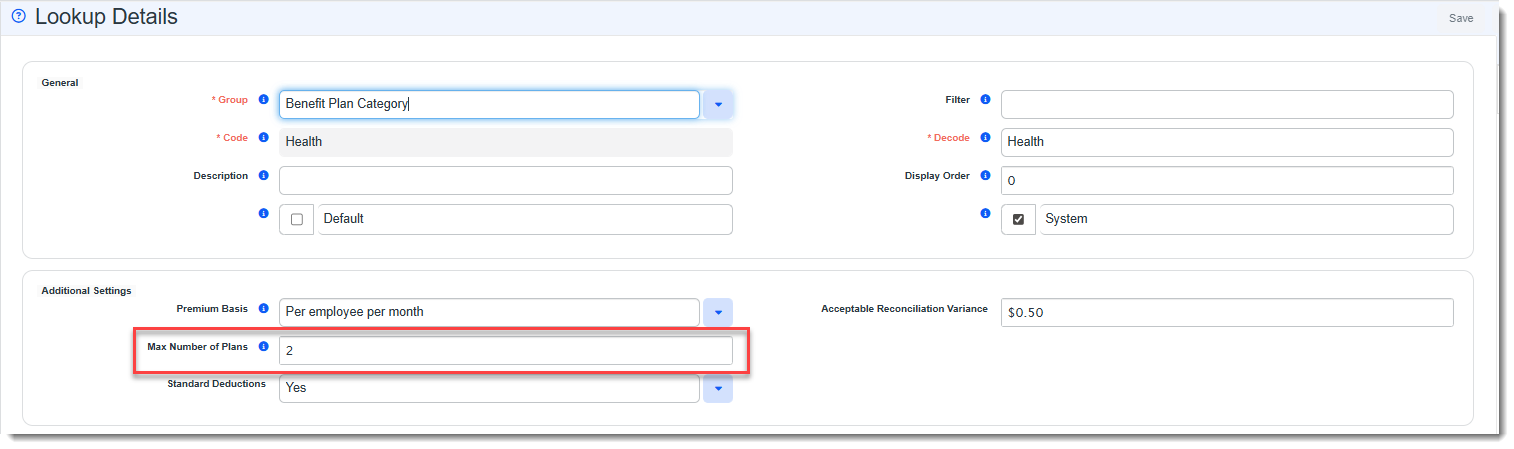
Step 1: Set the Max Number of Plans field on the Benefits Plan Category Metadata form. Note: This metadata form is attached to the Benefit Plan Category Lookup Group Details form (System Admin Edit the Benefit Plan Category Lookup Details form for each benefit plan category (i.e., Health, Dental, Vision, etc.) where you want to specify a maximum number of plans which can be added:
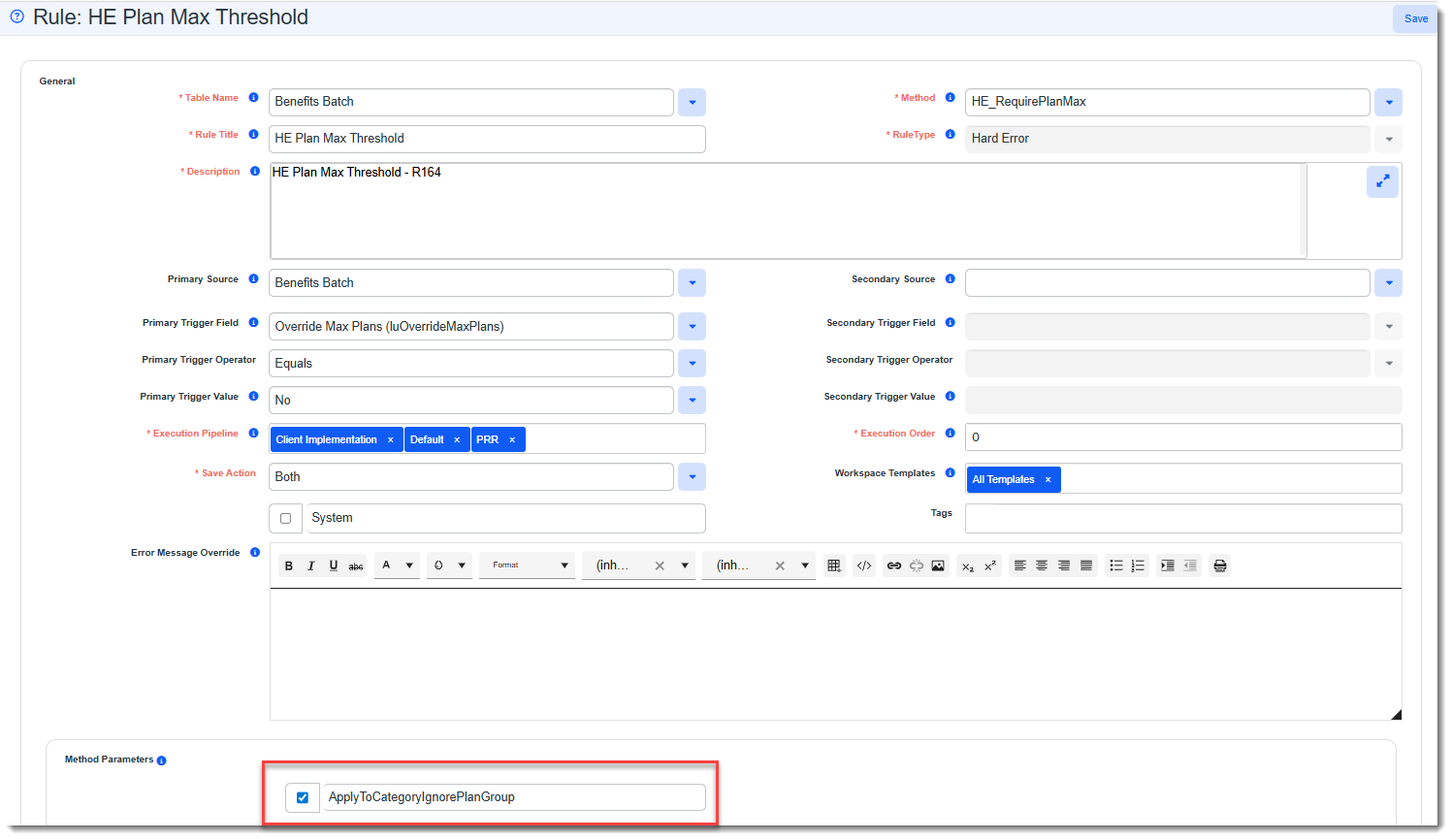
Step 2: Set up a rule with the desired business rule method, HE_RequirePlanMax and SE_RequirePlanMax, to enforce the Max Number of Plans configurations. Optionally, click the ApplyToCategoryIgnorePlanGroup checkbox in the "Method Parameters" section to enforce a single maximum across the entire benefit category. EX: If 5 is set as the Max Number of Plans for the Health benefit plan category on the Benefits Plan Category Metadata form, you can select up to five total Health plans, no matter which group.
When this parameter is unchecked, the limit applies separately to each group within a plan category. EX: If 5 is set as the Max Number of Plans for the Health benefit plan category on the Benefits Plan Category Metadata form, you can select up to five Health plans per group within each category. Therefore, if you had an Employee group and a Managers group within the Health category, both groups could have up to 5 plans selected. When the rule triggers and the Max Number of Plans is exceeded for a benefit plan category (or benefit plan category group, depending on the ApplyToCategoryIgnorePlanGroup parameter setting) , the following message is displayed: "You've exceeded the '[Benefit Plan Category]' limit (X allowed, X selected); please adjust your plans."
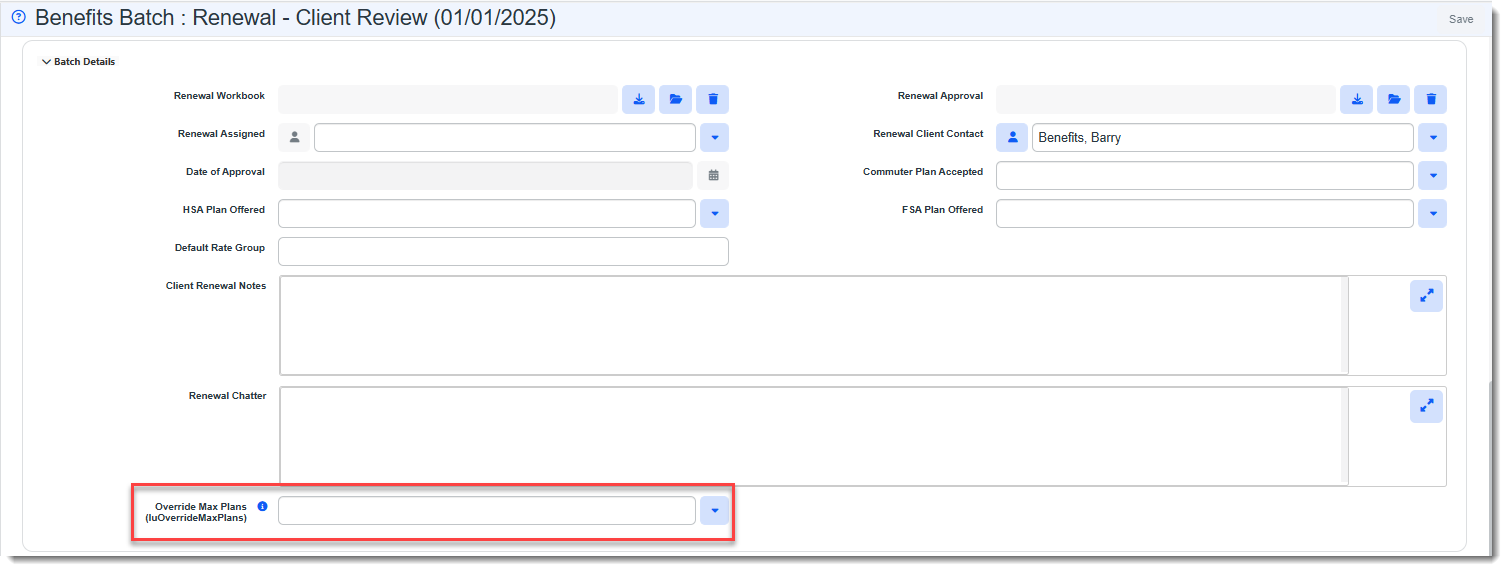
As HE_RequirePlanMax is a hard error message method, when it is triggered, a user cannot proceed with saving until they adjust the plans, unless the Override Max Plans field is set to Yes on the Benefits Batch. As SE_RequirePlanMax is a soft error message method, the user can click Save Anyway to save the current plan configurations. Note: When this rule is configured for both BPM and ClientSpace, BPM must be added to the Execution Pipeline of the business rule configuration. Step 3: Optionally, if you are using the HE_RequirePlanMax hard error message method, you can set the Override Max Plans lookup field value on the Benefits Batch dataform on a per batch basis.
This allows you to override the Max Number of Plans setting(s) on a "per batch" basis when you are using the HE_RequirePlanMax hard error message method. Valid lookup values are Yes, No or blank. When set to Yes, users can add unlimited plans per category. When set to No or blank, any Max Number of Plans values set for each benefit plan category are evaluated upon Apply or Save and the HE_RequirePlanMax hard error message is triggered if any of the configured values are exceeded. Also see Business Rule Methods and Adding a Benefits Batch. |
|
HE_DisallowPercentOver100 |
This business rule method is used in a business rule named Amount over 100 Not allowed for EO, ES, EC, EF, EK (System Admin
Note: This rule is preconfigured and Active by default for both ClientSpace and Benefit Plan Manager (BPM).
The rule prevents users from entering contribution percentages over 100% on an Offered Benefit Plan (OBP) in the EO%, ES%, EC%, EF%, EK% or Dependent Contrib% fields located in the Employer Contributions (%) fieldset. If you enter a value greater than 100% and click Apply or Save, the following error message displays :
"Enter a value of at most 100." Note: The message may vary from the example shown above if the Error Message Override field is used in the business rule configuration to change the default message text. |
This rule is pre-configured. You may edit the default message text.
Note: Be certain to add BPM (Benefit Plan Manager) to the Execution Pipeline of the business rule configuration.
Also see Business Rule Methods |
|
HE_LowCostPlan |
The HE_LowCostPlan business rule method allows you to configure a business rule in ClientSpace and BPM that checks the offered benefits plans (OBPs) in a Benefits Batch for the Employee Only (EO) coverage level, minimum company contribution on a low cost plan by plan category (i.e., Health, Dental, Vision, etc.) and displays a hard error message if the requirement is not met.
Note: You must set the minimum required contribution as a percentage for at least the Employee Only (EO) coverage level on the low-cost plan as well as on all other plans in the Benefit Plan Category lookup specified in the Method Parameters to satisfy the requirement. |
Method Parameters:
The following error message displays based on parameter configuration: Your low cost [Benefit Plan Category] Plan "[Plan Name]" is $[Employer Contribution Amount], you must contribute at least $[Calculated Minimum Contribution] to all of your [Benefit Plan Category] plans. Note: Be certain to add BPM (Benefit Plan Manager) to the Execution Pipeline of the business rule configuration. Also see Business Rule Methods |
|
HE_RequirePlanByCategoryType |
This business rule method is used to require dependent plans by Plan Category only or by Plan Category and Plan Type combined in ClientSpace and BPM. |
Method Parameters:
A hard error rule created using this method is triggered on Apply or Save when there is an OBP on a Benefits Batch that matches the PlanCategory parameter orPlanCategory/PlanType parameters combined and there are one more OBPs in "New" or "Rejected" status (instead of "Selected" status) on the Benefits Batch which match the specified PlanCode parameter. The user must change the status of the dependent plan(s) to "Selected" to continue. Note: ClientSpace validates the PlanCategory, PlanType and PlanCode parameters based on the Benefit Plan record from which the OBP was created. If there are no OBPs in the batch which match the parameters, the rule is skipped. The following error message displays based on method parameter configuration:
Additional Notes:
Business rule [Business Rule Name] is misconfigured and missing one of the required fields. Please contact your ClientSpace Administrator for more information.
Also see Business Rule Methods |
|
HE_RequirePlanDependency |
This business rule method is used to require dependent OBPs that have the same Plan Dependency flag set on the Benefit Plan record from which the OBPs were created in ClientSpace and BPM. |
Method Parameters:
A hard error rule created using this method is triggered on Apply or Save when there are one or more OBPs in a Benefits Batch in "New" or "Rejected" status (instead of "Selected" status) which match PlanDependency parameter specified in the rule. Note: ClientSpace validates the PlanDependency parameter based on the value identified in the Plan Dependency field on the Benefit Plan record from which the OBP was created. If there is no Plan Dependency identified on a Benefit Plan associated with an OBP, the rule does not fire for that OPB. The following error message displays: You selected a plan in the [Benefit Plan Dependency Bundle] Benefit Plan Dependency Bundle plan, this requires that you select all [Benefit Plan Dependency Bundle] plans. The plans the user needs to select are listed in the message below the error. Additional Notes:
Business rule [Business Rule Name] is misconfigured and missing one of the required fields. Please contact your ClientSpace Administrator for more information.
Also see Business Rule Methods |
 >
> 
Open to BPM Rules
BPM uses two business rules on the Benefits Batch dataform to automatically set the value in the Open to BPM field to Yes or No:
-
Set Open to BPM to Yes when Client Review: Sets the Open to BPM field value to Yes when the Benefits Batch Status field is set to Client Review. The rule is triggered when the Client Review workflow link is clicked or when Client Review is manually selected in the Status field on the Benefits Batch.
-
Set Open to BPM to No if Not Client Review: Sets the Open to BPM field value to No when the Benefits Batch Status field contains any value other than Client Review and also triggers a "Not Authorized" error message when a user with an external link attempts to access the Benefits Batch in BPM. The rule is triggered when workflow links are clicked which change the Status to something other than Client Review or when a value other than Client Review is manually selected in the Status field on the Benefits Batch.
Both rules use the _SetFieldValue business rule method.
Configuring "Set Open to BPM to Yes when Client Review"
To configure the "Set Open to BPM To Yes when Client Review" rule:
-
Go to System Admin
 > Advanced > Manage Business Rules.
The Custom Logic Rules dashboard opens.
-
What do you want to do?
-
To add a business rule: Click Add.
-
To edit an existing rule: Locate the "Set Open to BPM To True when Client Review" rule in the grid, select it, and then click Edit.
-
-
Complete the following fields:
Field Name
Definition
Table Name
This is the dataform where this rule will execute when the dataform is saved. Select Benefits Batch.
Method
Select _SetFieldValue.
Rule Title
The default title is: Set Open to BPM to True when Client Review.
Description
'Open to BPM' field is set to 'Yes' when the status is 'Client Review'.
Primary Source
Select Benefits Batch.
Primary Trigger Field
Select Status.
Primary Trigger Operator
Select Equals.
Primary Trigger Value
Select Client Review.
Execution Pipeline
Set to Default, Imports.
Execution Order
This field controls the order in which rules execute. Rules execute from the lowest to the highest number. It may be necessary to look at other rules already configured on this dataform to determine the order of precedence for executing rules. The default is 0.
Save Action
Select Both.
Workspace Template
Select All Templates.
sFieldName
Enter luOpenToBPM.
SFieldValue
Enter Yes.
-
Click Save.
The Rule Details form opens.
Configuring "Set Open to BPM to No if Not Client Review"
To configure the "Set Open to BPM to No if Not Client Review" rule:
-
Go to System Admin
> Advanced > Manage Business Rules.
The Custom Logic Rules dashboard opens.
-
What do you want to do?
-
To add a business rule: Click Add.
-
To edit an existing rule: Locate the "Set Open to BPM to No if Not Client Review" rule in the grid, select it, and then click Edit.
The Rule Details form opens.
-
-
Complete the following fields:
Field Name
Definition
Table Name
This is the dataform where this rule will execute when the dataform is saved. Select Benefits Batch.
Method
Select _SetFieldValue.
Rule Title
The default title is: Set Open to BPM to No if Not Client Review.
Description
'Open to BPM' field is set to 'No' when the status is not in 'Client Review'. Also triggers a "Not Authorized" error message when a user with an external link attempts to access the Benefits Batch in BPM.
Primary Source
Select Benefits Batch.
Primary Trigger Field
Select Status.
Primary Trigger Operator
Select Does Not Equal.
Primary Trigger Value
Select Client Review.
Execution Pipeline
Set to Default, Imports.
Execution Order
This field controls the order in which rules execute. Rules execute from the lowest to the highest number. It may be necessary to look at other rules already configured on this dataform to determine the order of precedence for executing rules. The default is 0.
Save Action
Select Both.
Workspace Template
Select All Templates.
sFieldName
Enter luOpenToBPM.
SFieldValue
Enter No.
-
Click Save.
Reject OPBs and Other Save Operation Rules
All BPM Save operations are routed through the BPM pipeline. The RejectOBPs business rule method is used to create the Reject OBPs business rule, a Save operation rule that uses the BPM pipeline and the BPMSubmit Header Action(HdrAction). This is one of the six HdrAction triggers used to create Save operation business rules in BPM. Each unique HdrAction allows tracking of the Save operation source.
The HdrAction triggers are as follows:
| Save Operation | HdrAction Trigger Value |
|---|---|
|
The Welcome Page |
BPMWelcome |
|
When Review Selections is clicked |
BPMSubmit |
|
When a plan is selected, rejected or dropped from Plan Comparison |
BPMPlanSelection |
|
When Contributions or Enrollment Counts are updated |
BPMPlanContribution |
|
When HSA/FSA options are saved |
BPMHSAUpdate |
|
When the Finalize button is clicked |
BPMBatchApprove |
The example below of Reject OPBs business rule configuration shows how a Save operation business rule is set up for BPM. The Primary Trigger Field = HdrAction, the Primary Trigger Operator = Equals, the Primary Trigger Value = BPM Submit ,and the Execution Pipeline = BPM. For a different save operation, a different Primary Trigger Value would be selected: