Generating Import Mapping Templates
You can generate import template files containing import map header column names only or detailed import mapping information containing import header column names and field mapping details.
How this can help: When requesting assistance from ClientSpace support staff with import mapping, you can ensure that you are providing your import mapping information to them in a ClientSpace-supported format that they can use for troubleshooting. This eliminates time spent getting the file into a supported format which may result in shorter resolution times.
Generating a Detailed Excel Import Mapping Template
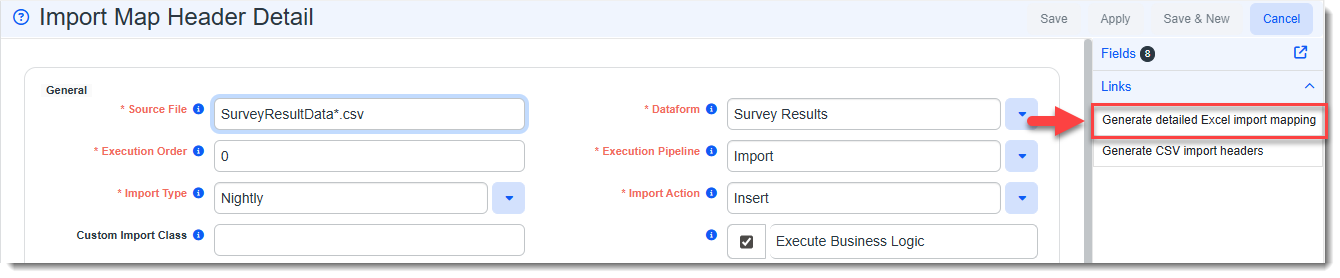
The Generate detailed Excel Import mapping link in the Action Center of the Import Map Header Detail record generates a two-page Excel workbook containing import map headers on the Headers tab (Page 1) and import map detail record field descriptions on the Field Descriptions tab (Page 2.)
Headers tab (Page 1) Example:

Field Descriptions tab (Page 2) Example:

To generate a detailed Excel import mapping template:
-
Go to the Import Map Header Search dashboard (System Admin
 > Advanced > Configure Import).
 -
In the dashboard grid, open the desired Import Map Header record using one of the following methods:
-
Select the record you want to open and then click Edit on the dashboard toolbar.
-
Double-click the line item of the record to open it.
-
Click the Jump button next to the record to open it.
-
-
In the Action Center, click the Generate detailed Excel Import mapping link.
The template file is copied to your Windows Downloads folder. The file extension is .xlsx.
Generating a CSV Import Headers Template
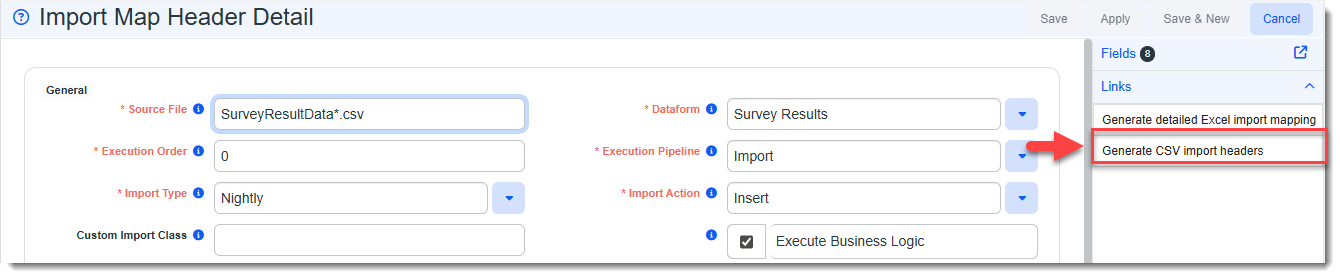
The Generate CSV import headers link in the Action Center of the Import Map Header Detail record generates a .CSV file containing import map headers. When opened in Excel, the file contains a single tab. The name of the tab is the same as the associated Import Map Header Detail Source File name.
Headers CSV Example:

To generate a CSV import headers template:
-
Go to the Import Map Header Search dashboard (System Admin
> Advanced > Configure Import). -
In the dashboard grid, open the desired Import Map Header record using one of the following methods:
-
Select the record you want to open and then click Edit on the dashboard toolbar.
-
Double-click the line item of the record to open it.
-
Click the Jump button next to the record to open it.
-
-
In the Action Center, click the Generate CSV import headers link.
The template file is copied to your Windows Downloads folder. The file extension is .csv.