Configuring the Salesforce Attachments Import
In this topic we cover an overview and the additional steps required for the configuration of the ClientSpace Salesforce API Attachments Import from Salesforce to ClientSpace. The ClientSpace team member assigned to assist you with the implementation performs many of these steps but may call on a designated person at your company to assist if needed.
Note: For multiple instances of Salesforce, every instance of Salesforce must have its own API Configuration with a unique WorkQueueInstance parameter defined for each Salesforce instance. Each Salesforce instance should have its own import/export configuration as well. See Connecting Multiple Salesforce API Instances to a Single ClientSpace Installation and Additional Salesforce Parameters.
Overview
Attachments from Salesforce Account or Opportunity records can be imported to ClientSpace in the following locations:
-
Salesforce Account records are added to the ClientSpace Organization Attachments pane in the Action Center.
-
Salesforce Opportunity records are added on the associated Client Master Attachments pane in the Action Center.
Once properly configured, when the Salesforce scheduled process (Salesforce Sync Rest API) runs, Salesforce work queue records with the Completed flag unchecked and the File Download Only flag checked are processed for import of file attachments into ClientSpace.
Note: When the File Download Only flag is checked, only file attachments on the Salesforce Account or Opportunity record will import into ClientSpace. When File Download Only is unchecked, only Salesforce Account or Opportunity record updates will import. Record updates are imported in their own work queue record. Record updates and file downloads cannot be in the same work queue record.
How Attachments are Processed
-
When a work queue insert occurs in Salesforce where the File Download Only flag is checked and the Completed flag is unchecked, the Object_Record_ID and Object from the Account or Opportunity work queue record are evaluated against the ClientSpace External Source Linking (ESL) record of the corresponding ClientSpace Organization record or Workspace dataform record.
Note: The Object_Record_ID (Object_Record_ID__c) field contains the Salesforce ID of the Salesforce Account or Opportunity record. The Object (Object__c) field contains the Object type (i.e., Account or Opportunity).
-
This process of looking for a match between an Account or Opportunity Object_Record_ID and Object and an Organization or Workspace ESL is the first step in determining whether the attachment file download can be imported:
-
If an ESL match does not exist, this means that there is no corresponding ClientSpace Organization record or Workspace record to which the attachment file can be added. The file download is skipped and a message similar to the highlighted message below is recorded in the SFDC API Log report:

Note: This same event is also recorded when the import map header file is missing or inactive. The "CS ESL record not found" portion of the message means that ClientSpace cannot find an External Source Linking (ESL) record that matches the Salesforce Account or Opportunity. The Salesforce Account or Opportunity may exist in Salesforce but may not have been imported into ClientSpace yet.
-
If an ESL match does exist:
-
The file import begins and ClientSpace now evaluates the Object_Record_ID and Object (i.e., Account or Opportunity) of the file attachment record to determine if it already exists on the corresponding ClientSpace Organization record or Workspace record. If the file exists, the attachment file is overwritten. If the file does not exist, the attachment file is inserted as a new attachment.
Note: There is no file versioning. If the file already exists, it is overwritten.
-
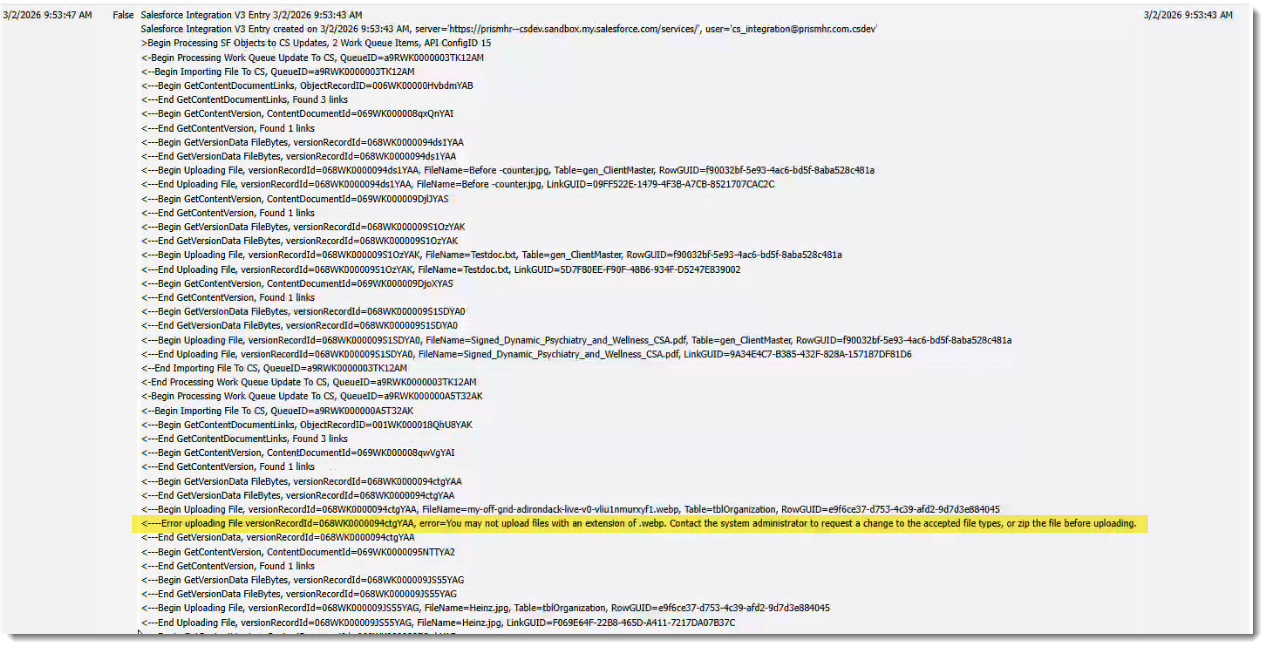
Each file download is also evaluated to ensure its file extension matches a supported file extension in ClientSpace. If it does not, the file download is skipped and an error message similar to the highlighted message below is added to the SFDC API Log report:
-
-
Configuration Specifications for Implementing File Attachments Import
Detailed steps for setting up a Salesforce API Configuration can be found in Configuring the Salesforce API in ClientSpace. This section highlights the additional settings required for configuring the file attachments import from Salesforce to ClientSpace.
Work Queue Configuration
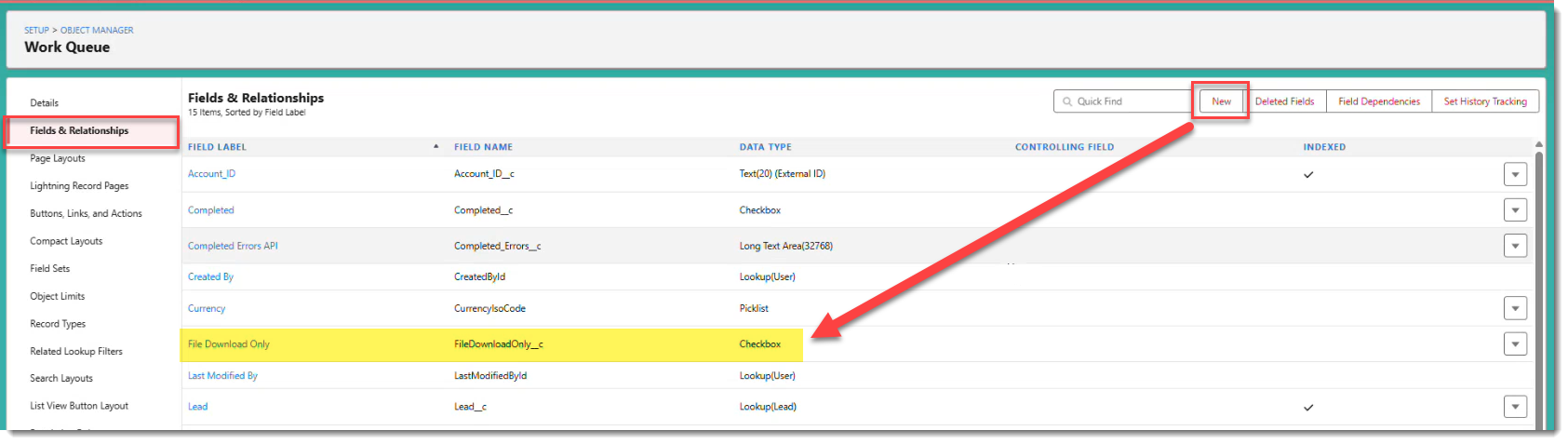
In Salesforce Work Queue Configuration settings (Setup > Object Manager > Work Queue > Files & Relationships), a Salesforce Administrator must create a custom checkbox field named FileDownloadOnly__c .
Salesforce Import Mapping
On the Salesforce import mapping file(s), click Fields to access the Import Map Search dashboard and then Add the Import Map Detail records.
Note: If you have multiple instances of Salesforce, you will have multiple Import Map Header records and will need to add Import Map Detail records for each Salesforce instance.
You can configure any dataform with a Salesforce ESL record to receive imported Salesforce attachments by using a File Column name format of Attachment_gen_DataformName and setting the API Path on the Import Map Detail record . We have provided sample configuration in the tables below for the Client Master and Organization dataforms.
Import Map Detail 1: Attachment_gen_ClientMaster
| Field | Description |
|---|---|
| File Column | Enter Attachment_gen_ClientMaster |
| Dataform |
Leave blank. |
| Data Type, Default Value, Required Column, Required Value |
These fields are ignored. Leave set to default values. |
| API Path |
Enter Opportunity/Attachment |
|
Description |
Optional. EX: File download from SF Opportunity to ClientMaster of workspace |
Import Map Detail 2: Attachment_gen_ImportOrganization
| Field | Description |
|---|---|
| File Column | Enter Attachment_gen_ImportOrganization |
| Dataform |
Leave blank. |
| Data Type, Default Value, Required Column, Required Value |
These fields are ignored. Leave set to default values. |
| API Path |
Enter Account/Attachment |
|
Description |
Optional. EX: File download from SF Account to Organization |