R164 Sprint: 5/1/2026 to 5/31/2026. To learn about product features that you may not recognize, contact ClientSpace Professional Services.
Release Schedule
Release updates are implemented by the group, as indicated in the following table.
The release schedule is subject to change and updated as required. To determine your group or ask questions, please log a case for ClientSpace Professional Services.
|
Sprint 5/1/2026 to 5/31/2026 |
||
|---|---|---|
|
Upgrade groups |
Date of upgrade |
Tentatively occurs on |
| Group 1 | First Tuesday of the month | June 2, 2026 |
| Group 2 | Second Tuesday of the month | June 9, 2026 |
| Group 3 | Third Tuesday of the month | June 16, 2026 |
Enhancements
Enhancement groups are Change in Functionality, ClientSpace Premium (ClientSpace with additional modules), Advanced Administration, General, and Staffing.
ClientSpace Premium
Benefit Plan Manager (BPM)
|
Case |
Enhancement |
|---|---|
| 77211 |
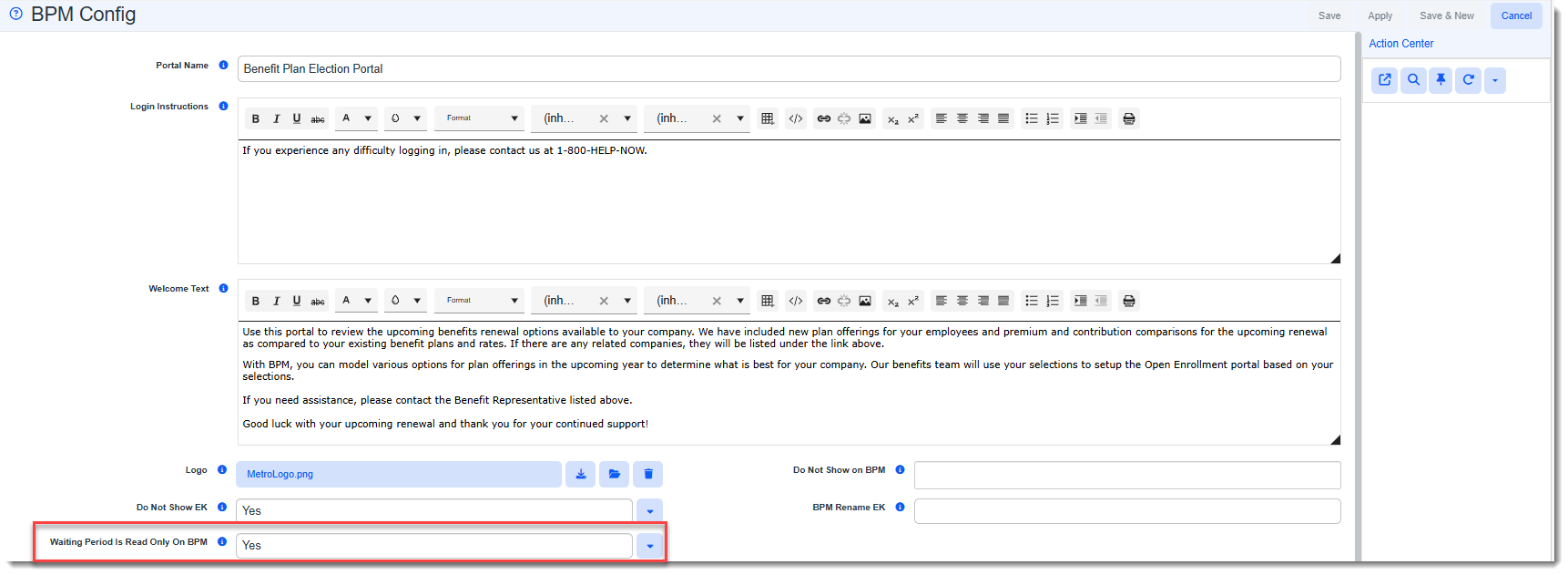
Added the Ability to Make "Waiting Period" Field "Read Only" A new field has been added to the BPM Config form (located in the Admin Workspace) named Waiting Period is Read Only on BPM.
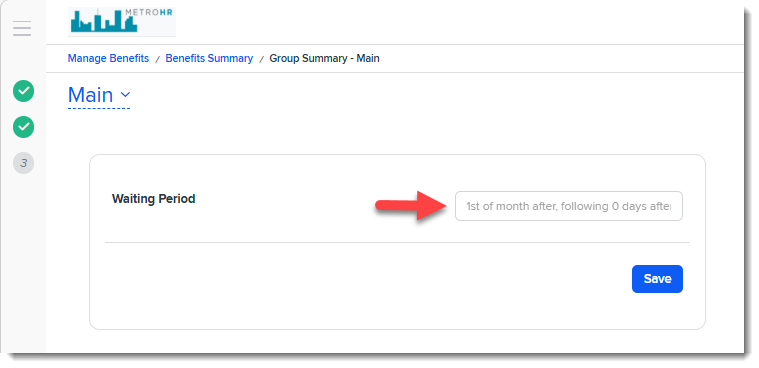
When the field is set to Yes, the Waiting Period field located on Manage Benefits > Benefits Summary > Group Summary is "read only" and cannot be edited as shown in the example below:
When the field is set to No (the default setting), the Waiting Period field is editable. |
| 77490 |
Modified "Related Companies" to Exclude Terminated and Inactive Clients or Clients With All Expired or Inactive Batches Companies are now excluded from the Related Companies popup window when:
See: |
|
77498 |
Added Contributions Support for Plan Type = Other You can now set up contributions for benefit plans with Plan Type = Other. Previously, the Summary tab (Manage Benefits > Benefits Summary > Group Summary > Summary) was disabled (grayed out) for these plans.
With this update:
To support this enhancement:
How it works: If "Suppress from Contributions Only" is selected in the Suppress from Presentation field on a Benefit Plan with a Plan Type of Other:
If "Suppress from Contributions Only" is not selected in the Suppress from Presentation field on a Benefit Plan with a Plan Type of Other:
Note: For all existing plans with Plan Type = Other:
|
|
77299 |
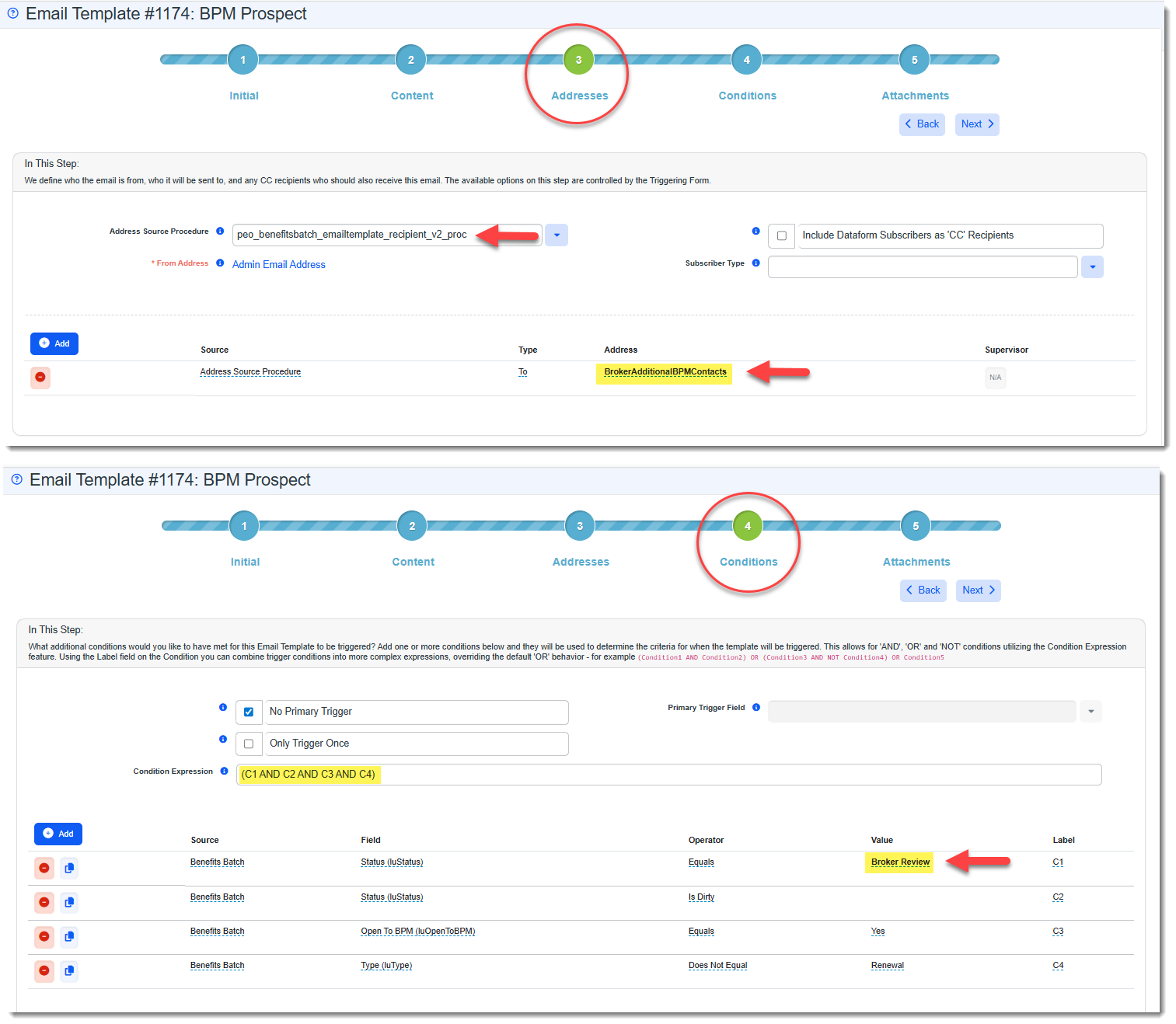
Added Ability to Present Plans to Brokers Prior to the Client Review You can now allow brokers to access and review Offered Benefit Plans (OBPs) in BPM prior to client access and review. To accomplish this, the following changes have been made:
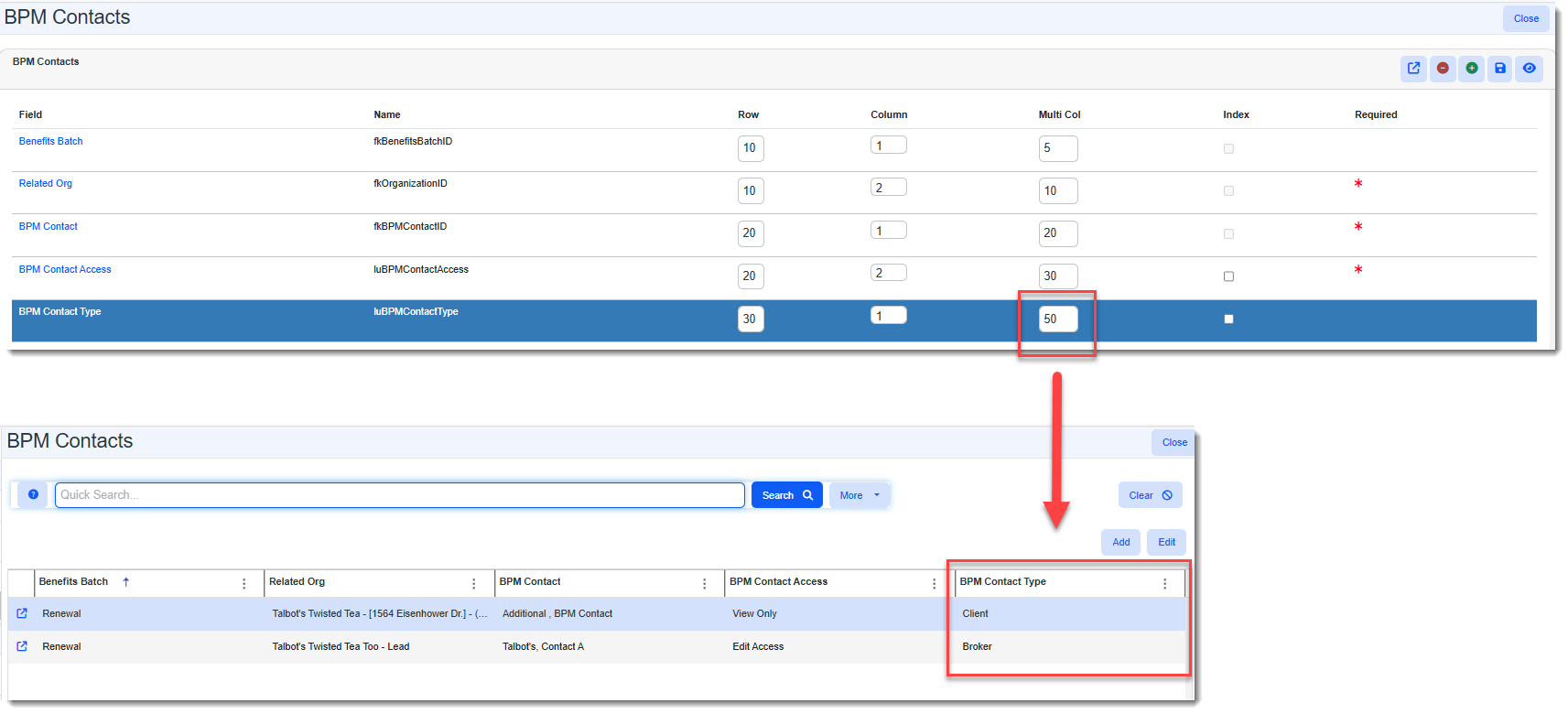
Tip: To see the BPM Contact Type associated with a contact record on the BPM Contacts dashboard, go to BPM Contacts dataform field properties and add a value in the Multi Col field for BPM Contact Type.
See: |
Other ClientSpace Premium
|
Case |
Enhancement |
|---|---|
|
77207 |
Modified "Combine EO and Dependent" Contribution Method When EE Premium = 0 Previously, the "Combine EO and Dependent" Contribution Method did not work properly in ClientSpace or BPM when the employee premium (EE Premium) was 0 and an "employee only" percentage (EO%) was entered. The percentage value entered in the EO% field was being reset to 0. Now, the value entered in the EO% field is held on the Offered Benefit Plan (OBP) and on the Summary (Contributions) tab of BPM. |
|
77679 |
Added Business Rule to Sync Benefit Parent Company from Client Master to Benefits Batch A new business rule titled Sets and Syncs the Benefits Batch Parent Benefit Company Field has been added. The rule uses the SetBenefitsBatchParentCompany method. The rule is Active by default on all pipelines and is triggered when the Benefit Parent Company field is populated or updated on the Client Master. The Client Master field value is saved to all Active Benefits Batches. Note: This includes updates to clear the Benefit Parent Company field. The field will also be cleared on affected Active Benefits Batches. |
|
77725 |
Updated Plan Maximum Business Rule Methods to Allow Enforcement by Group Within Category A new method parameter named ApplyToCategoryIgnorePlanGroup has been added to the HE_RequirePlanMax and SE_RequirePlanMax business rule method configuration settings (System Admin
Note: These method parameters can be configured for both ClientSpace and BPM.
IMPORTANT: With this update, the default behavior of rules configured using the HE_RequirePlanMax and SE_RequirePlanMax business rule methods will change. The ApplyToCategoryIgnorePlanGroup parameter is unchecked by default allowing the plan maximum to be enforced across each benefit group separately within a benefit category. Previously, the default functionality enforced the plan maximum across the entire benefit category.
See: |
| 77740 |
Added "Default Rate Group" as a Copied Field on Renewed Benefit Plans The Default Rate Group value (if present) is now copied to the new plan that is generated when a Benefit Plan is renewed. |
 >
> Advanced Administration and System Administration
|
Case |
Enhancement |
|---|---|
|
72370 |
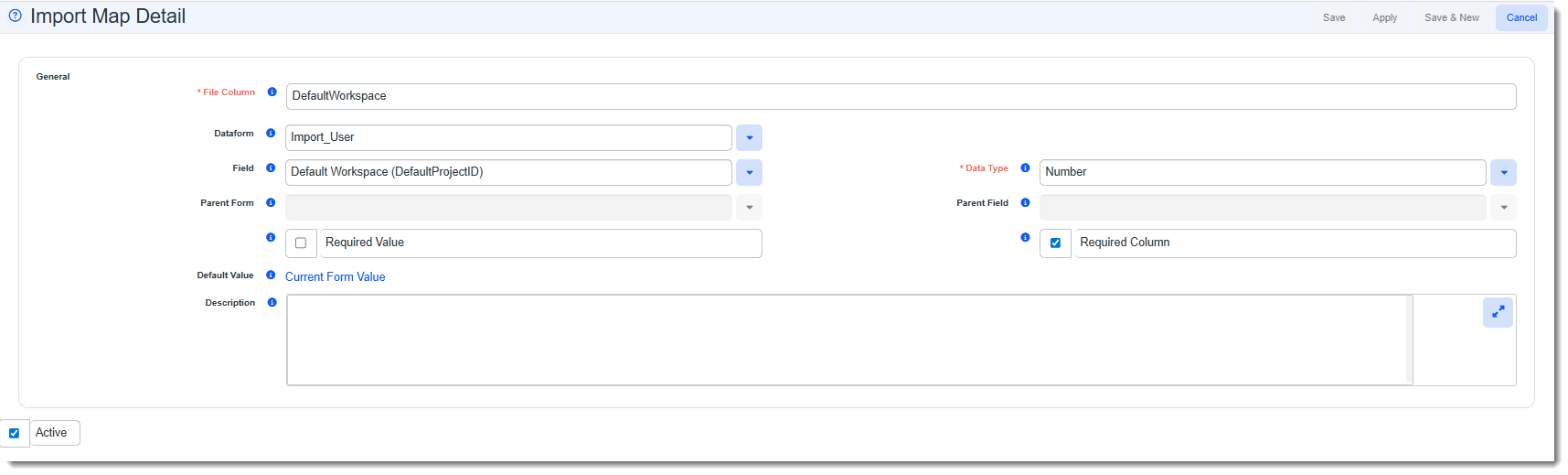
Updated Standalone Users Import to Update Template UserID Information The standalone Users import (IMPORT_user*.csv) was updated to insert/update external users. The standalone Users import was also updated to insert the following Template UserID information on internal and external users from the selected template user record:
Note:
IMPORTANT: Should you wish to import External users, this enhancement requires you to configure an Import Map Detail record (i.e., mapped field) on the IMPORT_user*.csv Map Header Detail record named DefaultWorkspace exactly as indicated below. Note that for internal user imports, the DefaultWorkspace column is ignored and does not affect inserts or updates.
Additional Notes:
See Configuring Users Import to Insert/Update External Users. |
|
75813 |
Added "Configure Global Search Results" Validation When you configure indexing on a dataform (by selecting the Index checkbox on one or more fields in Dataform Properties) without clicking the Configure Global Search Results button and entering, at minimum, a Title to display in the search results, the following warning message displays when you click Save
You can select OK to continue saving without making the recommended changes or you can click Cancel to abort the Save process and make the recommended changes. Additionally, if you add a Subtitle, Title is required. Attempting to save the Configure Global Search Fields form with only a Subtitle value entered results in a "Title is required" error displaying. |
|
76378 |
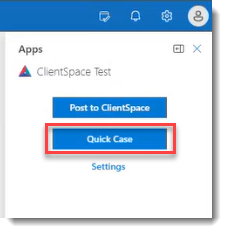
Added Outlook Email Integration Quick Case Feature A new Outlook Quick Case feature has been added that allows you to quickly generate a case from an email, importing the mapped field from the email into the new case record along with any email attachments.
Note: The Quick Case feature requires ClientSpace Release 164 or greater. How this differs from the Post to ClientSpace feature: With the Post to ClientSpace feature, you are presented with multiple options for importing the email details:
With the Quick Case feature, a new case is created immediately upon clicking Quick Case.
To support this feature, an Outlook Quick Case Create module has been added for use inside the Outlook Email Integration add-in. It includes an Email Addin Configuration field for mapping the email fields used to create the case as well as a Default Workspace field to identify the workspace where ClientSpace will create the case if it cannot find a workspace containing a matching email address on an employee or contact record. Note: If the module record is not configured with a Type of Outlook Quick Case, the Quick Case button will not display in the Outlook add-in interface. See Configuring the Outlook Add-In Module for Post to ClientSpace and Quick Case. |
|
77110 |
Added Ability to Generate Excel, Word and PDF Dataform Merge Procedures to Dataform Properties The following merge procedure links have been added to the Action Center of the Dataform Properties page (System Admin
Once you generate a dataform merge procedure, you can access it from Merge Admin (System Admin Note:
|
|
77334 |
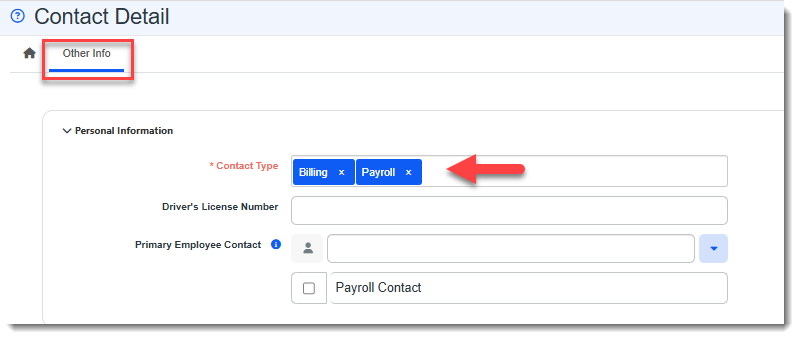
Updated PrismHR Initial and Ongoing Contact API to Support Importing Multiple "Contact Type" Values In the April PrismHR release, the PrismHR Contact Type field (Client > Change > Contacts) was updated to allow users to enter multiple values. To support importing these values from PrismHR, the PrismHR Contact API (PHRAPI_initial_contact*.csv and PHRAPI_contact*.csv) was updated to support importing multiple values and the Contact Type field on the ClientSpace Contact Detail form (Contacts module > Other Info tab) was changed to a multi-lookup field to hold multiple values.
|
|
77547 |
Added Ability to Make Forms "API-Enabled" by Global Administrators Global administrators with an Advanced System Admin license can access the Include in API checkbox to make a form "API-enabled" (i.e., available in the ClientSpace API). To accomplish this, the Include in API checkbox has now been moved from the "Developer Settings" fieldset (which is only visible to Developer users) of Dataform Properties into "Actions" fieldset of Dataform Properties (System Admin See Adding, Editing or Deleting a Dataform or Dataform Properties. |
| 77661 |
Added Global Search Configuration Access for Global Administrators Global administrator users with an Advanced System Admin license can now configure Global Search index, Title and Subtitle values on dataforms and tables. |
| 77871 |
Added Ability to Prevent API Users from Logging into ClientSpace Via the UI A new checkbox named Disallow UI Login has been added to the "Administrator Settings" fieldset of the User Details window (System Admin Note: The setting is not enabled for API users by default. You must apply the setting to the desired users' profiles. |
|
77972 |
Updated PrismHR API Processing of Manual Payroll Batches Previously, when a manual Payroll batch was processed using the Prism Import Payroll Batch Sync scheduled process, ClientSpace was incorrectly creating a billing voucher for each employee. Now, only one voucher per billing code is created. |
 on the Dataform Properties toolbar: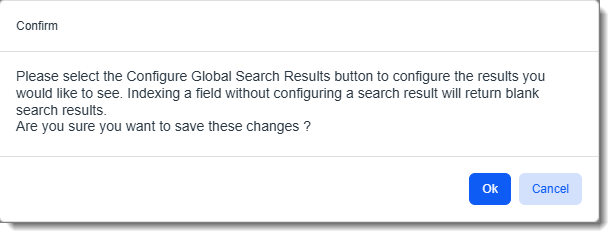
General User Enhancements
|
Case |
Enhancement |
|---|---|
|
73924 |
Added Ability to Turn off "Revert to Original Value" Functionality at the User Level Previously, "Revert to Original Value" functionality that allowed you to restore a previous value in an editable field could only be enabled or disabled at a system level. It was either on or off for all users. When turned on, if you made a change to a field, a popup displayed the original value so that you could choose to restore the previous value:
Now, if "Revert to Original Value" functionality is enabled at the system level, a Disable Original Value Popup checkbox displays on the User Details window. When the checkbox is checked, the "Revert to Original Value" functionality is disabled on the user profile. The User Details window can be accessed by a user (My Profile) or by a Global Administrator in System Admin (System Admin For user steps, see Personalizing Your User Profile For Global Administrator steps, see Adding and Editing User Accounts. |
|
74747 |
Added Ability to View Dataform Field Information from the Action Center A new field has been added to the Action Center More Options
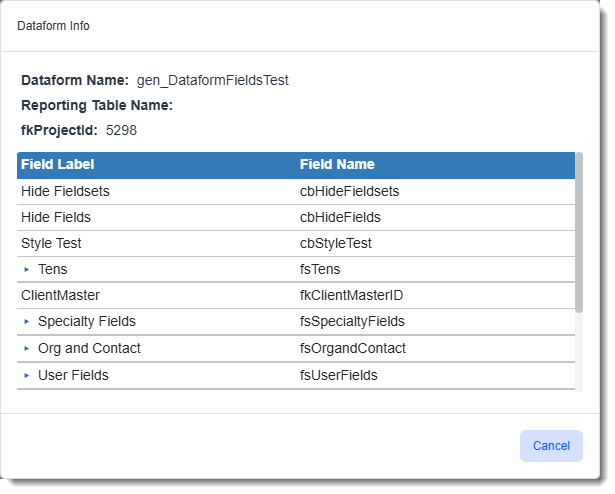
When the option is selected, the Dataform Info window displays the Dataform Name, Reporting Table Name (if present), fkProjectId, and the dataform fields.
This feature allows users to obtain dataform and field information without accessing System Administration (System Admin Note:
|
|
76795 |
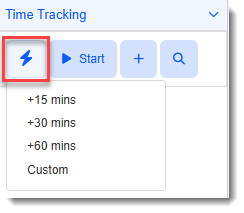
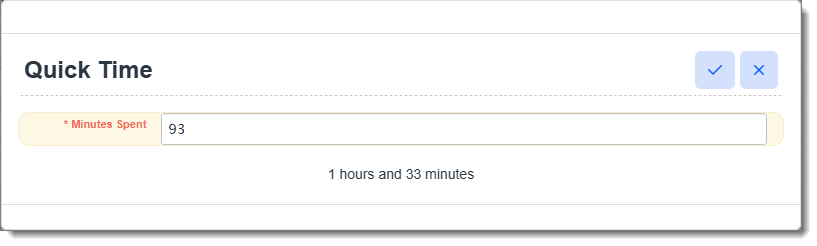
Added Time Tracker "Quick Time" and Custom Minutes Options A Quick Time
This feature allows you to quickly add a completed Manual time entry record of time already spent by displaying a list of time chip options as 15, 30, and 60 minutes:
The list also contains a Custom option (at the bottom of the list). When you select Custom, a Quick Time popup window displays prompting you to add time spent in minutes.
See Adding and Managing Time Tracker Entries from a Dataform. |
|
76812 |
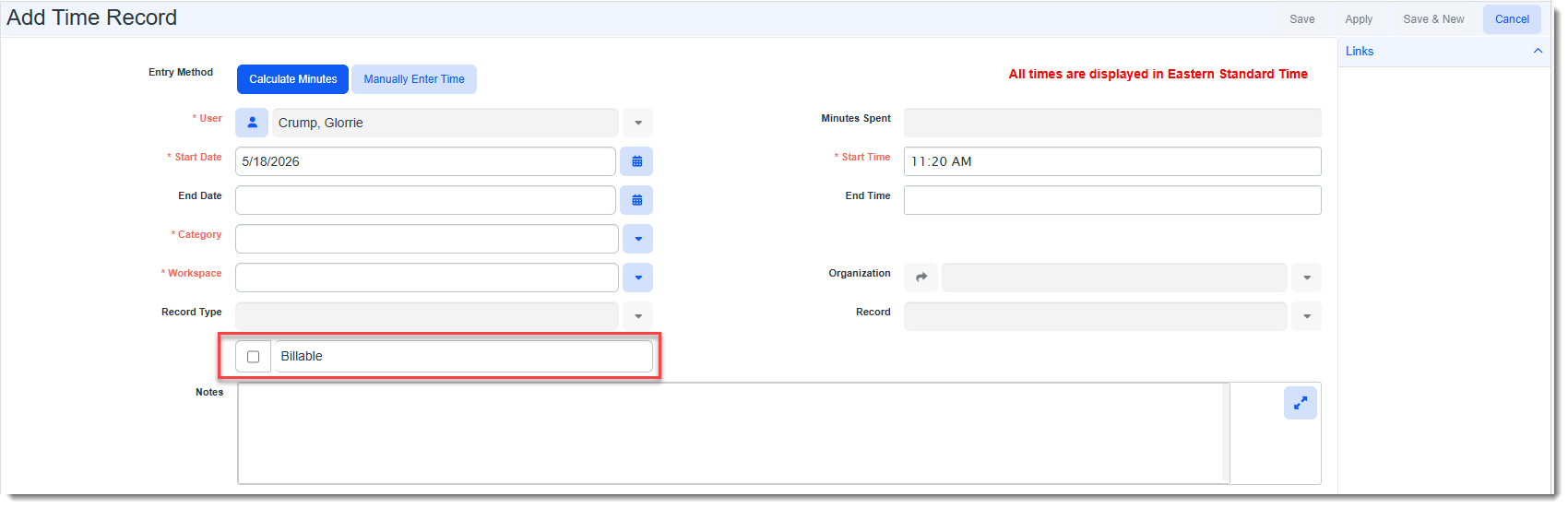
Added "Billable" Flag to Time Tracker A Billable checkbox has been added to Time Tracker.
Users with appropriate access to the new TimeTracker.Billable security entity can flag Time Tracker entries that should be billed by checking the Billable checkbox. Security entity access options must be assigned by a Global Administrator and are as follows:
See: |
|
76947 |
Added Time Tracker Interactive Stopwatch Icon An interactive Time Tracker Stopwatch When the timer is started on a time tracking record, the Stopwatch icon changes from blue to red.
Note: Click Refresh When the Stopwatch icon is red, you can click it to view a list of the last ten time tracking records associated with your user name. The first record in the list is the record with the active, running timer on it. Click on an item to open the record associated with the time tracking record. From there, you can view time tracking record in the Action Center where you can stop/start a timer or open the time tracking record and make additional changes.
Note:
|

 drop-down list named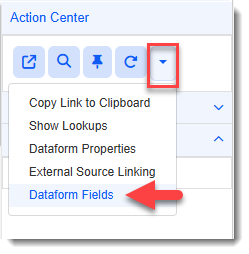
 next to a fieldset to display the fields within it.
 option has been added to the Time Tracking panel in the Action Center of time tracking-enabled dataforms: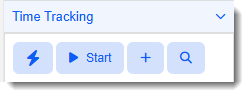
 icon has been added to ClientSpace. The icon displays in the upper right corner of the ClientSpace menu bar when the
 on your browser to update the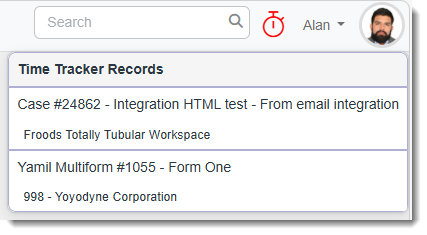
Performance
|
Case |
Enhancement |
|---|---|
|
77439 |
Improved Workspace Loading Times Related to Cases Widgets Previously, before a workspace containing a Cases widget (i.e., Client Service Cases, Client Service Cases - Last 30 Days and My Cases) could load, the employees list used to populate the Quick Case
Note: Although the My Cases widget does not display a Quick Case
If the workspace had a large number of employees, pre-loading the employees list could result in delayed workspace loading. Now, the employees list is no longer pre-loaded. Additionally, the Employee , Reporting Employee, and Reporting Contact fields on the Quick Case |

Technical Enhancements
|
Case |
Enhancement |
|---|---|
|
77563 |
Refactored Client Module Procedure The Client module procedure has been refactored to use Dynamic SQL. Additionally, the Decode value instead of the Code value is now used in the Contract Type, Contract, and Sales Region columns of the Client module search dashboard. |
Fixes
|
Case |
Issue summary |
Resolution |
|---|---|---|
|
77413 |
WC Claims Dashboard Displayed Duplicate Rows After Inactivating a Comp Claim Injury Record |
Previously, in a scenario where two Comp Claim Injury records got added to the same Comp Claim record and one of them was inactivated, WC Claims Dashboard still showed both rows. They appeared on the dashboard as duplicate record (though they did have different Comp Claim Injure ID numbers). Now, when there are multiple Comp Claim Injury records associated with the same Comp Claim Injury and one is inactivated, the inactivated record no longer displays on the dashboard. |
| 77997 |
Announcement Body Text Not Displaying |
Corrected an issue that occurred in ClientSpace Release 163 that caused the body text of Announcement module announcements to be blank when you clicked on the link in the Action Center to display it. |