Time Tracker Stopwatch
The Time Tracker Stopwatch  icon is an interactive icon that displays in the upper right corner of the ClientSpace menu bar when the Enable Time Tracking checkbox is enabled by a Global Administrator on the System Admin User Details window (System Admin
  > Resources > Users).
When There Is An Active Timer...
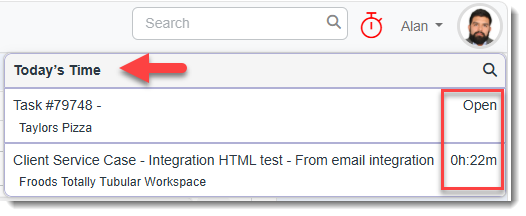
When the timer is started on a time tracking record, the Stopwatch icon changes from blue to red:

When the Stopwatch icon color is red, indicating an active, running timer, clicking the icon displays today's records with the active record displayed at the top and flagged as "Open". For all other records, the tracked time displays in hours and minutes next to each record.
Note:
-
There can only be one time tracking record with an active, running timer at a time in ClientSpace and it always appears at the top of the list.
-
Starting a timer on a different record will stop the currently running timer.
When There Is No Active Timer...
When the Stopwatch icon is blue, indicating no active, running timer, clicking the icon displays today's records with the most recent record displayed at the top. Tracked time in hours and minutes displays for each record.
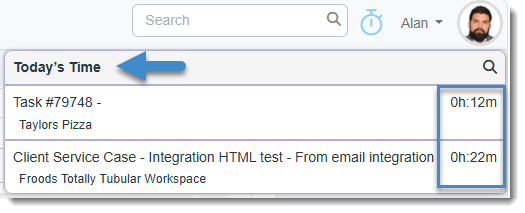
Cumulative time for the same record is consolidated into one record in the list. For example, 20 minutes tracked at one point in the day and 10 minutes tracked at a different point in the day displays in the Stopwatch list as one record with 0h:30m of tracked time.
View All
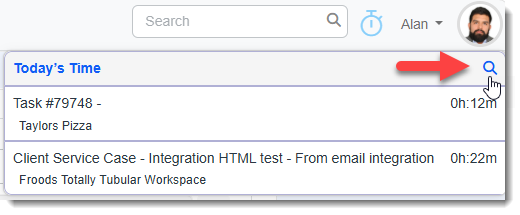
Click the View All  icon in the Stopwatch list header to open the Time Tracker module pre-filtered to display today's time tracking records associated with your user name.
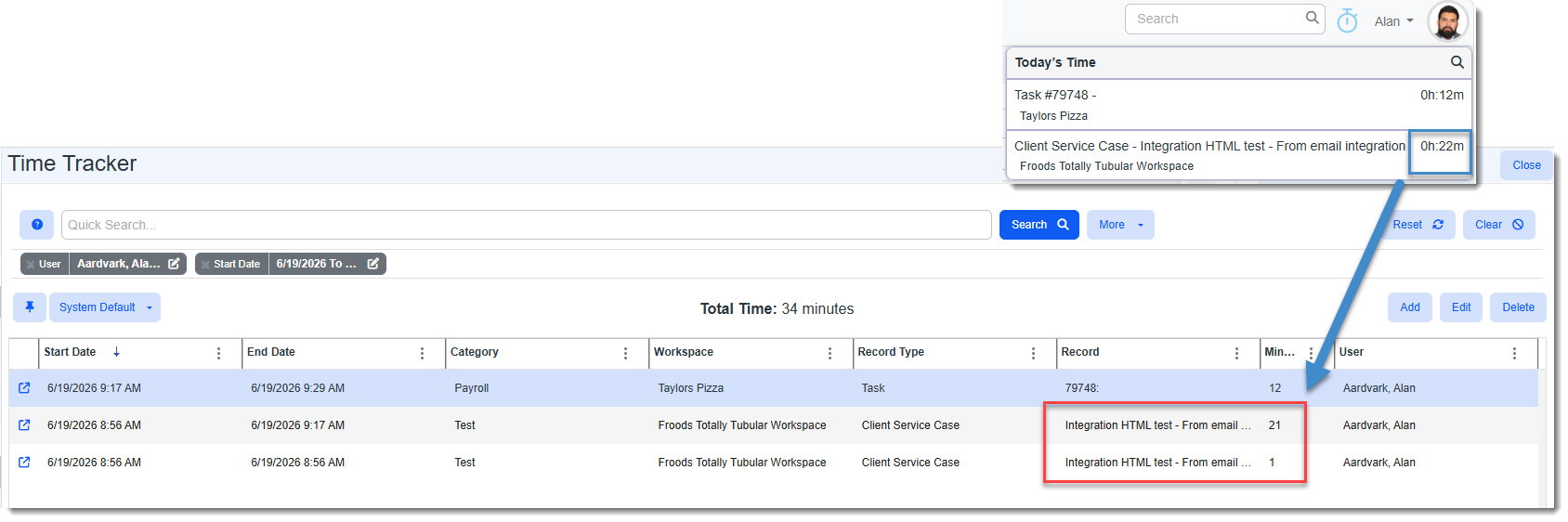
Note: There is no consolidation of time tracking entries associated with the same record in this view. Each time tracking entry is listed in the grid separately, even those related to the same record. This allows you to open individual time tracking entries and view or edit them.
This is illustrated in the example below where cumulative time for a record of 0h:22m is shown in the Stopwatch list. In the Time Tracker module, you can see that the calculated time in the Stopwatch list was comprised of two, separate time tracking entries related to the same record: