Configuring Group User Assignment with Workflows
When configuring Group User assignment for Client Service Case assignment by Case Type, the basic configuration of setting up Group User records still applies. Once the Group User records are set up, you can configure workflow channels or items (on the Content tab) to use Group User assignment.
Creating a Dataform Assigned to a Group User
In the example below, we are adding a workflow that creates a dataform whenever a field on another dataform is updated with a specific value (i.e., Is Dirty).
On the Content tab, when we click any User type field, we have the ability to select a Group User by selecting Specific User and then selecting the desired group:
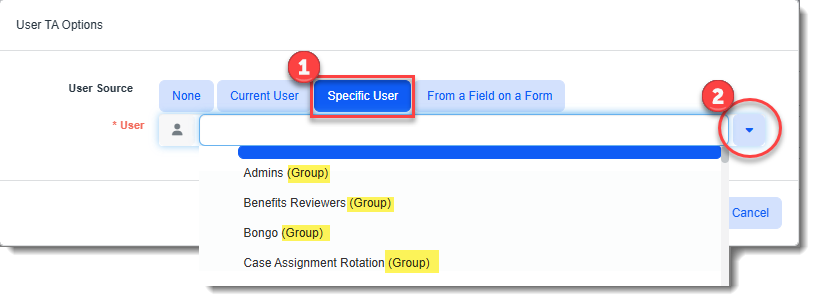
Note that all Group User records are displayed first in the list with the word "Group" in parentheses so that you can easily distinguish Group User records from individual users.
Once a workflow channel or item is configured with a Group User in a user field, when the workflow is triggered and a dataform is added or modified (according to the workflow configuration) and then saved, the dataform will be assigned to next available user in the Group User rotation.
Creating a Task Assigned to a Group User
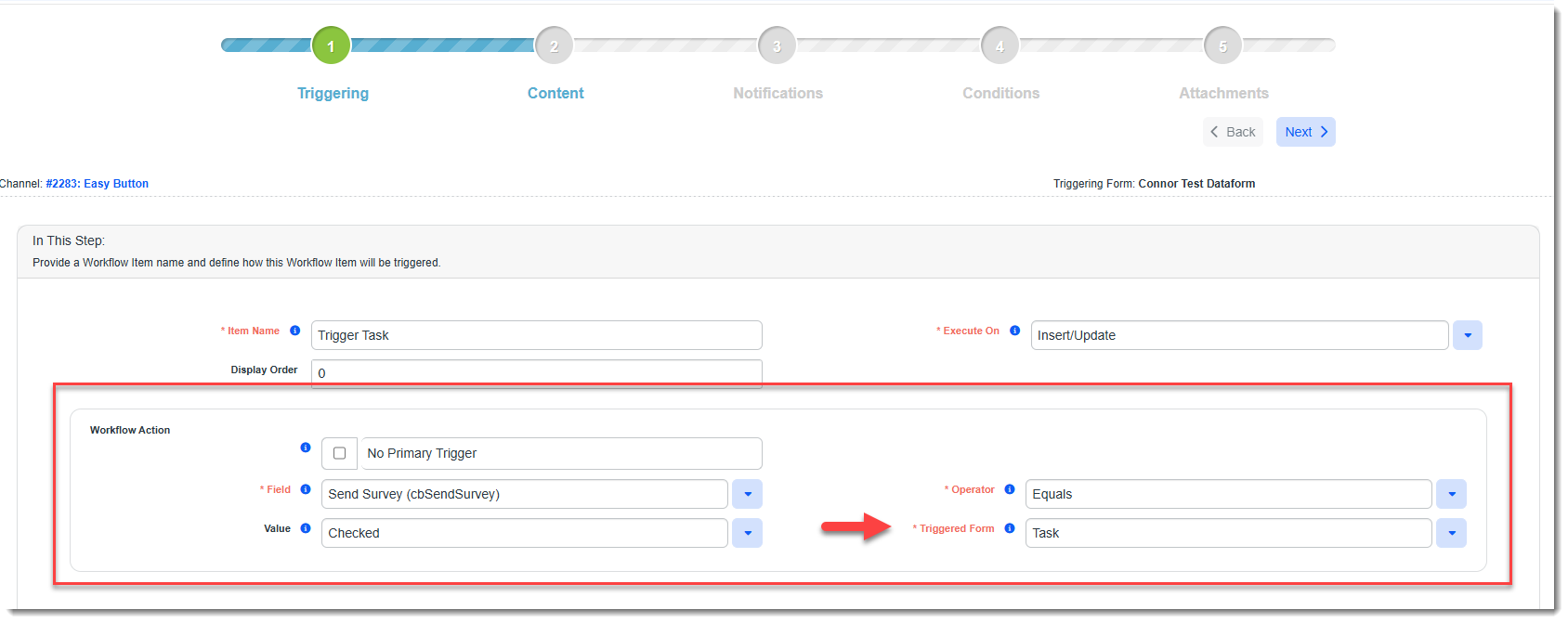
In the next example, we are creating a Workflow Item that triggers task creation when a field equals a certain value :
Just as with the dataform creation example above, you can click the link in a User type field (Assigned To or Owner for tasks) and select a group user:
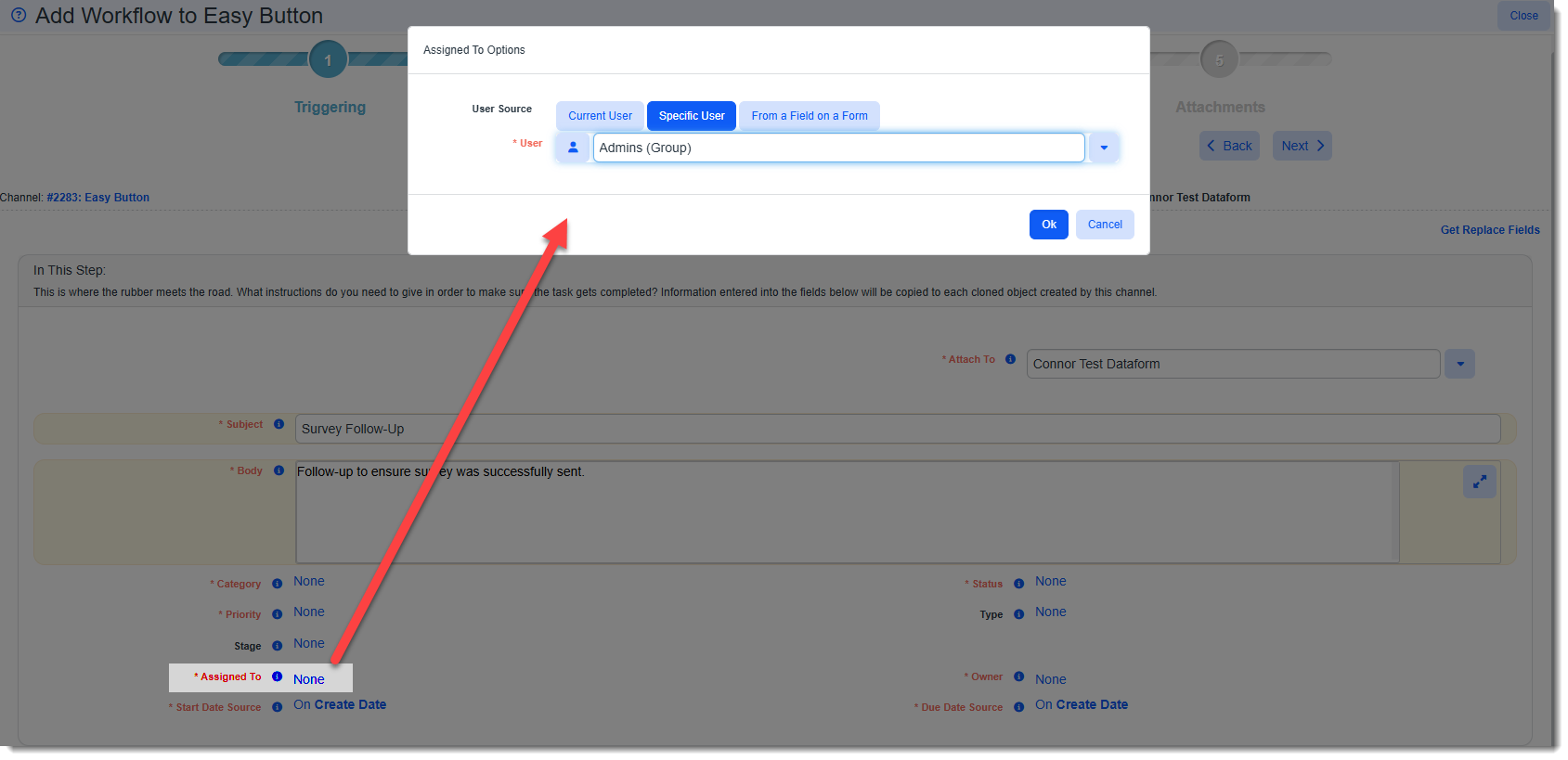
When the workflow is triggered, the User field(s) are set to the next available user in the rotation.
Regarding Setting Multiple User Fields to the Same Group User
If multiple user fields have the same Group User record selected and they are updated in the same Save/Apply action, all of the fields resolve to the same "next user" in the list. The rotation advances per group assignment event, not per individual field change.