Adding and Configuring Group User Records
Group user records contain limited fields (with standard User Details record fields hidden) and do not behave like real login/user profile records as group user records resolve to a real user profile record upon assignment of work to a group member. Think of group user records as a container for a group of user records. Once a user is selected from the group and assigned to the work, such as a case, the work is now assigned to the selected user just as if you'd selected manually assigned the user.
You can add a Group User record from two locations:
-
The Group Users Dashboard (System Admin
 > Resources > Group Users)
 -
The Users Dashboard (System Admin
> Resources > Users)
Adding a Group User Record from the Group Users Dashboard
To add and configure a Group User record from the Group Users Dashboard:
-
Go to System Admin
> Resources > Group Users.
The Group Users dashboard opens. -
To add a Group User record, click Add.
The New Group User form opens.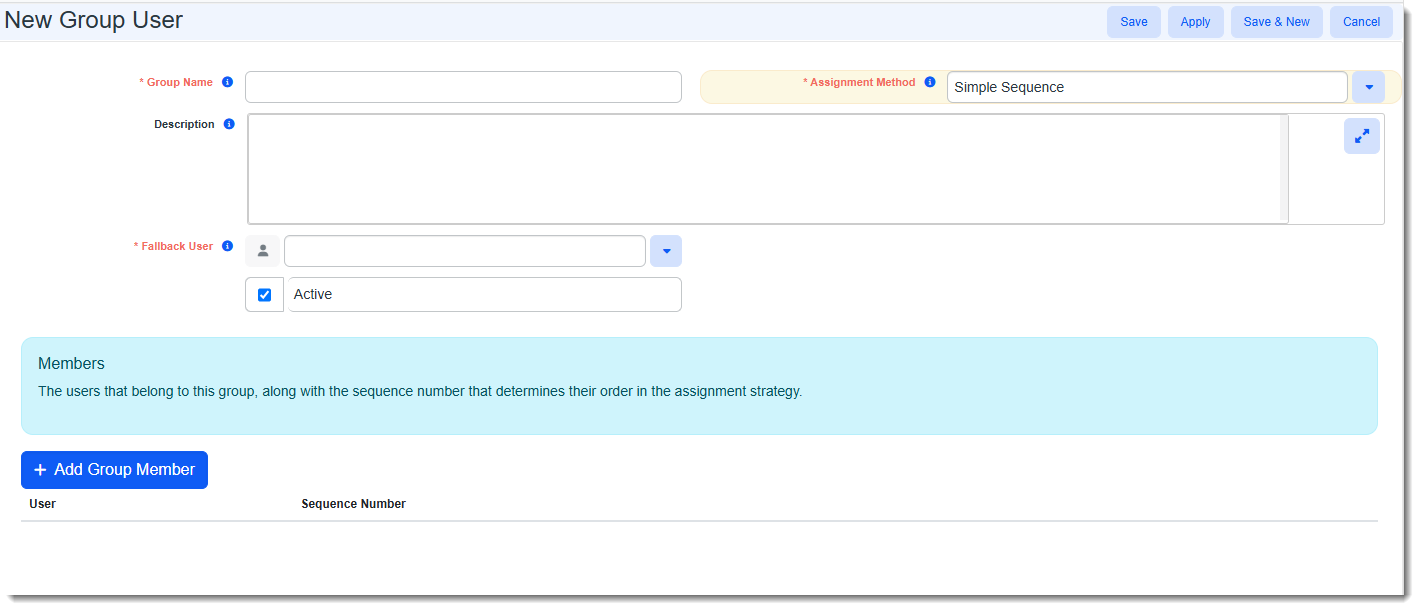
-
Complete the fields on the form:
Field Description Group Name Required. Enter a group name. This name displays in User selection fields. EX: Case Assignment Rotation Assignment Method
The Assignment Method is the strategy for selecting the next user in a rotation. Currently, there is only one method, "Simple Sequence", and it is set by default. With the "Simple Sequence" strategy, the system picks the next group member in the rotation incrementally by the associated Sequence Number displayed in the Members section (beginning with lowest number).
Description Optionally, enter a brief description of how the group will be used. Fallback User Required. This is the user who is picked when none of the group members in the Group Users rotation are available (i.e., they are Inactive, Out of Office or Expired.)
Note:
-
As the "final stop" once the rotation is exhausted, the fallback user will be assigned to the work even if their user profile record is also Inactive, Out of Office or Expired.
-
Once you Save or Apply the changes on the page, the User icon
 becomes active in the Fallback User field and you can click it to view a user details summary or click the link on the popup window to open their full User Details record.
Active
Newly added groups are set to Active by default.
Note: Group User records cannot be deleted once created. However, you can remove the check mark from the Active checkbox to make an unused Group User record Inactive. It will no longer display in User selection fields throughout the system.
-
-
Click Add Group Member to add rotation group members to the Group Users record.
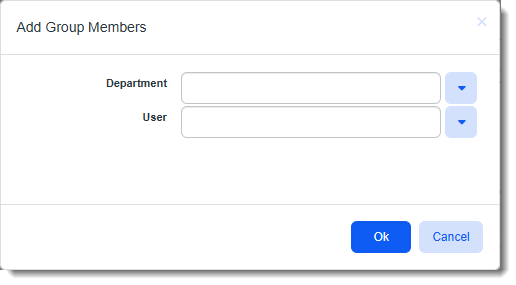
The Add Group Members window displays.
-
Optionally, select a Department to filter users by department.
-
Click the down arrow in the User field and begin selecting users. As you select users from the list, they are added to a list beneath the User field. You can remove a user from the list by clicking the Remove icon
 next to their name.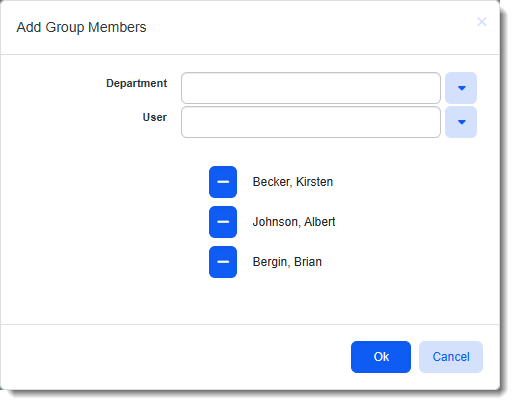
-
When finished adding users, click OK.
The group members display in the Members grid. The Sequence Numbers have been automatically assigned based on the order of selection. You can edit the sequence as desired. You can also click the Remove icon
on a user's line item in the grid to remove them.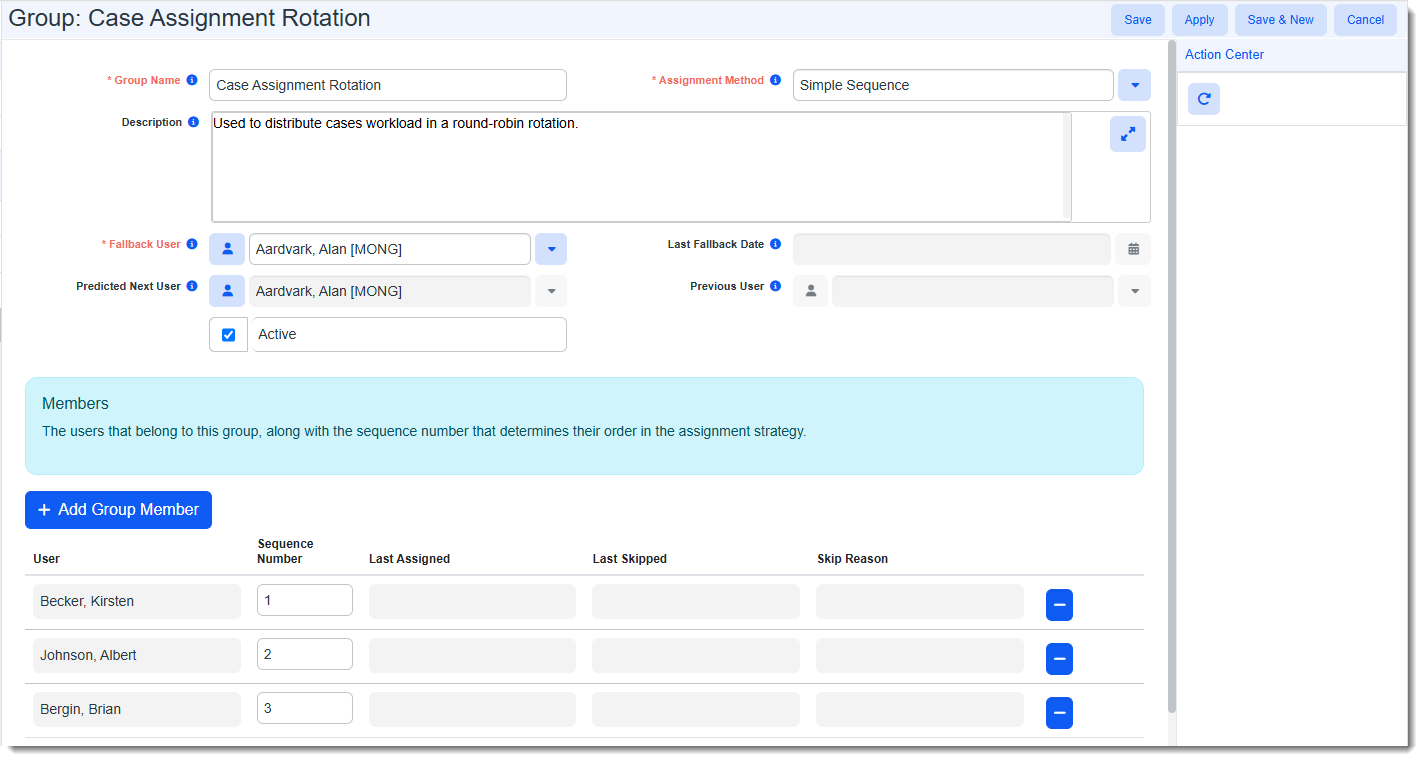
Note:
-
Last Assigned, Last Skipped and Skipped Reason fields auto-fill once the group is used and members are evaluated and either used or skipped in the rotation.
-
If a member is unavailable and skipped in the rotation, the Last Skipped and Skipped Reason are only displayed until they are used successfully in a rotation again. Once they get used in the rotation again, Last Skipped and Skipped Reason are cleared.
-
-
Click Apply or Save.
The new Group Users record is now available in Users fields.
Note: If you clicked Apply to save the changes and leave the Group User record displayed, you may notice that several additional fields are added to the record when it is saved:
Field Description Last Fallback Date This is the last date that a Fallback User  In Group User "round-robin" assignment, the Fallback User is the user selected if all members in the group are unavailable. had to be assigned. For Group User records that have not been used yet, this field is empty.
Predicted Next User The projected group member who will be selected next in the rotation. This is subject to change if the user profile is flagged Inactive, Expired or Out of Office.
Note: Click the User icon
to view a user details summary or click the link on the popup window to open their full User Details record.Previous User The most recently selected group member. For Group User records that have not been used yet, this field is empty.
Note: Once the field is populated, the User icon
becomes active and you can click it to view a user details summary or click the link on the popup window to open their full User Details record.
Adding a Group User Record from the Users Dashboard
To add and configure a Group User record from the Users Dashboard:
-
Go to System Admin
> Resources > Users.
The Users dashboard opens. -
To add a Group User record, click Add.
The User Details form opens. -
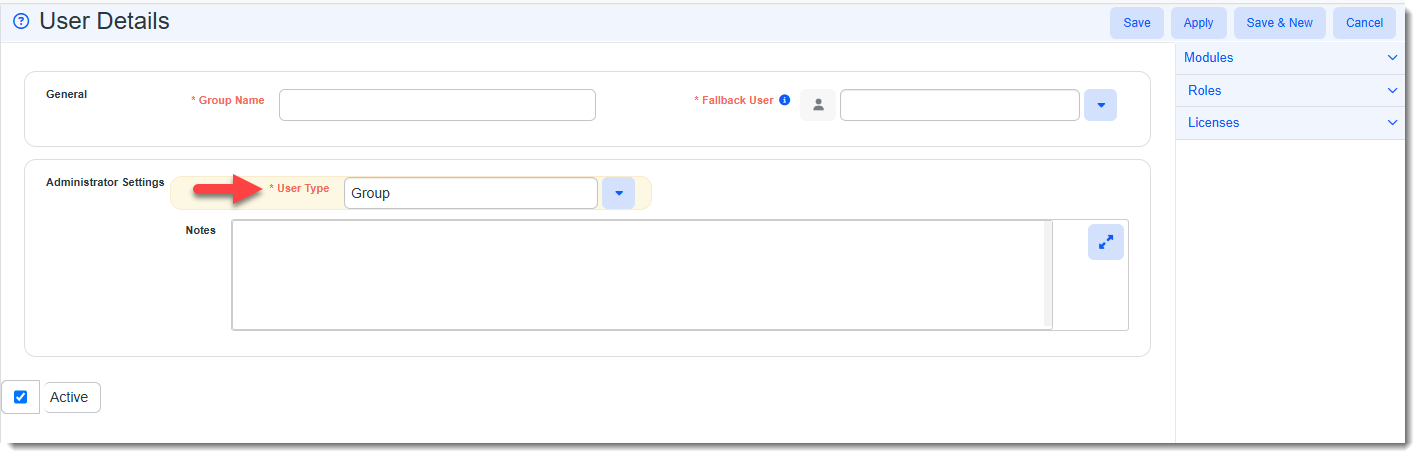
Scroll to the "Administrator Settings" section and select Group in the User Type field.
Most standard User Details fields are hidden.
-
Complete the remaining fields on the form:
Field Description Group Name Required. Enter a group name. This name displays in User selection fields. EX: Case Assignment Rotation Fallback User Required. This is the user who is picked when none of the group members in the Group Users rotation are available (i.e., they are Inactive, Out of Office or Expired.)
Note:
-
As the "final stop" once the rotation is exhausted, the fallback user will be assigned to the work even if their user profile record is also Inactive, Out of Office or Expired.
-
Once you Save or Apply the changes on the page, the User icon
becomes active in the Fallback User field and you can click it to view a user details summary or click the link on the popup window to open their full User Details record.
Notes Optionally, enter notes about the group such as a brief description of how the group will be used. Active
Newly added groups are set to Active by default.
Note: Group User records cannot be deleted once created. However, you can remove the check mark from the Active checkbox to make an unused Group User record Inactive. It will no longer display in User selection fields throughout the system.
-
-
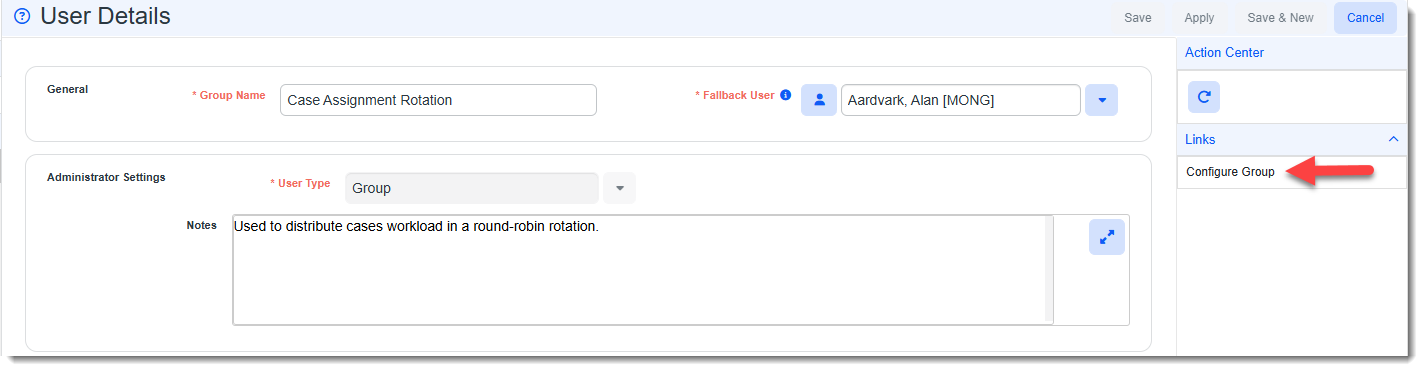
Click Apply to save the changes and keep the new record open for further configuration.
A Configure Group link now displays in the Action Center.
-
Click the Configure Group link.
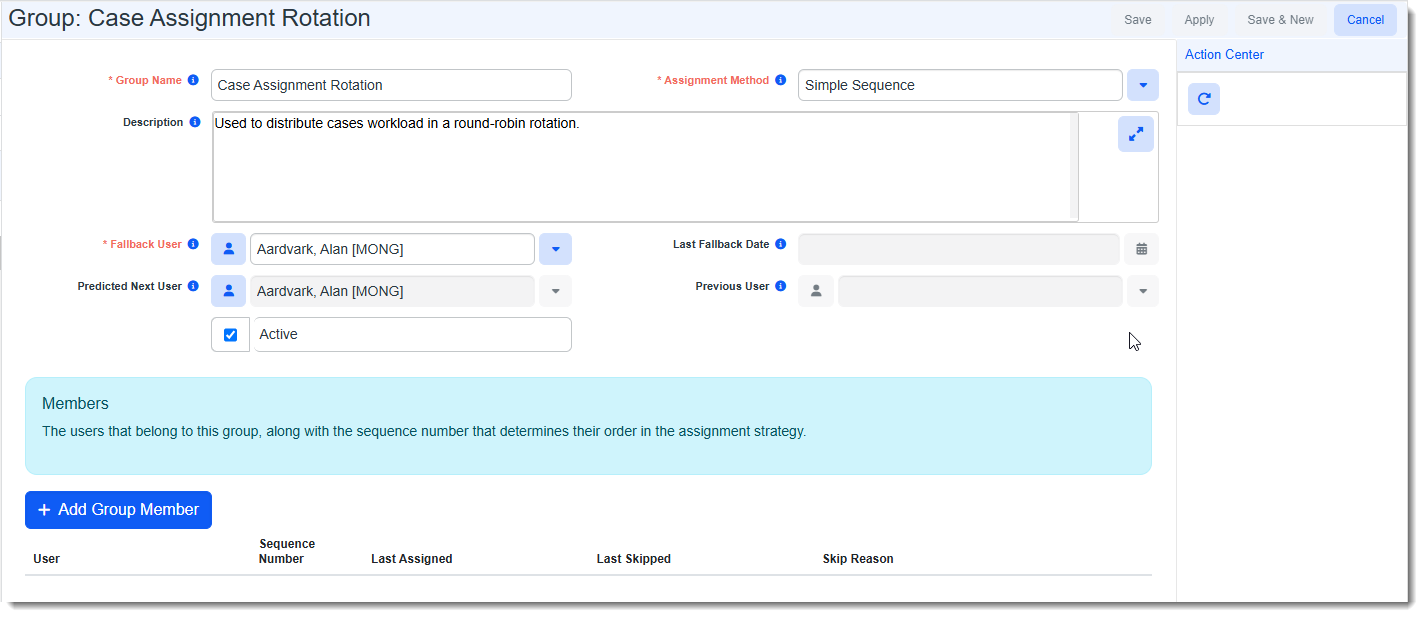
The Group Users record refreshes with the already completed fields still populated. Additional fields and a section for adding group members are displayed:
-
Review the following additional fields:
Field Description Assignment Method
The Assignment Method is the strategy for selecting the next user in a rotation. Currently, there is only one method, "Simple Sequence", and it is set by default. With the "Simple Sequence" strategy, the system picks the next group member in the rotation incrementally by the associated Sequence Number displayed in the Members section (beginning with lowest number).
Description This is the same as the Notes field from step 4 above. Any notes that you entered there auto-fill the Description field. Edit if needed. Last Fallback Date This is the last date that a Fallback User In Group User "round-robin" assignment, the Fallback User is the user selected if all members in the group are unavailable. had to be assigned. For Group User records that have not been used yet, this field is empty.Predicted Next User The projected group member who will be selected next in the rotation. This is subject to change if the user profile is flagged Inactive, Expired or Out of Office.
Note: Click the User icon
to view a user details summary or click the link on the popup window to open their full User Details record.Previous User The most recently selected group member. For Group User records that have not been used yet, this field is empty.
Note: Once the field is populated, the User icon
becomes active and you can click it to view a user details summary or click the link on the popup window to open their full User Details record. -
Click Add Group Member to add rotation group members to the Group Users record.
The Add Group Members window displays.
-
Optionally, select a Department to filter users by department.
-
Click the down arrow in the User field and begin selecting users. As you select users from the list, they are added to a list beneath the User field. You can remove a user from the list by clicking the Remove icon
next to their name.
-
When finished adding users, click OK.
The group members display in the Members grid. The Sequence Numbers have been automatically assigned based on the order of selection. You can edit the sequence as desired. You can also click the Remove icon
on a user's line item in the grid to remove them.
Note:
-
Last Assigned, Last Skipped and Skipped Reason fields auto-fill once the group is used and members are evaluated and either used or skipped in the rotation.
-
If a member is unavailable and skipped in the rotation, the Last Skipped and Skipped Reason are only displayed until they are used successfully in a rotation again. Once they get used in the rotation again, Last Skipped and Skipped Reason are cleared.
-
-
Click Save.
The new Group Users record is now available in Users fields.