Manually Setting a Group User from a Task or Dataform UI
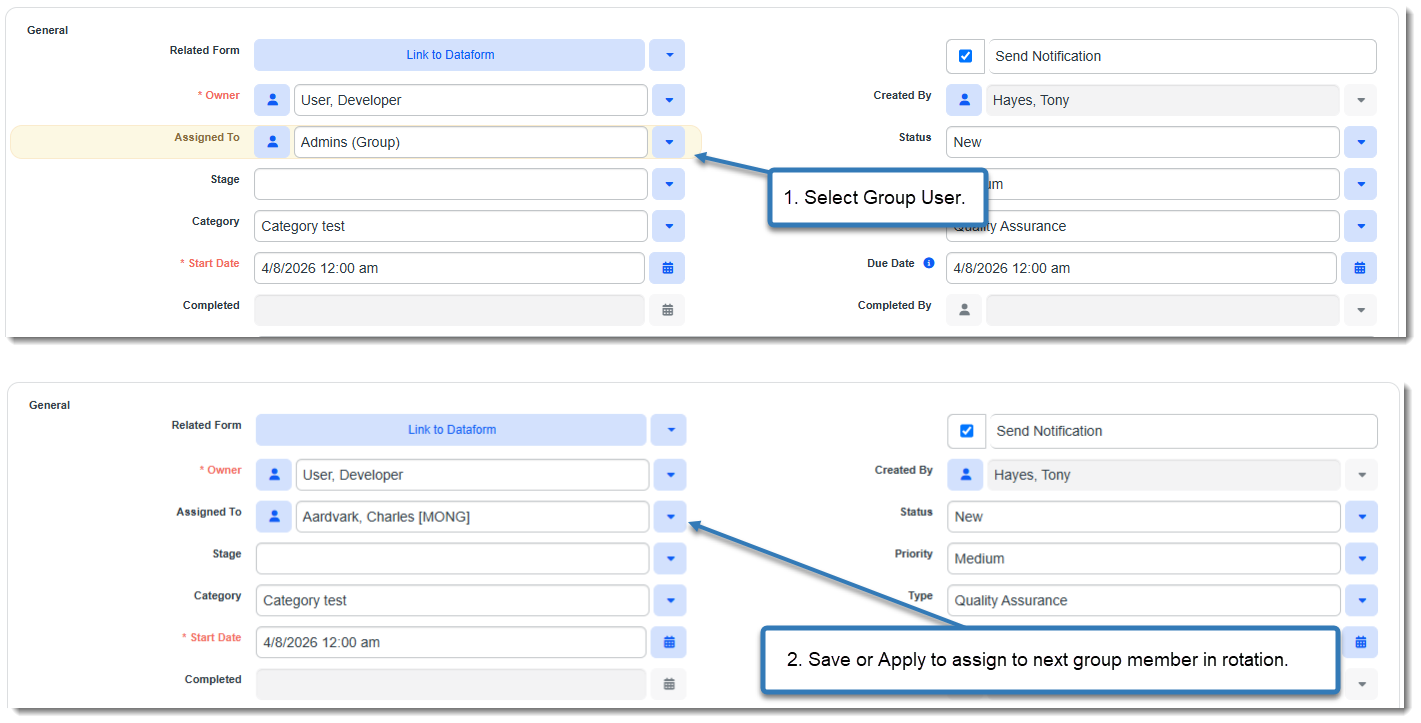
If you manually pick a Group User in any User type field on a Dataform, Task or Quick Task user interface, upon clicking Save or Apply, the field immediately resolves to the next user in the rotation. In the example below, a Group User is selected in the Assigned To field of a Task form and resolves to an actual user in the rotation upon Save:
Note:
-
If multiple user fields have the same Group User record selected and they are updated in the same Save/Apply action, all of the fields resolve to the same "next user" in the list. The rotation advances per group assignment event, not per individual field change.
-
If configuring Group User Assignment to automatically assign users to Client Service Cases, see Configuring Automatic Assignment of Client Service Cases Using a Group User.