Configuring Group User Assignment with Client Service Cases by Case Type
When configuring Group User assignment for Client Service Case assignment by Case Type, the basic configuration of setting up Group User records still applies. However, there are a couple of additional steps you must take to configure the Group User assignment of Cases by Case Type. The following configuration steps are outlined in this article:
Overview
Because the Case Type dataform is also a configuration form, its "User" fields (Assigned To User and Backup Assigned To) are not intended to resolve to an actual user. They are intended to point to the Group User record that you want the system to use for the user rotation. The actual user assignment occurs once a case is saved. Therefore, configuring the Case Type dataform for each Case Type where you want to use Group User Assignment requires you to:
-
Set an advanced setting named SaveGroupUser on the User fields in the Case Type dataform field properties to prevent the "round-robin" from executing on the User datatype fields (i.e., Assigned To User and Backup Assigned To).
-
Specify the Group User record in the primary Assigned To User field of the Case Type dataform.
-
Optionally, specify a Group User in the Backup Assigned To field of the Case Type dataform. (This is not required. You can specify an individual user. Additionally, if you are using a Group User in the Assigned To User field, a Backup Assigned To rotation will only be used if the Assigned To User Group User record is inactivated as outlined in the next section.
Important Note About Backup Assigned To and Fallback Users
When assigning Client Service Case users by Case Type, the Backup Assigned To user currently cannot be used to bypass assignment to the configured Fallback User identified in the primary Assigned To User Group User rotation.
In the Case Type configuration, if the Assigned To User is a Group User marked as Inactive, and a Backup Assigned To Group User is specified, only then does the system use the Group User rotation defined in the Backup Assigned To field. ClientSpace does not currently:
-
Use the Backup Assigned To Group User on the Case Type record as a secondary rotation after all users in the primary Assigned To User Group User rotation are exhausted.
-
Allow you to specify a Group User as the Fallback User on the Group User record. You must specify an individual user.
Configuring the SaveGroupUser Advanced Setting
Configure the SaveGroupUser advanced setting on the Assigned To User and Backup Assigned To fields of the Client Service Case Type dataform so that the assigned Group User will display in the fields without the system attempting to execute a user assignment on a configuration dataform.
To configure SaveGroupUser:
-
Go to System Admin
 > Advanced> Dataform Admin.
The Dataform Admin dashboard opens. -
Locate the Client Service Case Type dataform and click Open
 to display the dataform properties.
The Dataform Properties page opens. -
In the Action Center, click Fields.
The Client Service Case Type fields list displays.
-
In the Default Assignment section, double-click Assigned To User.
The field properties page for the Assigned To User field displays.
-
In the "Settings" section, click Advanced Settings.
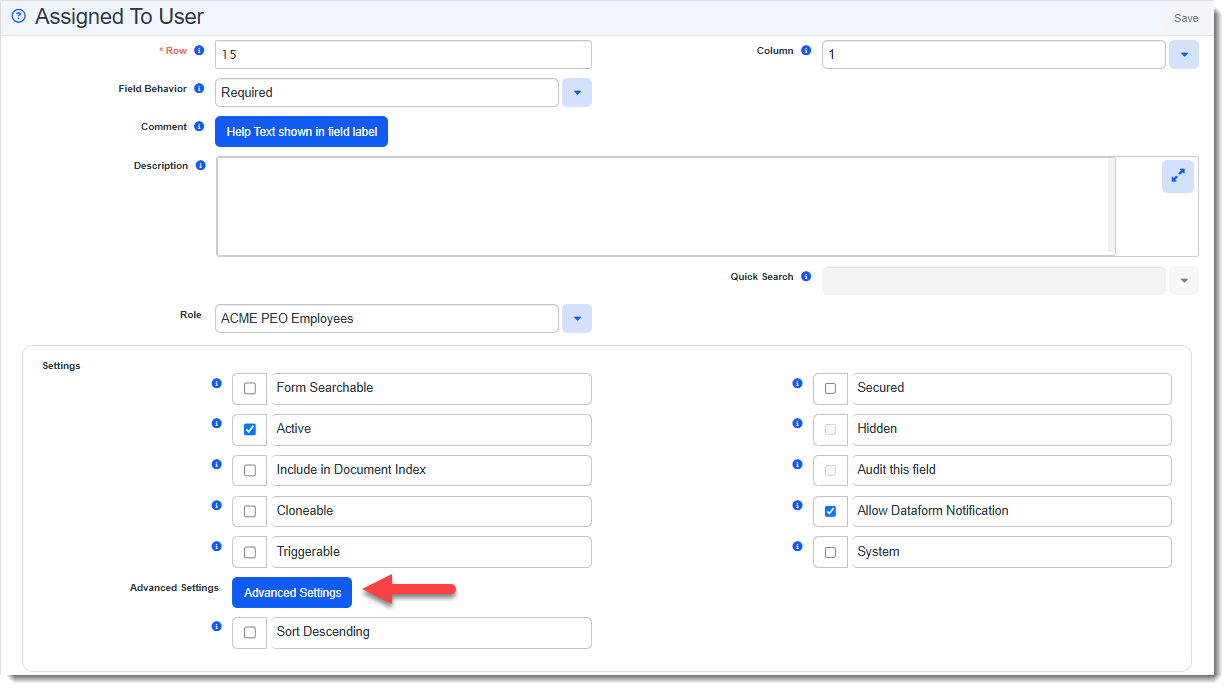
The Advanced Settings popup window displays.
-
Add the following to the end of the existing string:
,"SaveGroupUser":true}When you are finished modifying the string, it should appear similar to the following:
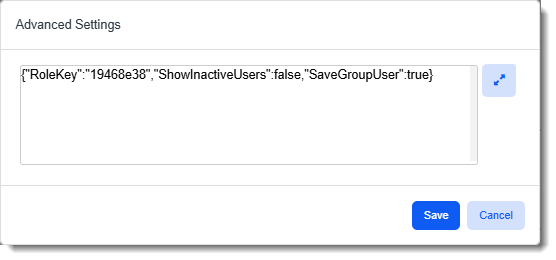
-
Click Save on Advanced Settings.
-
Click the Client Service Case Type work item in the Work Center.
The Client Service Case Type fields list displays again. -
This time, in the Default Assignment section, double-click Backup Assigned To.
The field properties page for the Backup Assigned To field displays.
-
Repeat steps 5 through 7 to configure the SaveGroupUser setting for the Backup Assigned To field, making sure to save the changes.
Assigning Group Users on Client Service Case Types
To assign group users on Case Types:
-
Go to Admin Workspace.
There is more than one way to access the Admin Workspace:
-
From the modules bar, click
 Workspaces.
The Workspace Search dashboard opens.
-
Type "Admin" in the search box to filter the list of workspaces and locate Admin Workspace.
OR
-
On the modules bar, on the right side, click <username> > Modules.
The Modules Search dashboard opens. The Admin Workspace is listed at the top of the dashboard.
-
-
Search for Client Service Case Type or select Client Service > Client Service Case Type.
The Client Service Case Type dashboard opens.
-
Locate a Client Service Case Type where you want to implement Group Users assignment and click Open
next to it. -
Scroll to the "Default Assignment" section and select the desired Group User in the Assigned To User field.
-
Optionally, assign a Group User in the Backup Assigned To field.
Note: Refer to Important Note About Backup Assigned To and Fallback Users for details on how the Backup Assigned To field is used with Group User assignment.
-
Click Save.
-
Repeat steps 3 through 6 on all Case Type records where you want to implement Group User assignment.
Once case types are properly configured with a Group User, each time a case is added and saved, the configured Group User for the case type associated with the case will be used to automatically assign the next available user in the rotation in the Assigned To User field.