Configuring Group User Advanced Settings on Dataform Fields
On dataforms, you control how Group Users behave in a User field by using advanced settings on the field properties. These settings apply to User type fields, including fields with a User Filtered by Entity element type (i.e., datatype). The following advanced settings are available:
| Advanced Setting | Description |
|---|---|
| Configuring the IncludeGroups Advanced Setting | Controls whether Group Users display in the field's user selection list. The default is true, so Group Users are listed at the top of the list. Set to false to display individual users only. |
| Configuring the SaveGroupUser Advanced Setting | Controls whether round-robin assignment runs on the field. The default is false, so the selected Group User resolves to the next user in the rotation when the record is saved. Set to true to prevent the round-robin assignment so that the Group User name remains in the field. Used on configuration dataforms such as the Client Service Case Type dataform. |
Note: When configuring Advanced Settings, be careful of syntax.
Configuring the IncludeGroups Advanced Setting
By default, active Group Users display in a User field's selection list, along with individual users. If you do not want users to be able to select a Group User in a particular field, set IncludeGroups to false for that field. The setting applies only to the field you configure it on.
To configure IncludeGroups:
-
Go to System Admin
 > Advanced> Dataform Admin.
The Dataform Admin dashboard opens. -
Locate the dataform that contains the field and click Open
 to display the dataform properties.
The Dataform Properties page opens. -
In the Action Center, click Fields.
The dataform's fields list displays.
-
Double-click the User field where you want to configure the setting.
The field properties page displays.
-
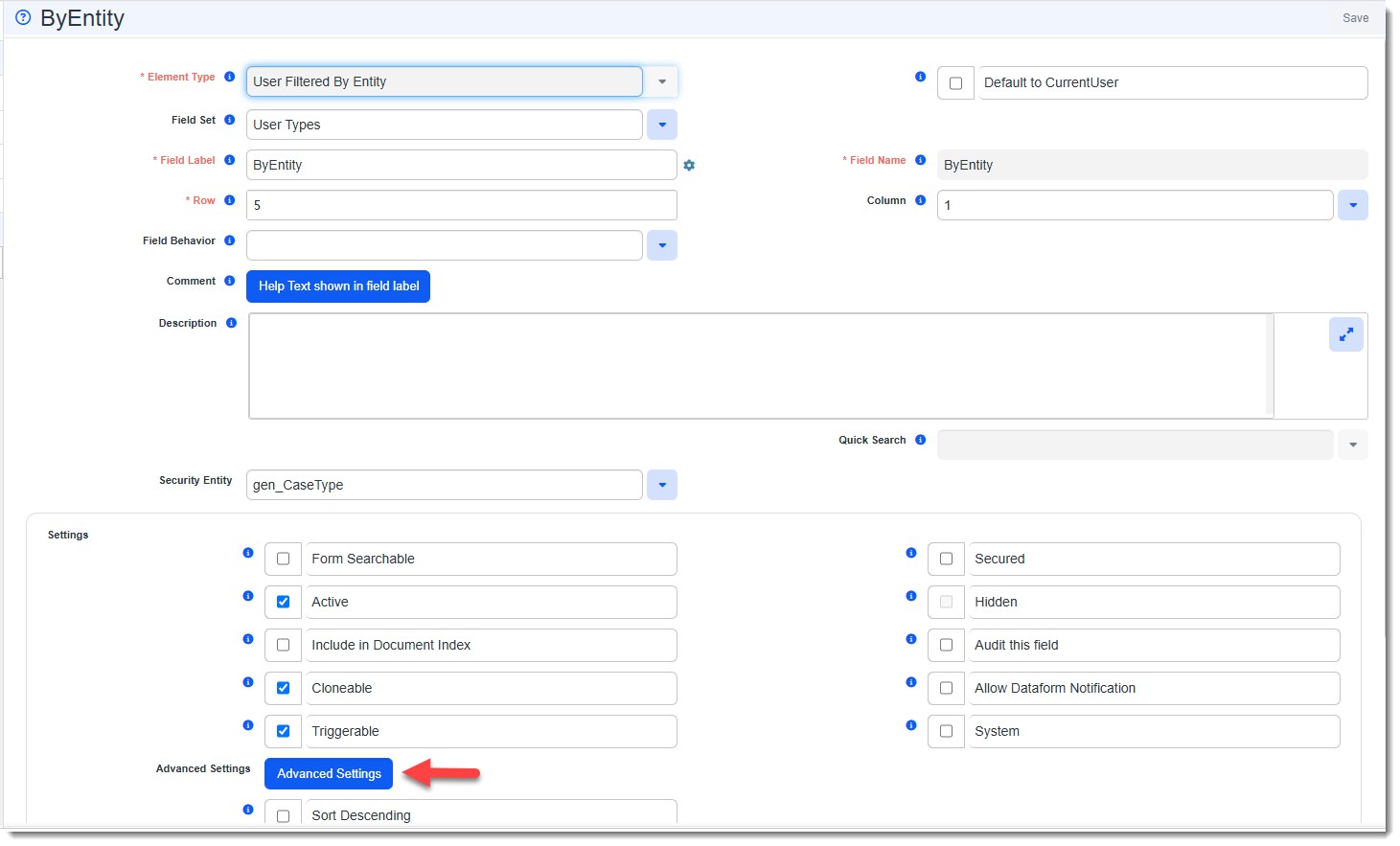
In the "Settings" section, click Advanced Settings.
The Advanced Settings popup window displays.
-
Add the following to the end of the existing string:
,"IncludeGroups":false}If the string is empty, enter
{"IncludeGroups":false}. If the string already contains a setting for this field, such as a security entity on a User Filtered by Entity field, keep the existing setting and add"IncludeGroups":falseafter it, separated by a comma as shown in the example image below: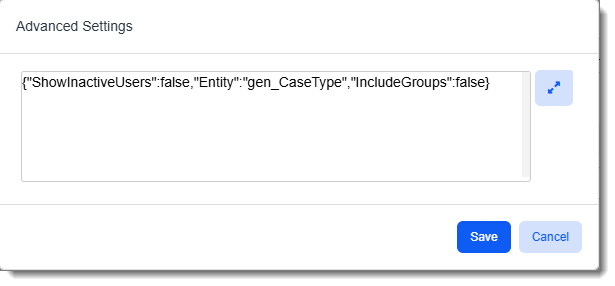
-
Click Save on Advanced Settings.
Group Users no longer display in the field's selection list. To display Group Users again, remove the setting or change it to true.
Configuring the SaveGroupUser Advanced Setting
The SaveGroupUser setting is used when a dataform is a configuration form and the Group User, rather than an actual user, should be stored in the field. For the steps to configure it on the Client Service Case Type dataform, see Configuring the SaveGroupUser Advanced Setting.