Manually Adding a Benefit Group
A Benefit Group is a classification of employees who are eligible for the same set of workplace benefits. These classifications are used to determine things like insurance options and contribution levels. Benefit Groups can be established based on job level, salaried staff, hourly staff, location, full-time status and more.
The combination of the Benefit Plan, Rate Group and Benefit Group comprise a unique Offered Benefit Plan (OBP).
Examples of possible Benefit Group names include:
-
Executives
-
Main (or Primary)
-
Hourly
-
Salaried
Benefit Groups are set on the OBP of a Benefits Batch in the Benefit Group field.
When you add a new Benefits Batch, upon saving the batch, ClientSpace business logic creates new default Benefit Group record with a Group Name of "Primary" and a Group Code of "1" (if a Benefit Group record with this name and code does not already exist.) This group is available for selection in the Benefit Group field of any Offered Benefit Plan (OBP) you add to the batch.
However, you can also manually add your own custom Benefit Groups.
This topic outlines manually adding a Benefit Group.
To add a Benefit Group:
- From the modules bar, click
 Workspaces.
The Workspace Search dashboard opens. - Select the desired Admin workspace or client workspace and click
 (Open).
The Workspace page opens. -
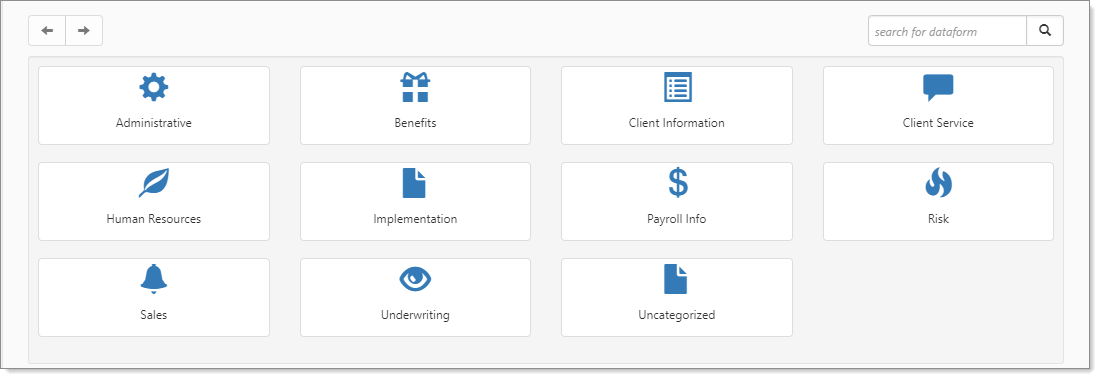
Move down the page to the administrative tiles where you see the dataform categories.
-
Enter "Benefit Groups" in the search for dataform field and then click the Benefit Groups tile.
The Benefit Groups dashboard displays.
Note: You can add a Benefit Group on-the-fly from an OBP by click the down arrow in the Benefit Group field and selecting Add new item.
-
Click Add.
The Benefit Groups: Add window displays.
-
Complete the fields as applicable.
Field Description Group Name
Benefit Group name. EX: Primary, Main, Executives, Hourly, Salaried
Group Code
Unique identifier (within the workspace) for the Benefit Group. Can be numeric, text or a combination. For instance, it can be a digit (i.e., 1, 2, 3, etc.) or it can be the same as the Group Name.
Waiting Period
This is the specific time frame group members must wait after enrolling before the benefits in the Offered Benefit Plan associated with this Benefit Group become active.
Valid options include:
-
1st of month after, following 0 days after Date of Hire
-
1st of month after, following 30 days after Date of Hire
-
1st of month after, following 60 days after Date of Hire
-
1st of this month, following 30 days after Status Date
-
1st of this month, following 60 days after Status Date
-
1st of this month, following 90 days after Status Date
-
90 days following Date of Hire
-
Date of Hire
-
Status Date
Note:
-
If using the Benefit Plan API, the Waiting Period for the Benefit Group is sent to PrismHR by the Benefit Plan API.
-
If the Exempt Take on EEs field is checked on the OBP, the "take on"
 "Take on" employees are employees who are being added to the system as part of a migration to PEO management and are not "new" employees. As a result, they may not be subject to a benefits waiting period. employees enrolling in this plan are exempt from any Waiting Period requirements identified on the plan's Benefit Group record.
 -
If using Benefit Plan Manager (BPM), depending on your configuration, you can edit the Waiting Period field in BPM.
Effective Date
Benefit Group Effective Date.
Stop All Use On
Stop All Use On is a date value field in PrismHR. The ClientSpace system will use the imported date field value to skip importing a Benefit Group via the OBP Import if the Stop All Use On date has passed.
Stop New Use On
Stop New Use On is a date value field in PrismHR. The ClientSpace system will use the imported date field value to skip importing a Benefit Group via the OBP Import if the Stop New Use On date has passed.
Eligibility Days From
This option determines whether to count eligibility days from the Hire Date or Status Date for benefit rules calculation of the FSA/HSA Effective Date in PrismHR.
-
Hire Date: This is the employee's original hire date. In PrismHR, if the Eligibility Days From option is set to Hire Date, and the life event Source ofEffective Date is set to Benefit Rules, the employee eligibility date is based on the original hire date plus any waiting period.
-
Status Date: This is the Life Event Date. In PrismHR, if the Eligibility Days From option is set to Status Date, and the life event Source of Effective Date is set to Benefit Rules, the employee eligibility date is based on the original Life Event Date plus any waiting period.
Note: Business logic is used to apply the value from the Benefit Group record to any associated OBP if the corresponding field on the OBP is empty.
Days from Eligibility Status
This is the minimum days or days of service required to be eligible for this plan. This must be entered as a numeric integer from 0 to 999.
Note: Business logic is used to apply the value from the Benefit Group record to any associated OBP if the corresponding field on the OBP is empty.
Benefit Eligibility Date Used
This option determines how the system calculates the date employees meet eligibility requirements for this plan.
-
Calculate Eligibility Date: The first day of calculated eligibility.
-
First of Month (after): The first of the month after the date of calculated eligibility.
-
First of month (this month): If the calculated date is the first of a month, the system uses that. If it is another day in the month, it still uses the first of that month.
Note: Business logic is used to apply the value from the Benefit Group record to any associated OBP if the corresponding field on the OBP is empty.
Group Description
Enter a brief description of the Benefit Group. EX: The Primary classification applies to full-time, salaried employees who are not in an executive role.
Retirement or Benefit Plans?
A classification used to indicate whether the Benefit Group contains Retirement plans, Benefit plans or Both.
Cafeteria Contribution
Enter the Cafeteria Contribution amount if the Benefit Group contains at least one cafeteria plan.
Note: If using BPM, updating the Cafeteria Contribution in BPM also updates it on the Benefit Group record in ClientSpace and vice versa.
Active
Checked indicates an active Benefit Group. Unchecked indicates an inactivated or archived Benefit Group.
-
-
Click Save to save and close or Apply to save and keep the Benefit Group record displayed.