Widget: Benefit Parent Company
The Benefit Parent Company widget displays the parent company or child company relationships on a Benefits Batch. The widget contains links to the related workspaces so that you can quickly reference a workspace while working on benefits offerings. This can help you maintain consistency in benefits across related companies.
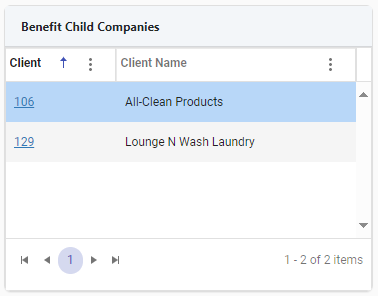
When you view the widget from a parent company Benefits Batch, the header of the widget displays as Benefit Child Companies and all related child companies and associated workspace links are listed:
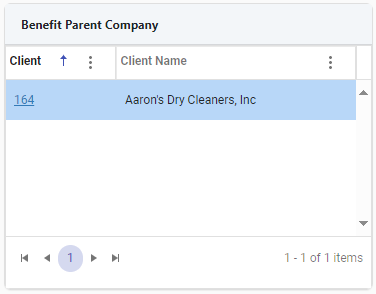
When you view the widget from a child company Benefits Batch, the header of the widget displays as Benefit Parent Company. The related parent company and link are listed:
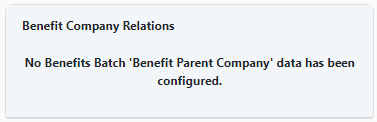
If a workspace has no parent/child company relationship, the Benefit Parent Company widget displays the following message:
Note: You can also optionally add widget layout filter condition statements in the widget layout configuration to display the Benefit Parent Company Widget on Benefit Batches whether the batch is a parent or child OR set a condition to only show the widget on a parent Benefit Batch. See the Setting Benefit Parent Company Widget Filter Conditions section of this document for steps to set the conditions on the widget.
Basic Configuration
To configure the Benefit Parent Company Widget:
-
Go to System Admin
 > Widget Layouts.
 -
Click
 (Open) next to the Benefits Batch layout in the grid to edit the widget layout.
 Note: Typically, this widget is added to an existing Benefits Batch widget layout. If you are creating a new Benefits Batch layout, also see Adding Widget Layouts.
-
Set the Target Type as Benefits Batch.
-
On the Widget Layout Details window, click the Add Widgets button.
The Widget Library window displays.
-
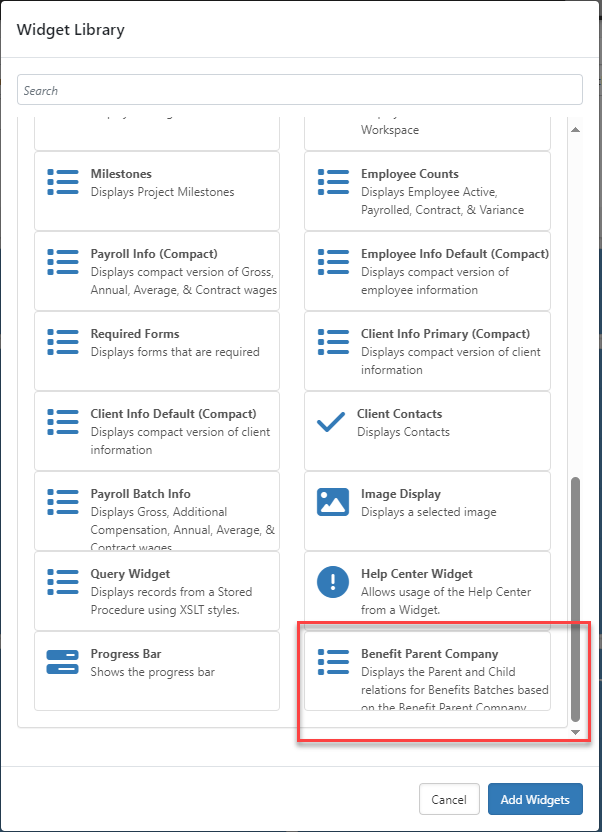
Click Benefit Parent Company and then click Add Widgets as shown in the example screen below:
The Widget Library window closes. The Benefit Parent Company Widget control displays on the Widget Layout Details screen.
-
Optionally, move or resize the widget frame:
-
To resize the widget frame: Drag the bottom right corner of the widget control to the desired dimensions.
-
To move the widget frame: Click anywhere in the blue area of the widget control area, hold down the
-
-
Click Save on Widget Layout Details.
-
You are returned to the Widget Layouts list. If your widget layout is new, it is displayed in the list as unpublished. (A new layout is displayed in italics and bold – meaning it is unpublished.)
-
To publish a new widget layout, select the Published option in the far right column.
-
Test the widget on a Benefits Batch dataform.
Note: If you make changes to the widget settings and return to an open dataform to test the changes, remember to click the Reload
 button in the Action Center to refresh the form with the latest changes.
Setting Benefit Parent Company Widget Filter Conditions
Optionally, you can set filter conditions on a widget layout containing the Benefit Parent Company widget to:
-
Display the Benefit Parent Company widget only on a Benefits Batch "Parent" (i.e., Benefits Batches that have associated child batches).
- Display the Benefit Parent Company widget on Benefit Batches whether the batch is a parent or child.
Displaying Benefit Parent Company Widget on a Benefits Batch "Parent" Only
This filter causes the Benefit Parent Company widget to only display on Benefits Batches of a parent company that has associated child company benefits batches. The widget is not shown on any related child company batches, only on the parent batch.
To display the Benefit Parent Company widget on a Benefits Batch "Parent" Only:
Note: This cannot be the primary widget layout condition.
-
On the Widget Layout Details window, click Set Conditions.
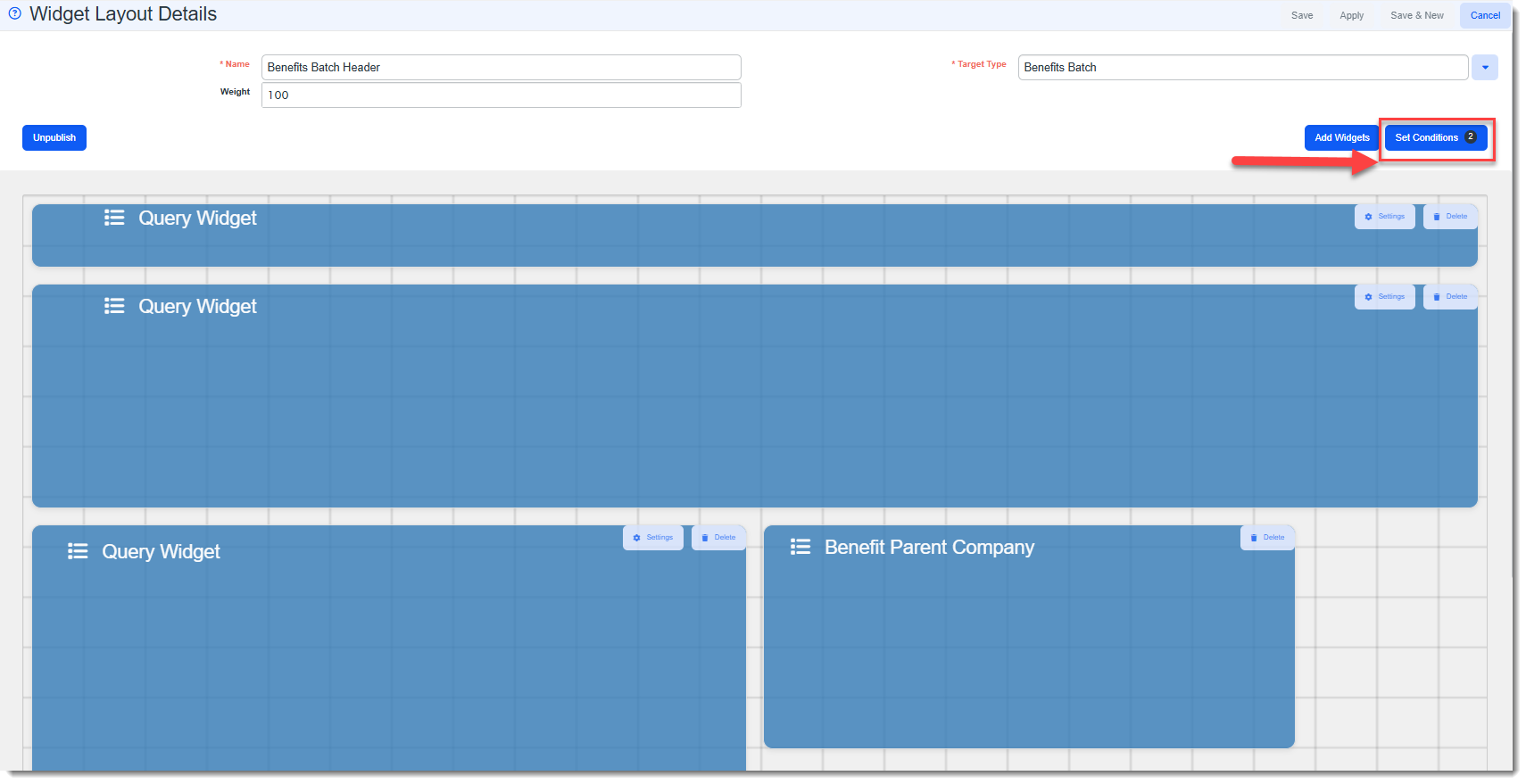
The Execution Trigger Detail window displays.
-
Click Add in the Additional Conditions section.
The Trigger Condition window displays.
-
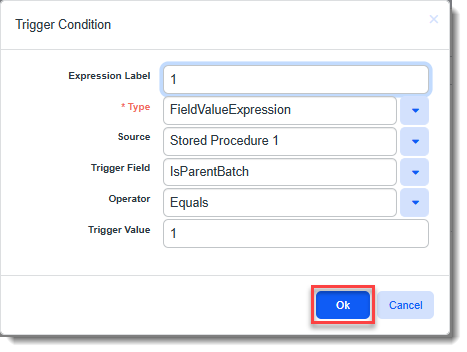
Complete the following fields:
Field
Value
Expression Label
Type a number that is not a duplicate of another Expression Label. For example, if this is the first or only label, type 1.
Type FieldValueExpression Source Stored Procedure 1 Trigger Field IsParentBatch Operator Equals Trigger Value
1
-
Click OK on the Trigger Condition window to save the changes and close the window.
-
Click Save on the Execution Trigger Detail window and then close it and also close the Widget Layout Details window if you are finished making changes to the widget layout.
Displaying Benefit Parent Company Widget on Both "Parent" and "Child" Benefits Batches
This filter causes the widget to display on Parent Benefits Batches (i.e., parent batches with associated child company batches) and Child Benefits Batches (associated child benefit batches). The widget displays on related parent and child company batches.
To display the Benefit Parent Company widget on Both "Parent" and "Child" Benefits Batches:
-
On the Widget Layout Details window, click Set Conditions.
The Execution Trigger Detail window displays.
-
Click Add in the Additional Conditions section.
The Trigger Condition window displays.
-
Complete the following fields for Expression 1:
Field
Value
Expression Label
Type a number that is not a duplicate of another Expression Label. For example, if this is the first or only label, type 1.
Type FieldValueExpression Source Stored Procedure 1 Trigger Field IsParentBatch Operator Equals Trigger Value
1
-
Click OK on the Trigger Condition window to save the changes and close the window.
-
Click Add in the Additional Conditions section.
The Trigger Condition window displays.
-
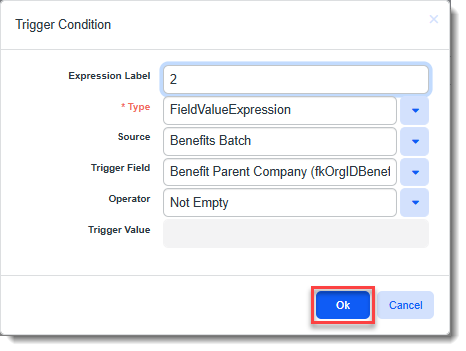
Complete the following fields for Expression 2:
Field
Value
Expression Label
Type a number that is not a duplicate of another Expression Label. For example, if this is the second label, type 2.
Type FieldValueExpression Source Benefits Batch Trigger Field Benefit Parent Company (fkOrgIDBenefitParent) Operator Not Empty -
Click OK on the Trigger Condition window to save the changes and close the window.
-
Click Save on the Execution Trigger Detail window and then close it and also close the Widget Layout Details window if you are finished making changes to the widget layout.