Creating ClientSpace Custom Dataform Links Using Report Center Workbooks or Views
This article will show you how to get the embed code from a Report Center workbook or view and add it to a ClientSpace dataform as a custom link.
Note:
-
You can only get the embed code on Report Center workbooks and views that you are authorized to access.
-
You have the option of embedding the entire report or elements of the report such as a graph, chart or data grid.
-
Any interactive filter drop-down lists you may have added to the report or report element in Report Center are still functional within ClientSpace.
-
Once the report link is clicked, the report:
-
Renders based on the viewer's security and role permissions.
-
Displays as a work item on the navigation pane of ClientSpace.
-
Step 1: Copy the Embed Code from Report Center
To copy the embed code:
-
On the Report Center Home
 page, locate the report tile (by using the Search bar at the top of the page or by scrolling the list of available reports).
-
Click the blue report title link to open it.
-
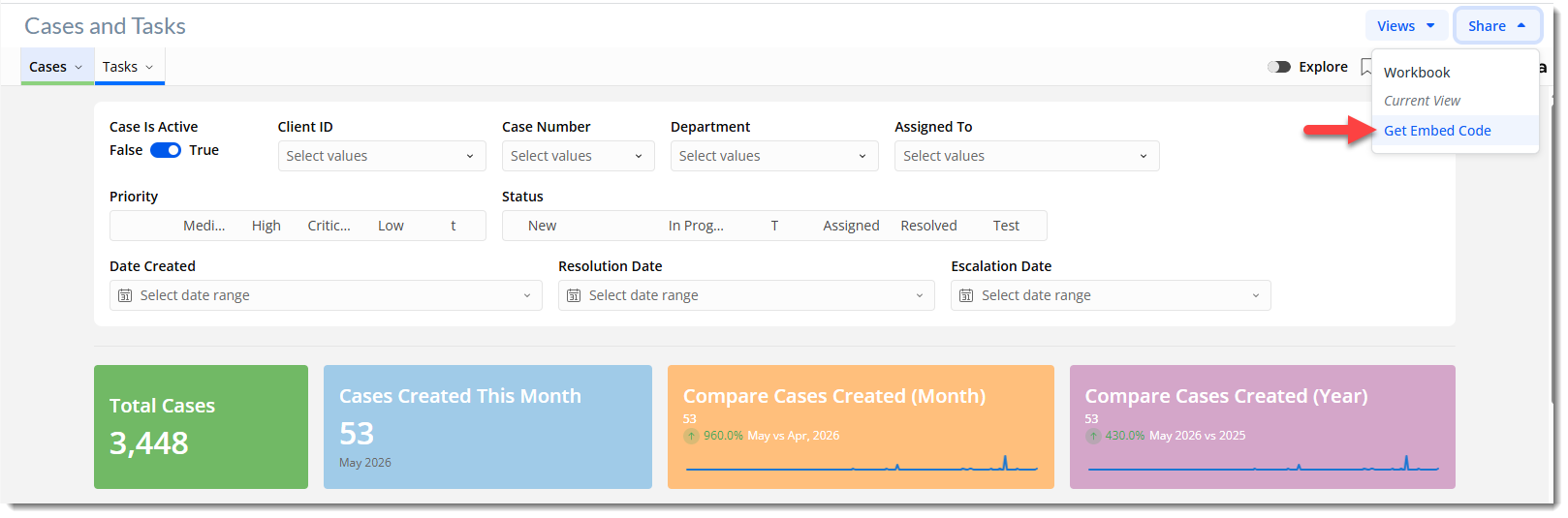
Click Share > Get Embed Code.
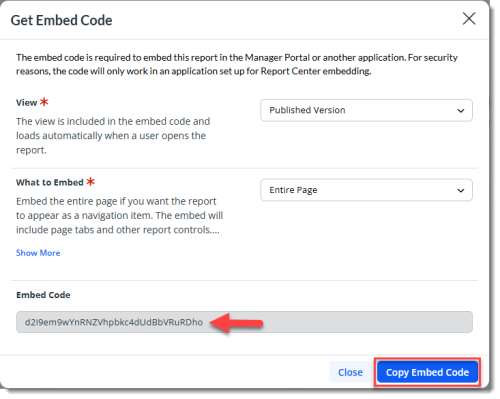
The Get Embed Code window displays.
-
Complete the following settings:
- View - Select Published Version to use the currently published version (recommended) or Unpublished Version to use an unpublished version of the workbook or view. This selection is included in the embed code.
-
What to Embed - Select entire page if you want the viewer to be able to see all page tabs and report controls or select an element of the report such as a single tab or a chart.
-
Click Copy Embed Code.
Step 2: Configure the Custom Link
To configure the custom link:
-
Go to System Admin
 > Advanced > Custom Links.
The Configure Links dashboard opens. -
Click Add.
The Configure Links Detail form opens. -
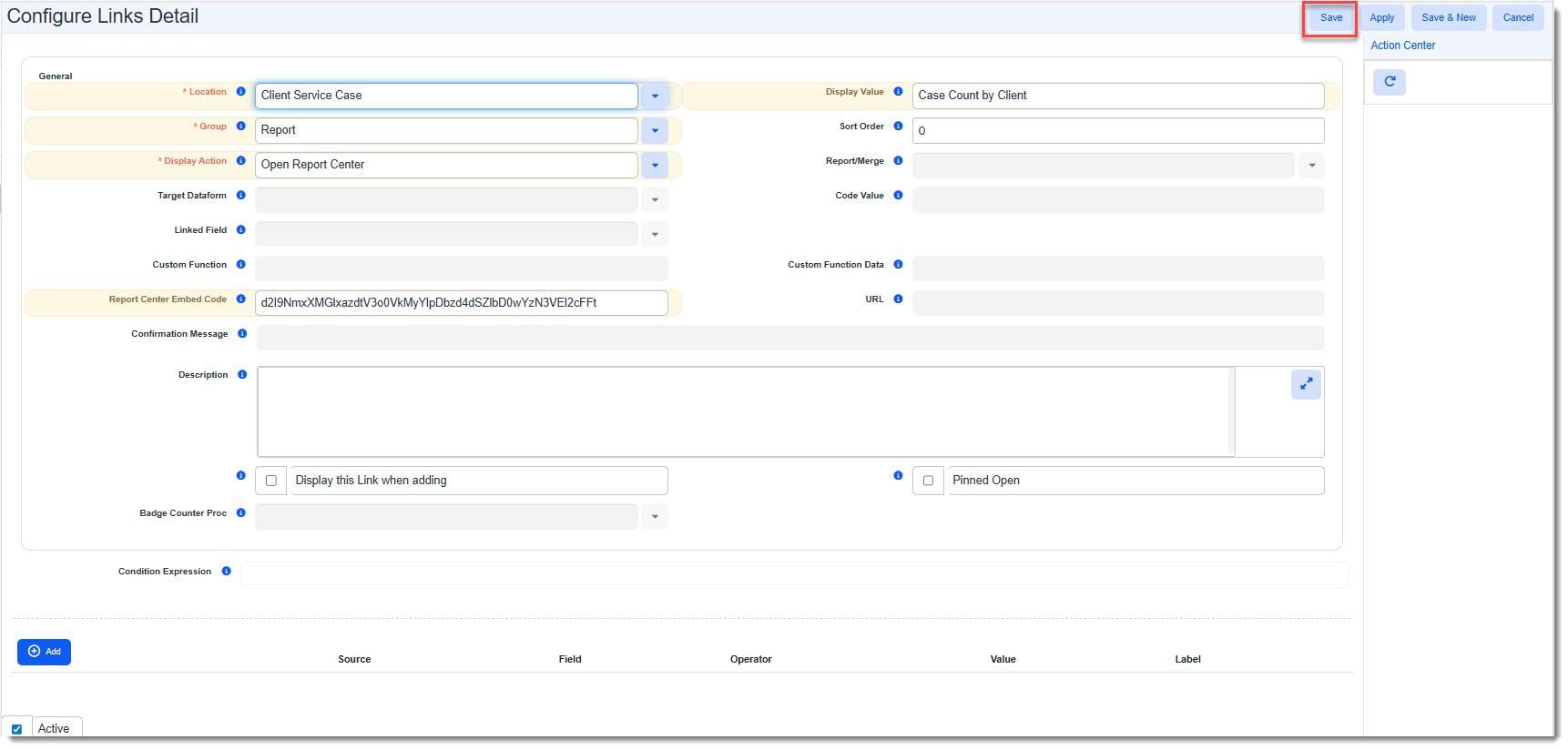
Complete the form.
Location
Name of the dataform or system object on which you want the link to appear.
Display Value
Enter the link text.
Group
Select Report to place the link in the Reports group of the dataform.
Display Action
Select Open Report Center.
Sort Order
The Sort Order determines the order of individual items within the Report group. The lower the number, the closer to the bottom of the list the link appears. 0 places the report at the bottom of the list if there are other links in the Reports group.
Report Center Embed Code
Paste the embed code you copied from Report Center here.
Display this Link when adding
Prior to Save, dataforms generally do not display links. This option allows you to display the link before the initial form Save. If you want the link to always appear, regardless of whether the dataform has been saved, select the Display this link when adding option.
Pinned Open
When this option is enabled (selected), it forces the link to display in the Action Items area. The link does not collapse when the associated group is collapsed.
-
Click Save.
When a user opens the dataform where you added the link, the link displays in the Reports group of the Action Center. When the link is clicked, the report name displays as a work item in the ClientSpace left navigation pane.