Adding Custom Forms and Fields to Reports
The data sources for custom forms and fields are stored under your connection. This topic covers how to select a new data source containing custom forms or fields on existing report elements and new report elements.
Changing an Existing Data Source on a Report Element
To change an existing datasource to use a custom data source:
-
On the Report Center Home
 page, locate the report tile (by using the Search bar at the top of the page or by scrolling the list of available reports).
-
Click the blue report title link to open the report.
-
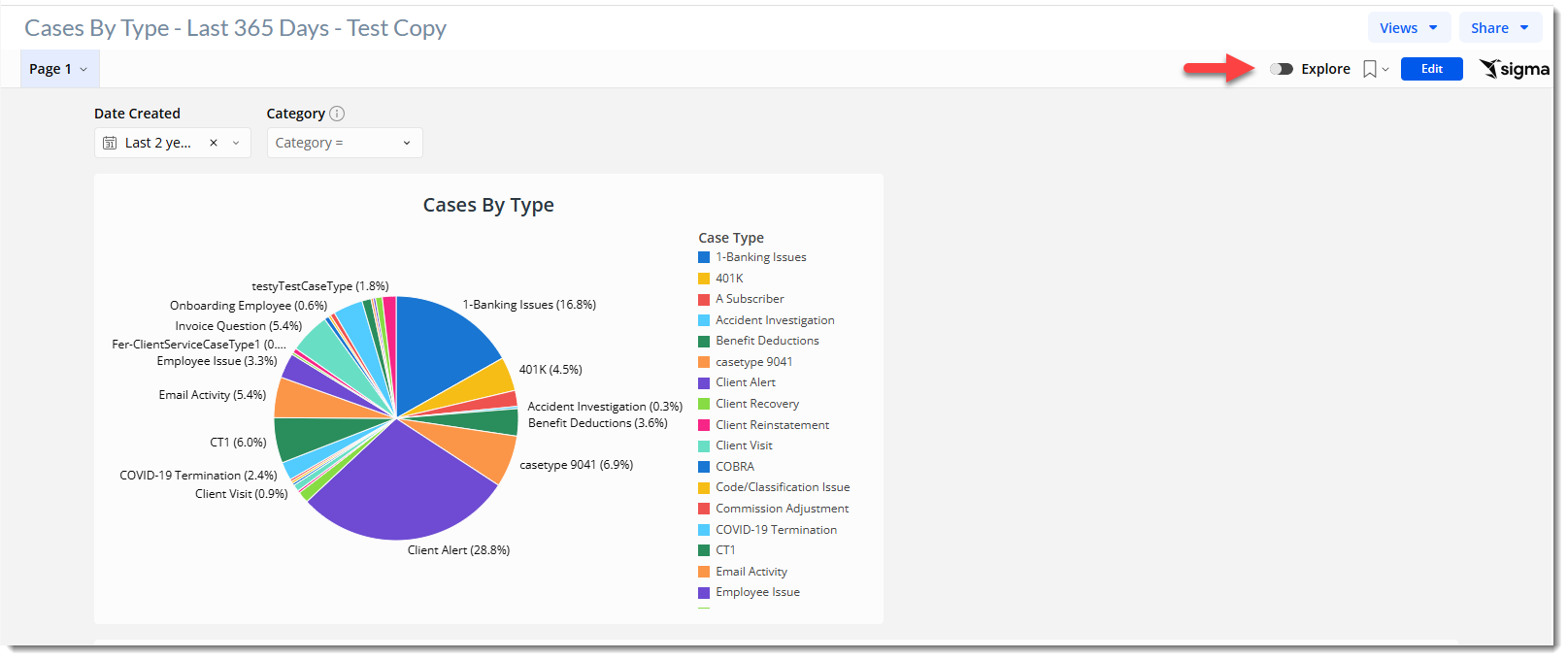
Click the Explore slider button to enter Explore mode.
-
Click an element on the report to select it.
-
On the Properties tab, under DATA SOURCE, click the down arrow and select Change Source.
-
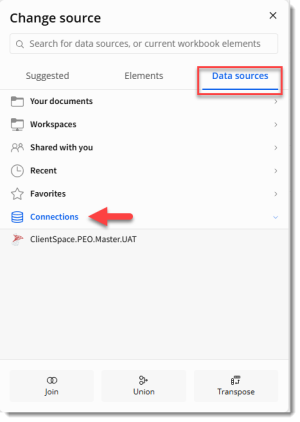
On the Change Source window, click the Data sources tab and then click Connections.
-
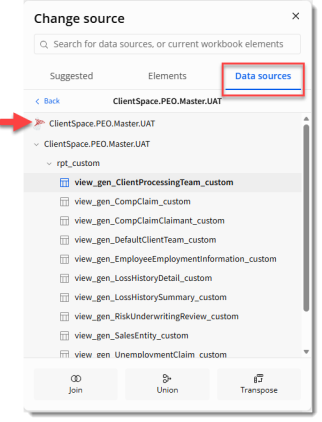
Click your connection and then click the arrows beneath it to expand the list of custom data sources.
-
Click a data source to apply containing the custom fields or forms you want to use on the report.
Adding a New Custom Data Source to a Report Element
To select a custom data source on a new Report Element
-
On the Report Center Home
page, locate the report tile (by using the Search bar at the top of the page or by scrolling the list of available reports). -
Click the blue report title link to open the report.
-
Click the Explore slider button to enter Explore mode.
-
Select a new element type that relies on data (Data or Charts) from the menu at the bottom of the workbook.
-
When the Select Source window displays, click the Data sources tab and then click Connections.
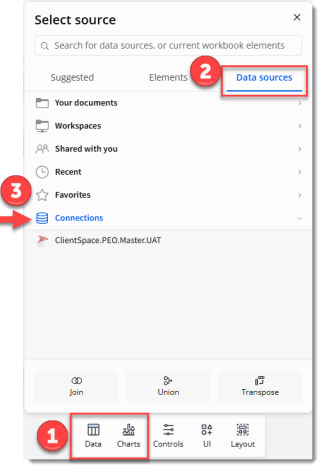
-
Click your connection and then click the arrows beneath it to expand the list of custom data sources.
-
Click a data source to apply containing the custom fields or forms you want to use on the report.
Tip: Getting New Custom Forms and Fields into Report Center Immediately
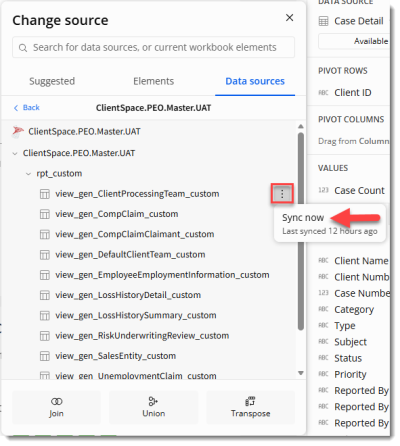
New custom forms and fields are added to the system overnight. To accelerate this process so that you can access them right away, click the vertical three dot menu (i.e., kebab)  icon next to the custom form name and select Sync now.