Global Search
The Global Search bar (located on the Modules bar) provides an easy way to search for records and modules throughout ClientSpace.

Note: Results are only returned for modules that you have permission to access.
To use Global Search:
-
Click in the Search field.
The field expands and the modules list is temporarily hidden.

-
Type a keyword or phrase. The search results automatically display as you type.
term or phrase
The results can contain the search string entered in any order. For example, searching for This is my task returned all records where the words This is my task were found within any of the dataform field values.
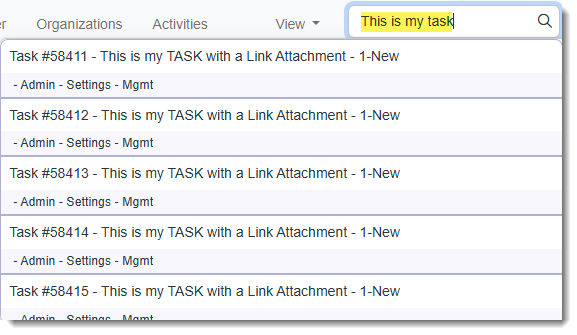
The most relevant searches where the words found in the exact order displayed first in the list. Here is a sample of one of those records:
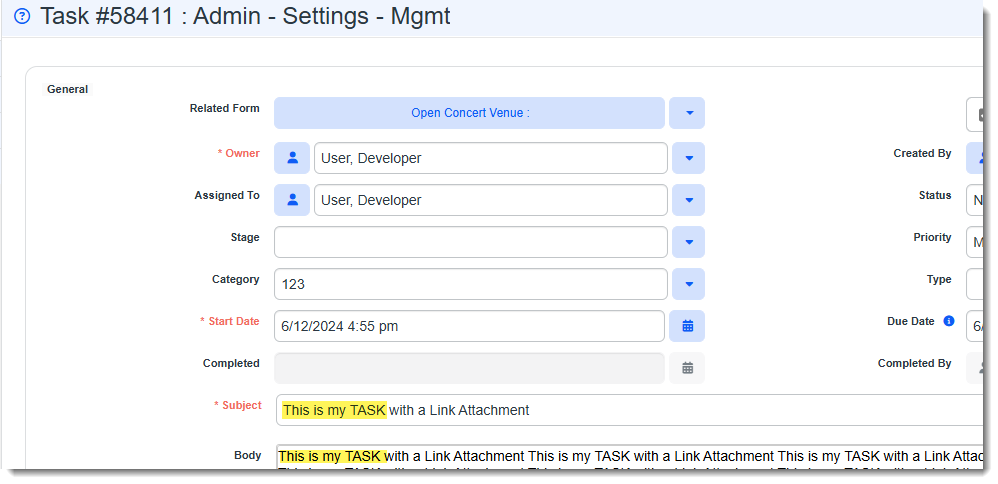
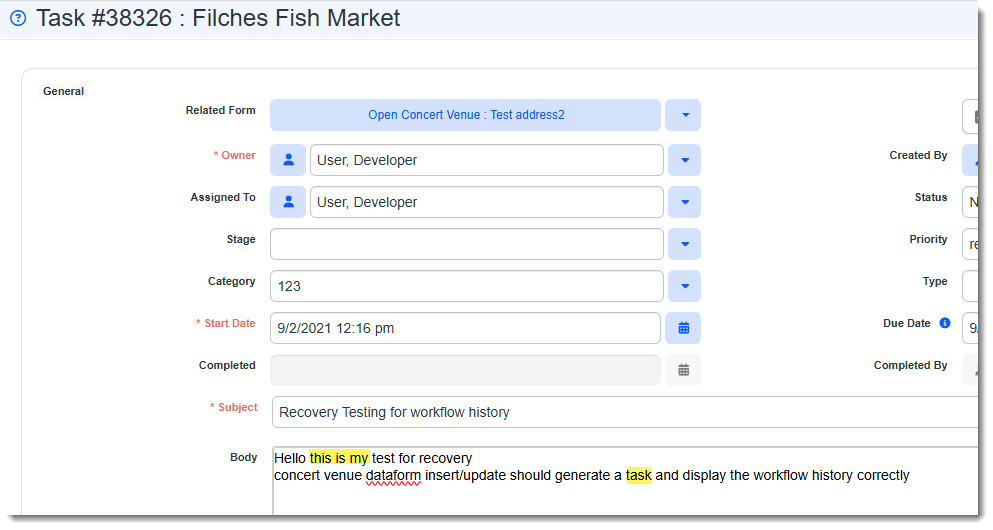
Instances where all words in the phrase were found but were not in the exact order of the search string were also located. Here is a sample of one of those records:
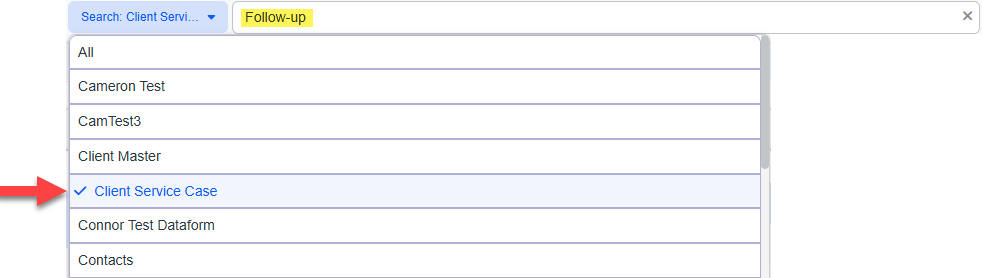
You can also click the down arrow next to the Search button and select a filter option to filter the list by a specific dataform name or by dataform category such as Client Service Case, Client Master, Modules (i.e., module dashboards), Contacts, etc.
In the example below, we are filtering search results to display Client Service Cases containing "Follow-up":

Note:
-
Entries are not case sensitive.
-
Letters and numbers are allowed.
-
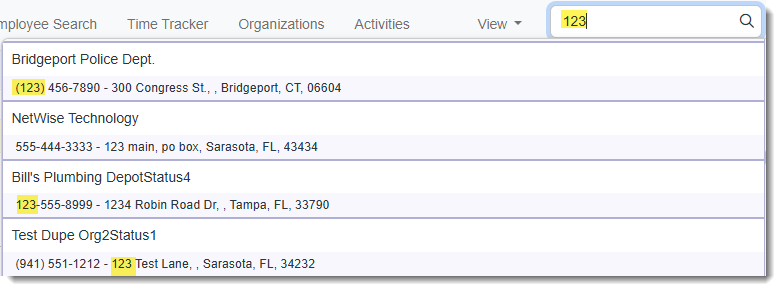
Special characters are allowed but are ignored. For instance, in the example below, (123) has been entered but since the system is searching for the numbers "123" and ignoring the parentheses, the results include phone numbers that contain the parentheses in the area code as well as other occurrences of "123":
-
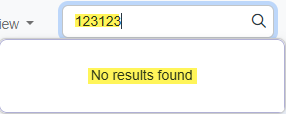
Special Note Regarding Spaces: While special characters, such as parentheses and hyphens or dashes are ignored, you must include any spaces that are part of the saved value. In the example below, we are attempting to locate a record with a phone number beginning in (123) 123. We do not need to enter the parentheses but we must enter the space after the Area Code as leaving it out causes no results to be found:

-
The system will search up to 100 characters but will display, up to approximately 25 characters display in the search field followed by ellipses (...) if the character display allowance is exceeded. This is shown in the example of a returned search result below:

If you enter over 100 characters, the following error message displays: "Search criteria too long. Please reduce the number of characters in the search criteria."

work item
When you open an item, the item displays in the Work Center (i.e., left pane) as a work item.
no results
If no results come back, "No Results Found" is displayed.
-
-
If results are found, click an item in the list of search results to open the record.