Benefits Plans Dashboard
Use the Benefits Plans dashboard (Benefits Plan Search) to find, open, and manage master benefit plans in the Admin Workspace and client-level benefit plans in client and prospect workspaces.
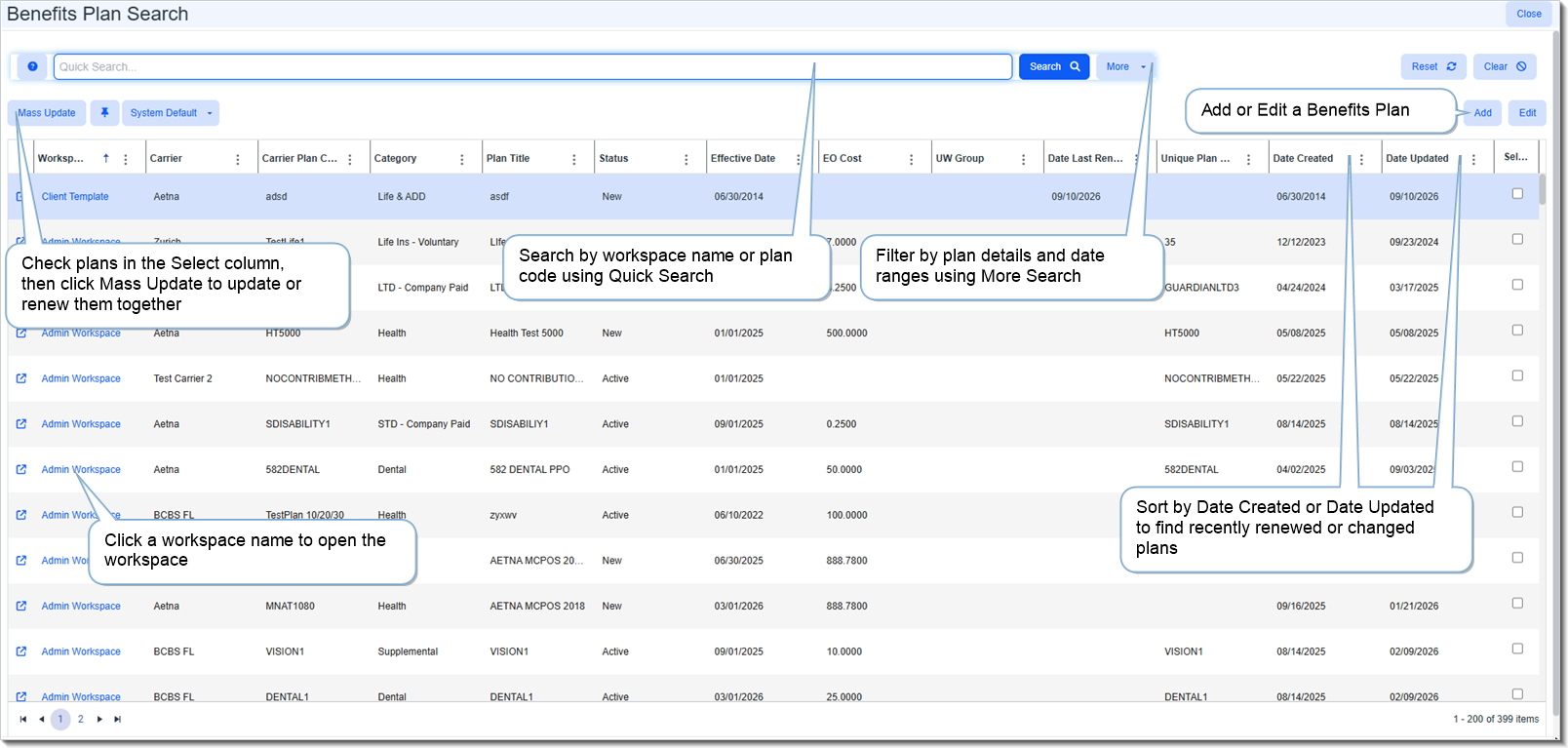
You can:
-
Use Quick Search to find plans by workspace name or plan code.
-
Use More Search to filter by Workspace, Carrier, Date Created, Date Updated, Product, Plan Title, Carrier Plan Code, Date Last Renewed, Category, Status, Underwriting Group, and Effective Date. Use the Show filter to display Active, Archived, or All plans.
-
Sort the grid by a column. For example, sort by Date Created or Date Updated to find a plan you recently renewed or changed, or by Date Last Renewed to see when plans were last renewed.
-
Click a Workspace name to open the workspace.
-
Click
 (Open) next to a plan, or select a plan and click Edit, to open it. Click Add to add a new Benefits Plan.
-
Check plans in the Select column and click Mass Update to update or renew the selected plans together.
Note: The ability to Add, Edit, or Mass Update plans depends on your assigned access permissions. The Mass Update button displays only for users with Edit access to Benefits Plan records and access to the biz_benefitsplan_massupdate security entity.
Accessing the Benefits Plans Dashboard
From the modules bar, click Benefits Plans. The Benefits Plan Search dashboard opens and lists plans from all workspaces.
Tip: You can also open the dashboard from the Admin Workspace or a client workspace. Scroll down to the dataform tiles and click the Benefits Plan tile. The dashboard opens filtered to that workspace.