Configuring the BPM Login Method for Custom Batch Types
The Benefits Batch Types Metadata dataform (System Admin  > Advanced > Dataform Admin) allows you to specify the BPM login method for custom batch types. It contains the BPM Login Type Lookup field with two lookup options representing the login methods: ID and Client Number. The Benefits Batch Types Metadata dataform is attached to the Benefits Batch Type Lookup Group and the BPM Login Type field appears in the "Additional Settings" section of the Benefits Batch Type Lookup Details dataform, allowing you to specify a login method for each custom batch type.
Note: If you do not have custom batch types, you do not need to configure Benefits Batch Types metadata. There is default functionality in place that does the following:
Additionally, you can use the BPM Login Type field as a condition on your BPM email templates so that the correct email template is used with custom batch types (i.e., BPM Prospect for the ID login method or BPMLoginEmail for the Client Number login method).
Step 1: Configuring the Benefits Batch Type Lookup Details
The first step in configuring the BPM login method for each batch type is go to the Benefits Batch Type Lookup Group to ensure the Benefits Batch Types Metadata is set in the Metadata Dataform field. Then you can open the associated Lookup Values and set the BPM Login Type field value for each.
To configure lookup settings:
-
Go to System Admin
> Lookups > Manage Groups. -
Locate the Benefits Batch Type Lookup Group and open it. Ensure the Benefit Batch Types Metadata dataform is displayed in the Metadata Dataform field. If it is not present, select it from the drop-down list.
Note: The field value has a gray background and cannot be changed once you have added metadata to associated lookup detail records.

-
Click the Lookup Values link in the right panel.
-
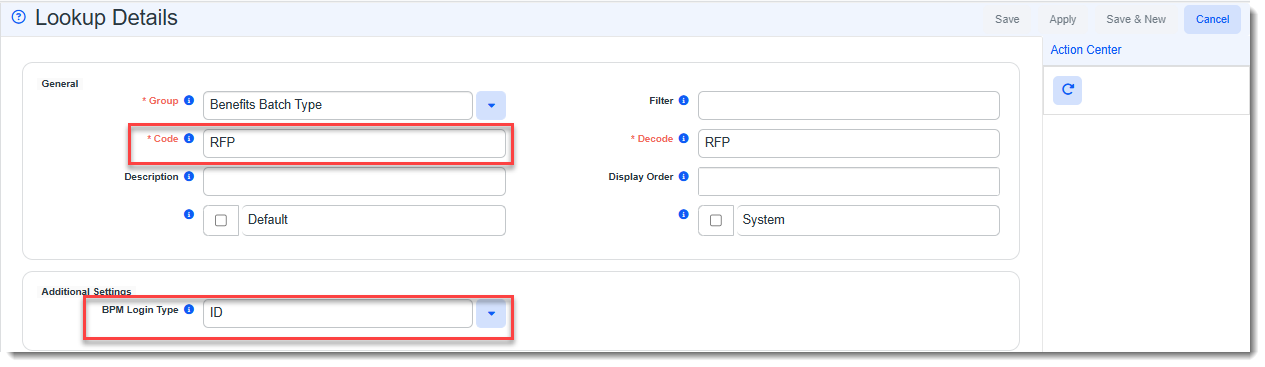
Open a Lookup Details record and set the BPM Login Type field under "Additional Settings" to ID or Client Number as appropriate.
ID is typically used for batch types associated with users who do not have a Client Number yet. They will log in to BPM using the Benefits Batch ID instead of the Client Number.
-
Repeat the previous step to update additional Benefits Batch Type lookup detail records as needed, making certain to click Apply or Save to commit your changes on each record.
Step 2: Configuring BPM Email Templates
You can set a Server Data Proc 1 condition on the Step 4 Conditions tab of BPM email templates to indicate the login type(s) for which the email template is used. See the Customizing the BPM Email Templates section of the Customizing BPM Login Notification Email Templates article.