Employee Benefits PHRAPI Import Mappings
The following procedures provide details for viewing:
-
Employee Benefits PHRAPI mappings for the PrismHR API Employee Benefits import.
-
Dataform properties for the Employee Benefits Detail form.
Note: The Employee Benefits Detail form is where imported employee benefits information is stored. When the PrismHR API import runs, if a record for the plan does not exist, a new Employee Benefits Detail record is created for each plan that an employee is enrolled in and attached to the Employee record. If an Employee Benefits Detail record exists but has changed, it is updated.
Import Mappings
To view the mappings:
| 1. | Go to System Admin  > Advanced > Configure Import. |
The Import Map Header Search dashboard opens. There are two Employee Benefits PHRAPI mappings:
| • | PHRAPI_initial_ee_benefits_detail*.csv |
| • | PHRAPI_ee_benefits_detail*.csv |
| 2. | Locate each mapping and click  (Jump) to open the header detail. |
The Import Map Header Detail form opens.
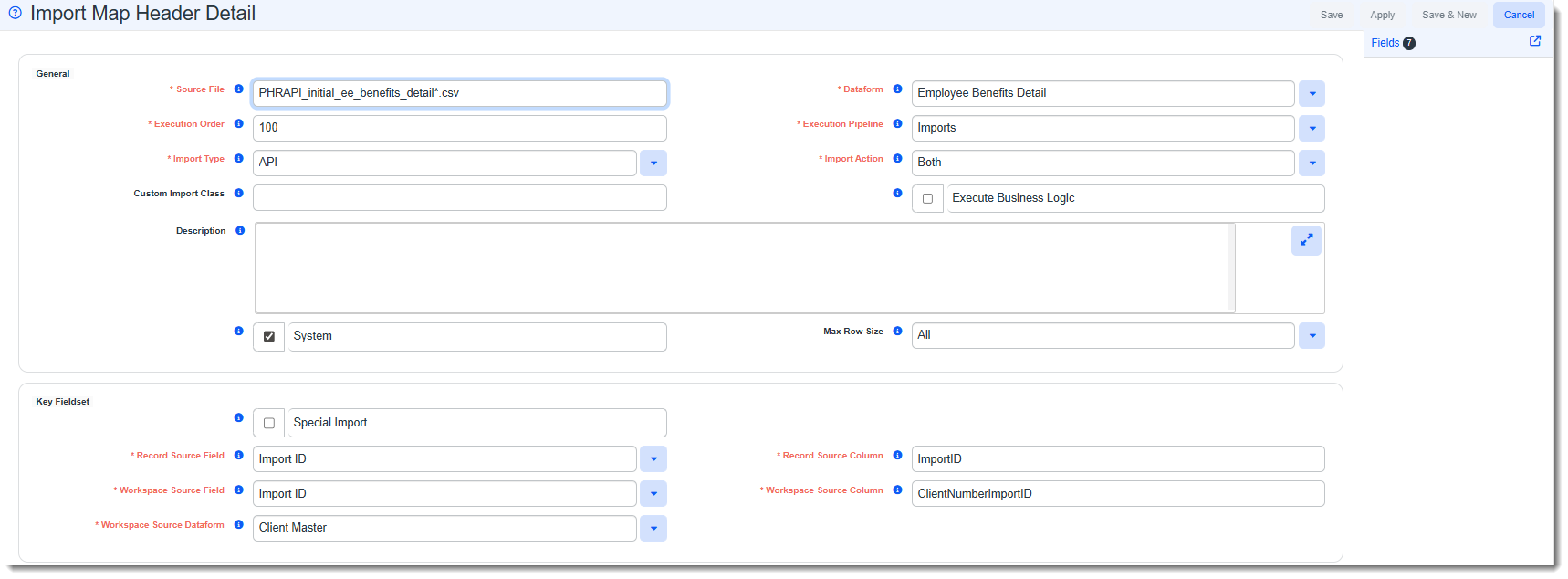
The following image represents the Import Map Header Detail for PHRAPI_initial_ee_benefits_detail*.csv used for the initial import:
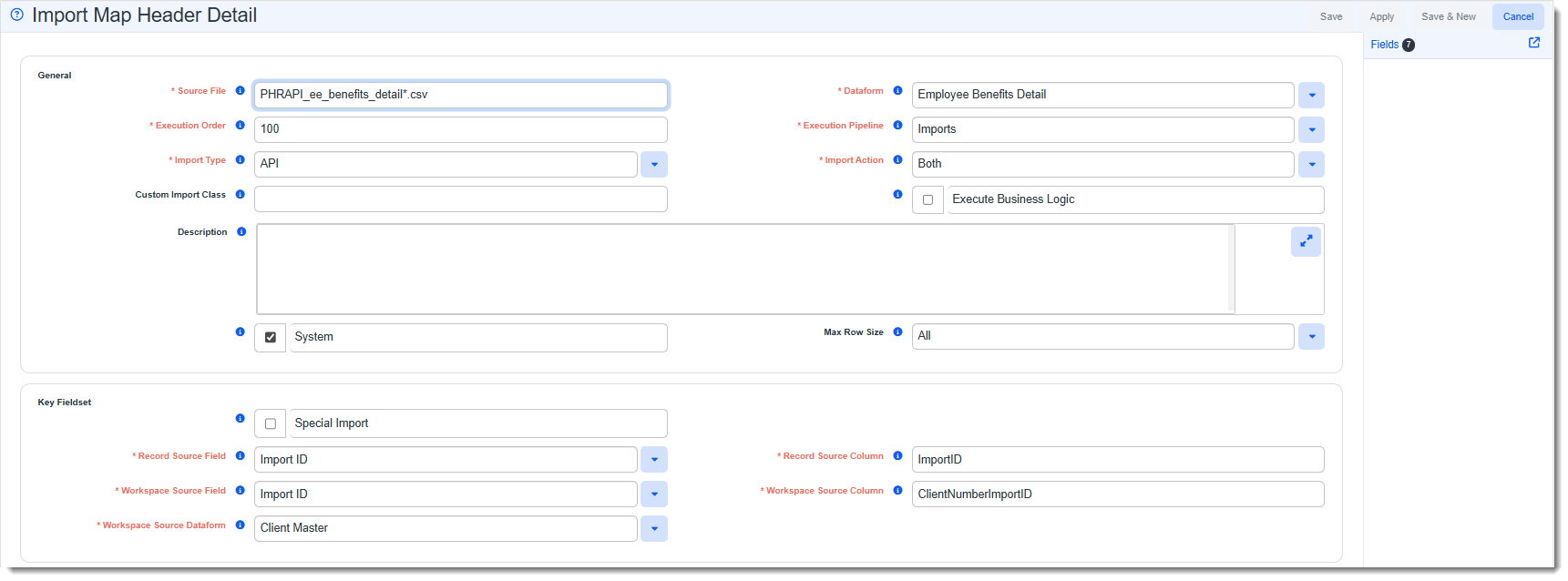
The following image represents the Import Map Header Detail for PHRAPI_ee_benefits_detail*.csv used for ongoing imports.
| 3. | To view the fields, click Fields. |
The Import Map Search list displays the Employee Benefits Detail dataform fields.
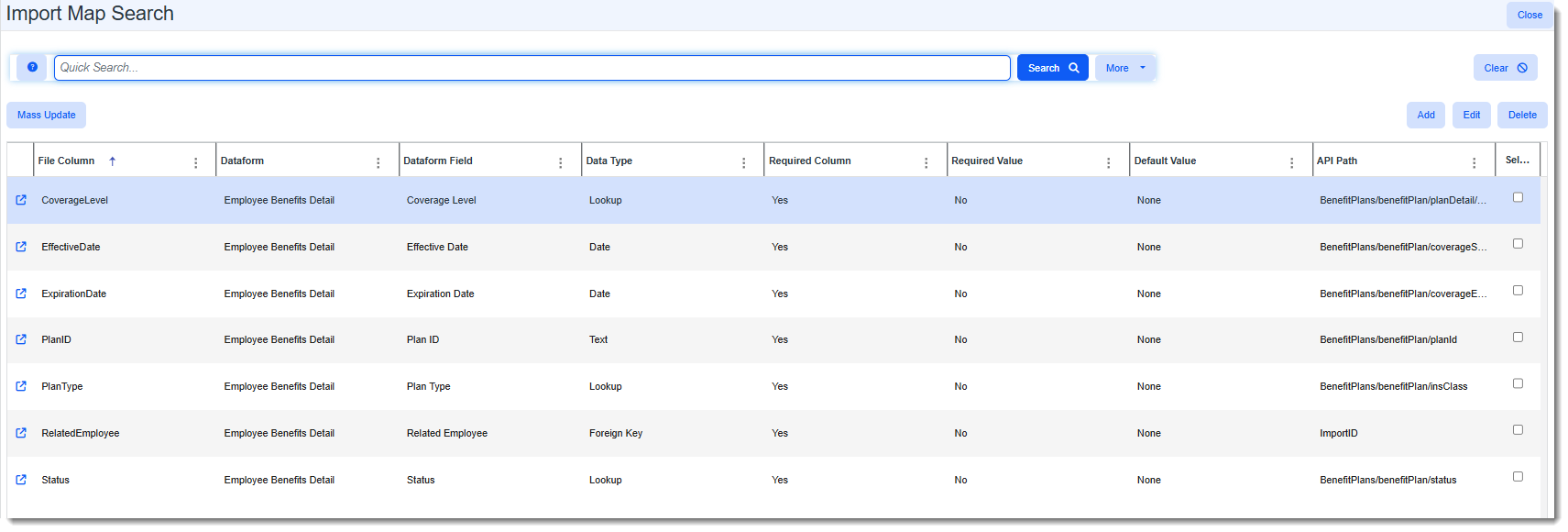
The following image lists the PHRAPI_ee_benefits_detail*.csv fields. (The fields are the same for PHRAPI_initial_ee_benefits_detail*.csv.)
Dataform Properties
To view the Employee Benefits Detail Dataform properties:
| 1. | Go to System Admin > Advanced > Dataform Admin. |
The Dataform Admin dashboard opens.
| 2. | Locate Employee Benefits Detail and click (Jump). |
The Dataform Properties: Employee Benefits Details window opens.
| 3. | To view the fields, in the Action Center, click Fields. |
The Employee Benefits Detail Dataform fields display.
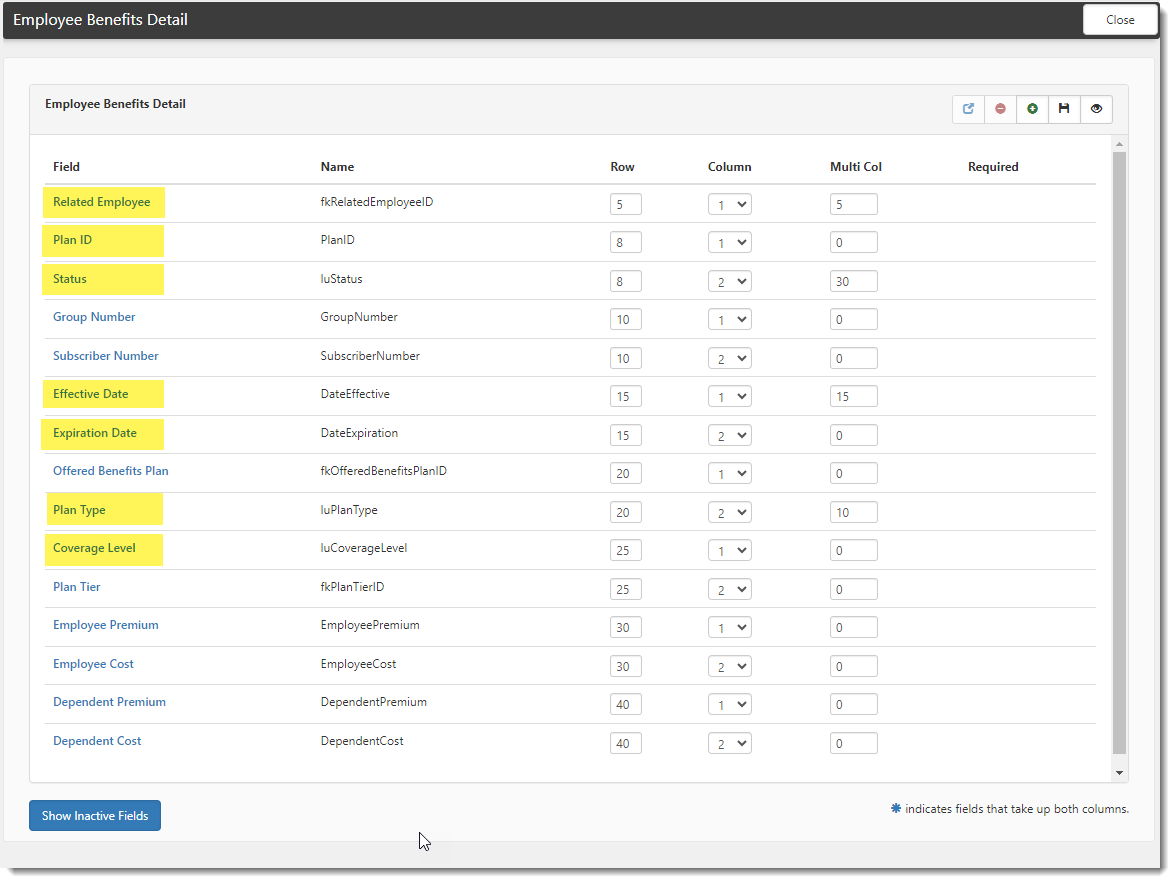
The Employee Benefits Detail Dataform fields related to the Employee Benefits import mappings (PHRAPI_ee_benefits_detail*.csv and PHRAPI_initial_ee_benefits_detail*.csv) are Related Employee, Plan ID, Status, Coverage Start, Coverage End, Recent Effective Date, Plan Type, and Coverage Level.
| 4. | To view field details, double-click the field or select the field and then click (Jump). |
Field configuration details display.
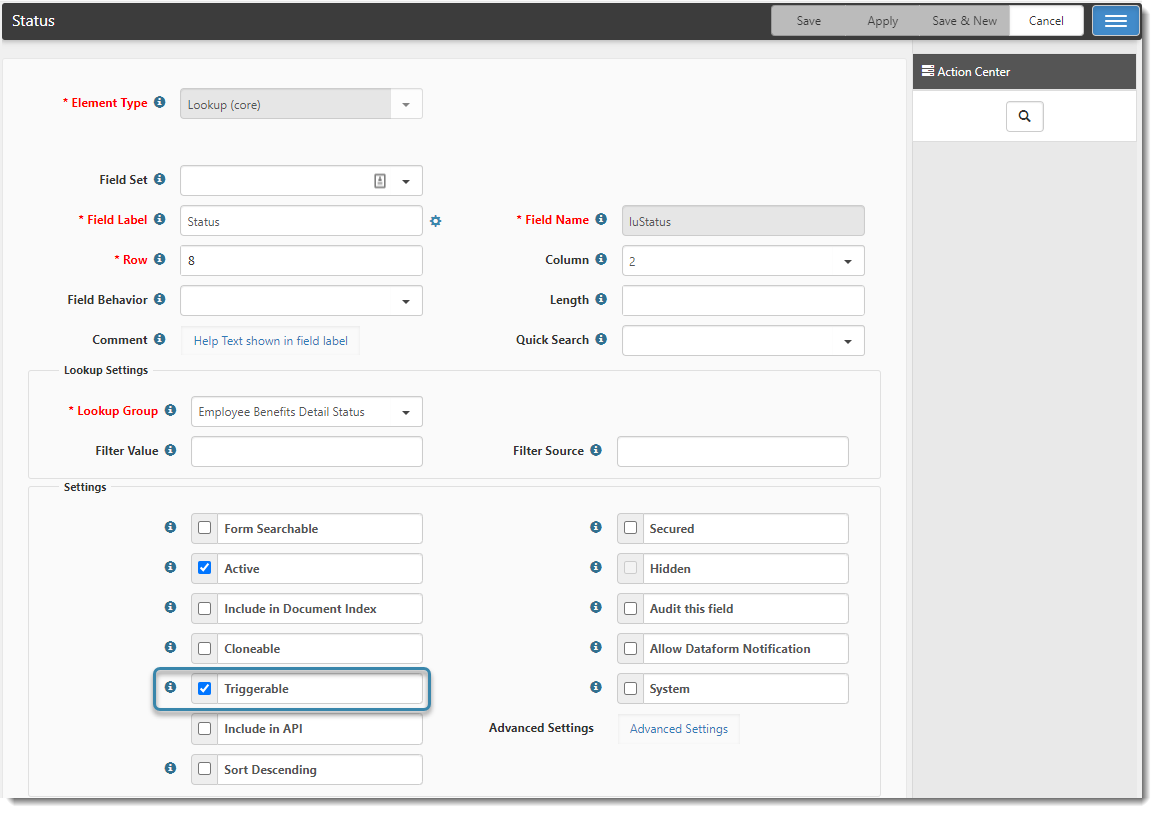
The following image shows the Status lookup field details.
Can Use in Workflows
With the ClientSpace PrismHR PHRAPI, you can import Employee Benefits data into the Employee Benefit Details dataform and then use the dataform in workflows. The import uses PHRAPI_ee_benefits_detail*.csv and PHRAPI_initial_ee_benefits_detail*.csv import mappings.
Any dataform field that is marked as Triggerable on the Dataform Properties window can be used in a workflow. The image above from the preceding section shows the Status lookup field flagged as Triggerable.
ClientSpace to PrismHR Field Mapping
The table below lists Employee Benefits Detail dataform import fields in ClientSpace and the path to the corresponding fields in PrismHR.
| ClientSpace "Import To" Field Name | PrismHR "Import From" Path and Field Name |
|---|---|
|
Related Employee (fkRelatedEmployeeID) |
ImportID |
|
Status (luStatus) |
BenefitPlans/benefitPlan/status |
| Coverage Start (DateEffective) |
BenefitPlans/benefitPlan/coverageStart |
| Coverage End (DateExpiration) | BenefitPlans/benefitPlan/coverageEnd |
| Recent Effective Date (DateRecentEffective) | BenefitPlans/benefitPlan/planDetail/effectiveDate |
| Plan ID (PlanID) | BenefitPlans/benefitPlan/planId |
| Plan Type (luPlanType) | BenefitPlans/benefitPlan/insClass |
| Coverage Level (luCoverageLevel) | BenefitPlans/benefitPlan/planDetail/planType |
Note the following about the date and coverage level fields:
-
Coverage Start is the date the employee's enrollment in the plan began and does not change when the enrollment is updated in PrismHR. Recent Effective Date is the latest effective date of the plan's plan details in PrismHR, including future-dated changes. Each time the scheduled PrismHR API import runs, the date is updated if premiums, coverage level, or elections changed in PrismHR. For medical, dental, and vision plans, Coverage Level is set from the same plan detail as Recent Effective Date; other plan types do not import a coverage level.
Example: An employee enrolls in a medical plan with employee-only coverage (EO) effective 1/1/26. Coverage Start and Recent Effective Date are both 1/1/26. The employee marries and changes to employee and spouse coverage effective 7/1/26. Coverage Start stays 1/1/26, Recent Effective Date changes to 7/1/26, and Coverage Level changes to the Employee and Spouse (ES) coverage level.
-
The PrismHR Plan Type is matched to a value in the Benefit Coverage lookup group by the lookup value's Import ID. For example, if the Import ID of the Employee + Family (EF) lookup value includes FAM, a PrismHR Plan Type of FAM is stored as EF. To map other PrismHR Plan Type values, go to System Admin
> Lookups > Manage Groups, open the Benefit Coverage lookup group, and add the codes to the Import ID of the matching coverage level, separated by a pipe (for example, |FAM|5FAM|). If no lookup value matches, the import map's Allow Invalid Lookup Values setting determines whether the PrismHR code is still imported. See Configuring the Import Map Detail.
Linking Records to Offered Benefit Plans
Set OBP is a business rule that links each Employee Benefits Detail record to an Offered Benefit Plan (OBP) by setting the record's Offered Benefits Plan field. Enrollment counts for the OBPs in a Benefits Batch are calculated from these links. The rule runs when a record with a Plan ID is saved and its Recent Effective Date has changed and is not empty. This is usually the result of the scheduled PrismHR API import. Each time the Recent Effective Date changes, the rule checks the link again, so a record that is already linked can be linked to a different OBP.
To find the OBP, the rule looks for an active OBP that meets all of the following conditions:
-
The OBP's benefit plan has a plan code that matches the record's Plan ID.
-
The OBP's Benefit Group matches the Benefit Classification on the employee's Employment form.
-
The Recent Effective Date is on or after the OBP's Effective Date and on or before its Expiration Date. If the OBP has no Expiration Date, only the Effective Date is checked.
The rule then updates the record as follows:
-
If one OBP matches, the rule sets the Offered Benefits Plan field to that OBP.
-
If more than one OBP matches, the rule uses the OBP with the earliest Effective Date. The Effective Date and Expiration Date ranges of OBPs for the same plan and Benefit Group should not overlap.
-
If no OBP matches, the Offered Benefits Plan field is not changed and no error displays.
Note: The Benefit Classification field must be active on the Employment form and included in the PrismHR API Employment import mappings. If an employee's Benefit Classification is empty, the rule cannot link that employee's Employee Benefits Detail records to an OBP. If you need help setting this up, log an extranet case or contact Professional Services.
Example: An employee enrolled in a medical plan effective 1/1/25 is linked to that plan's OBP in the 1/1/25 Benefits Batch. The employee continues in the plan for 2026, and the 1/1/26 Benefits Batch raises the premiums, so PrismHR adds a plan detail effective 1/1/26. The next PrismHR API import changes the Recent Effective Date to 1/1/26, and the rule links the record to the plan's OBP in the 1/1/26 Benefits Batch.