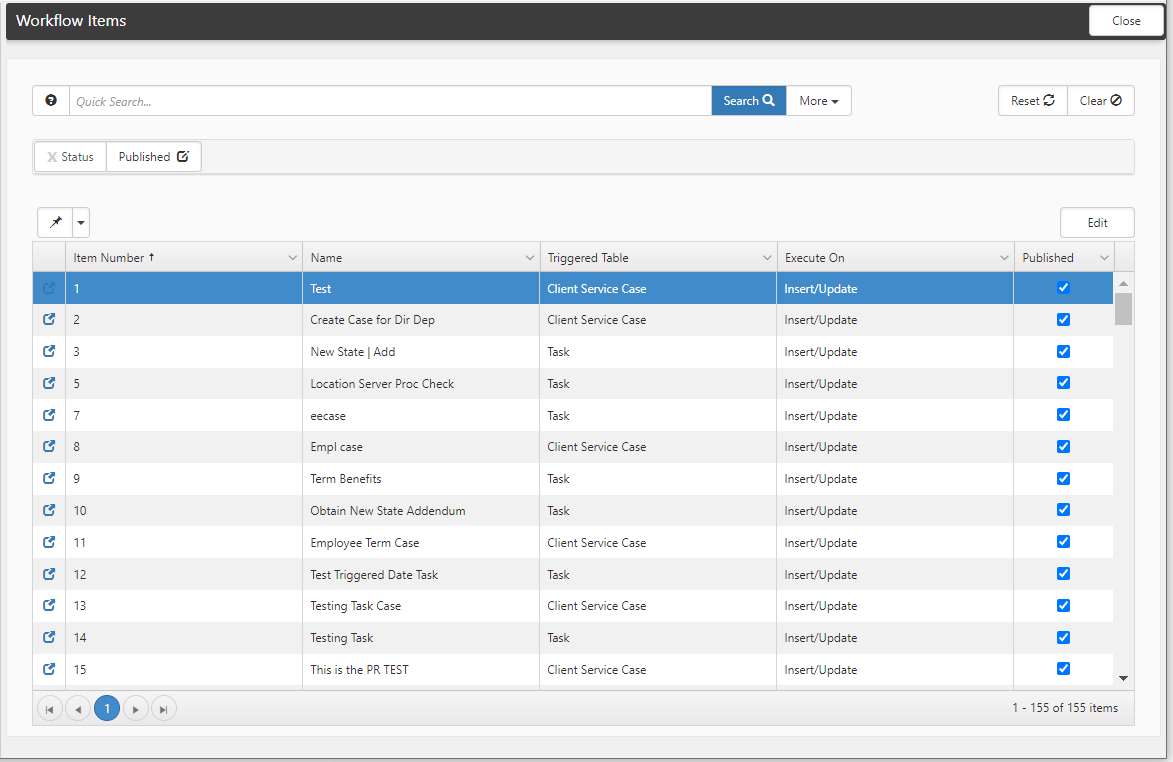
When you have completed the four-step process for creating a workflow channel, you are returned to the Channel. The Workflow Channel is the top-level item that can have multiple workflow items, all potentially triggered from unique conditions.
"Workflow Items in this Channel" List
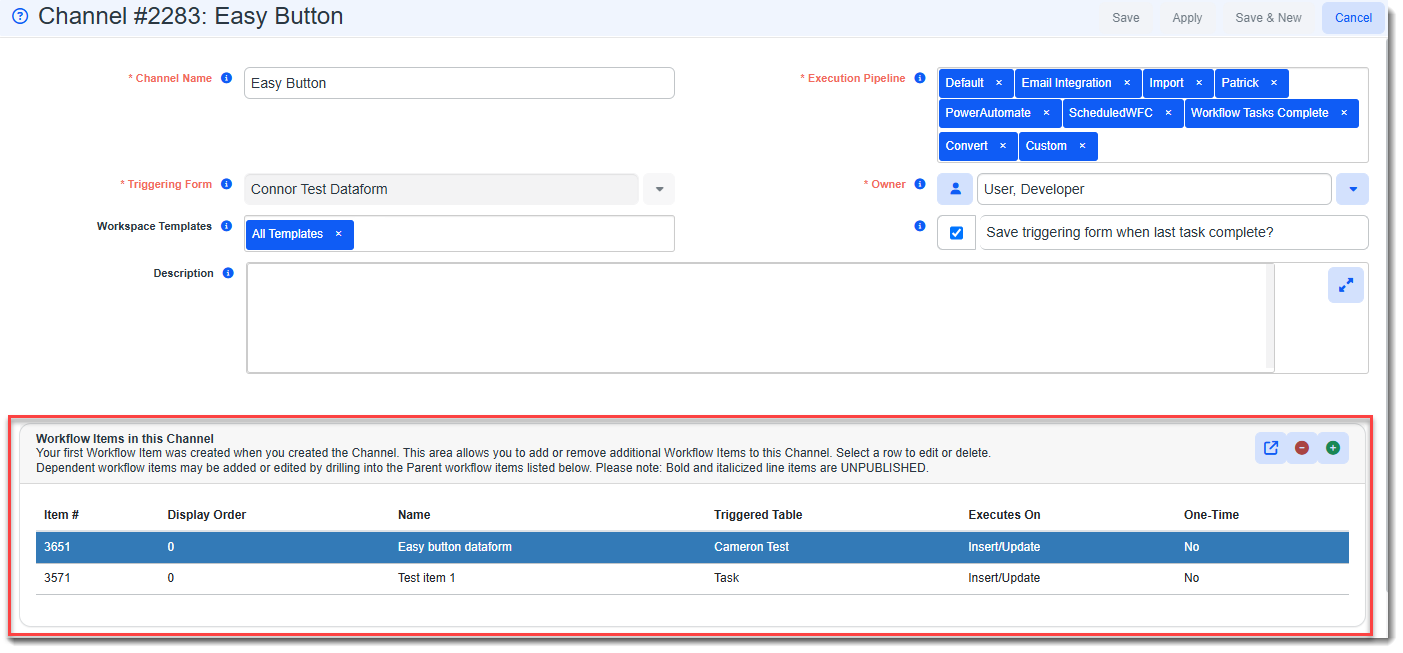
From an open workflow channel, you can complete one of the following actions in the "Workflow Items in this Channel" section:
- Open: Select an existing workflow item and click
 (Jump) on the "Workflow Items in this Channel" section toolbar to begin editing an existing workflow.
-
Delete: Select an existing workflow item and click
 (Delete) on the "Workflow Items in this Channel" section toolbar to delete the selected Workflow Item and any dependent items.
- Add: Click
 (Add) to add a new Workflow Item for this channel.
Navigating Between the Workflow Channel and Workflow Items Via Links
Note: For users without Global Admin access, the workflow channel and workflow item links referenced in this section are shown but not clickable.
All top-level Workflow items are attached to the Workflow Channel as shown in the example below where Channel #2283 (listed in the window header) has two top-level workflow items, #3651 and #3571, which are listed in the bottom grid:
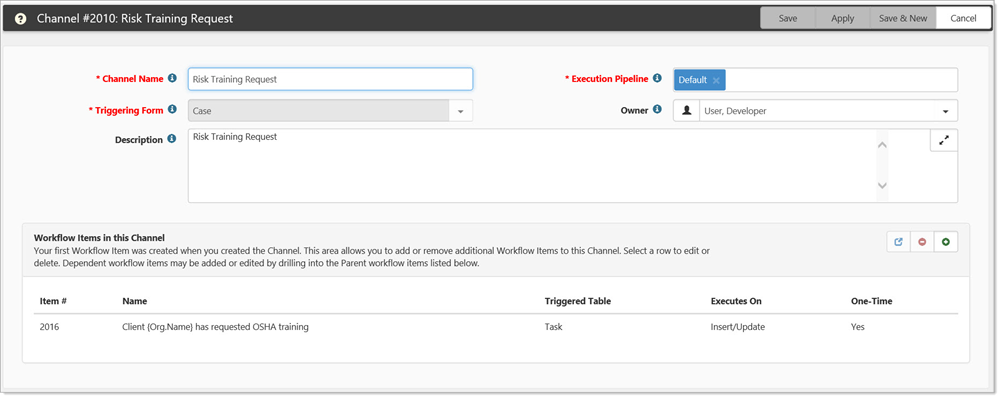
When you open a top-level workflow item, it can have dependent workflow items as illustrated below. Note that in the example, we have opened top-level workflow item #3651 from the previous example and it has a Dependent workflow item, # 3679. Additionally, there is a link to the Workflow Channel. This is visible at every workflow item step. Click the link to return to the Workflow Channel configuration.
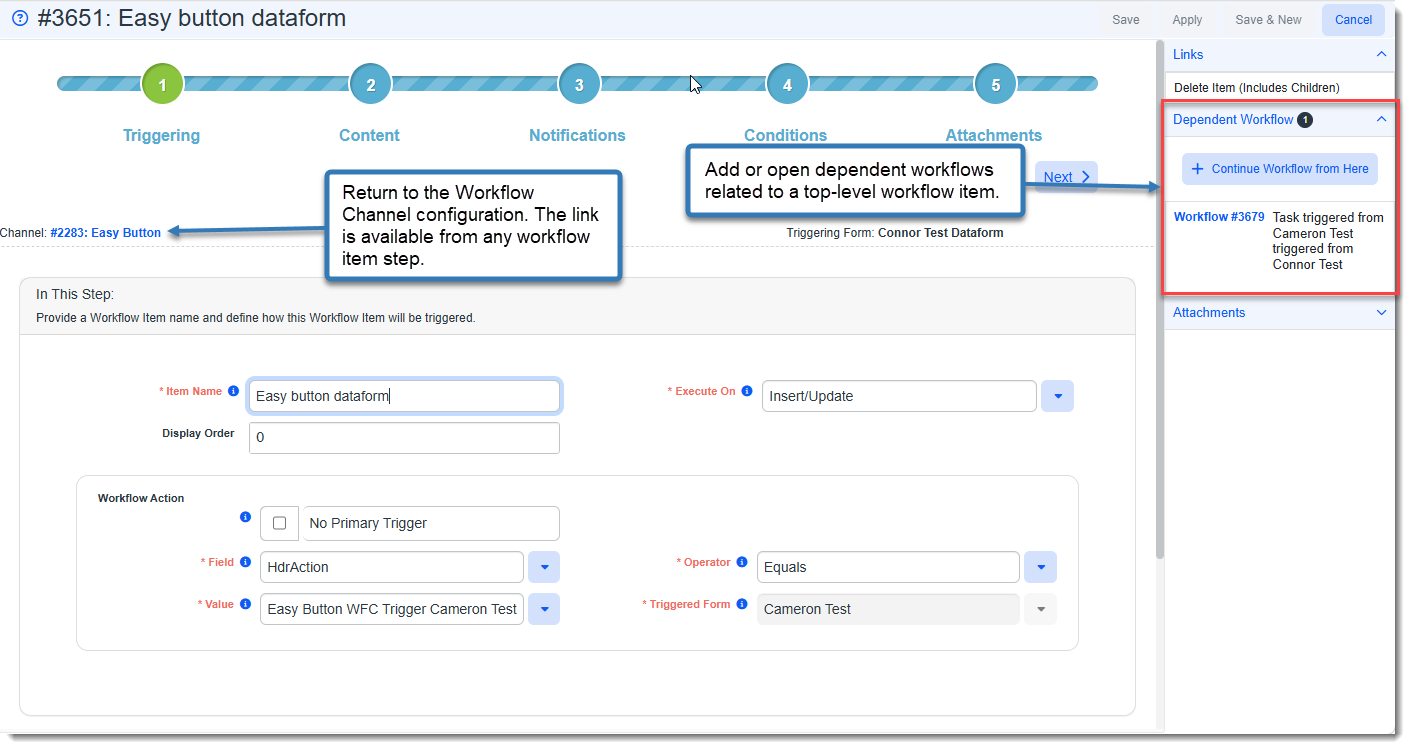
When you open a dependent item, an additional link is added that allows you to return to the parent item. In this example, Dependent workflow item, # 3679, has been opened and a link to the parent workflow item #3651 is also displayed along with the link back to the Workflow Channel configuration:
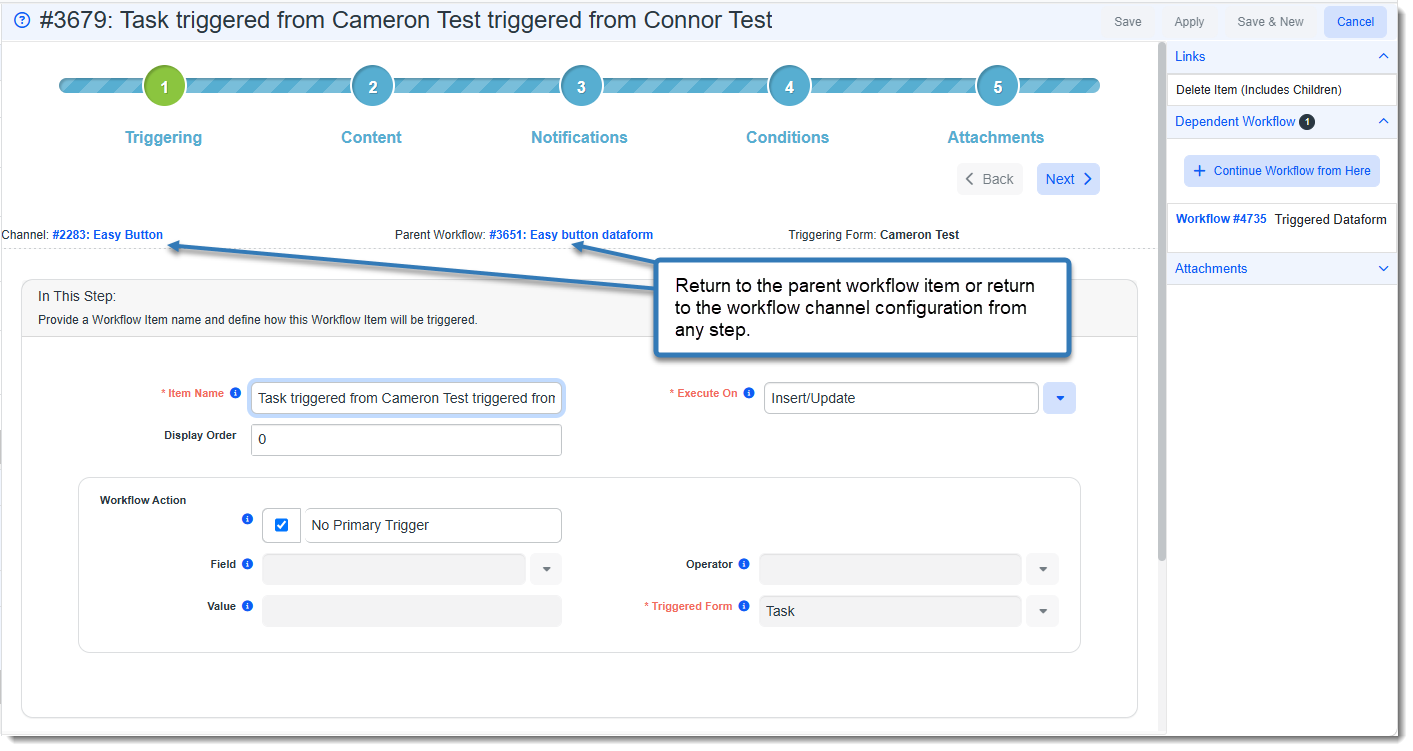
Note that a dependent item can also have dependent items. As you navigate through multiple levels of dependent workflow items, each item displays a link to its immediate parent workflow item.
Configuring a New Workflow Item
To configure a new workflow item:
- From an open workflow channel, select
 .
. - Select Real Time or Scheduled.
The Add Workflow form opens. The following topics follow the Real Time workflow. For information about scheduled workflows, see Configuring Scheduled Workflows.
You are presented with a four-step process wizard: Triggering, Content, Notifications, and Conditions.
Publishing and Unpublishing Workflow Items
To publish or unpublish an existing workflow item:
-
From an open workflow channel, click the workflow item you want to publish or unpublish "Workflow Items in the Channel" section and select
 (Jump).
 -
Click the Step 4: Conditions tab.
-
Place a check mark in the Publish checkbox to publish the workflow item or remove the check mark from the Publish checkbox to unpublish a workflow item.
-
Click Save.
-
Return to the main workflow channel page.
Published workflow items display as normal text. Unpublished workflow items display in italics and bold.
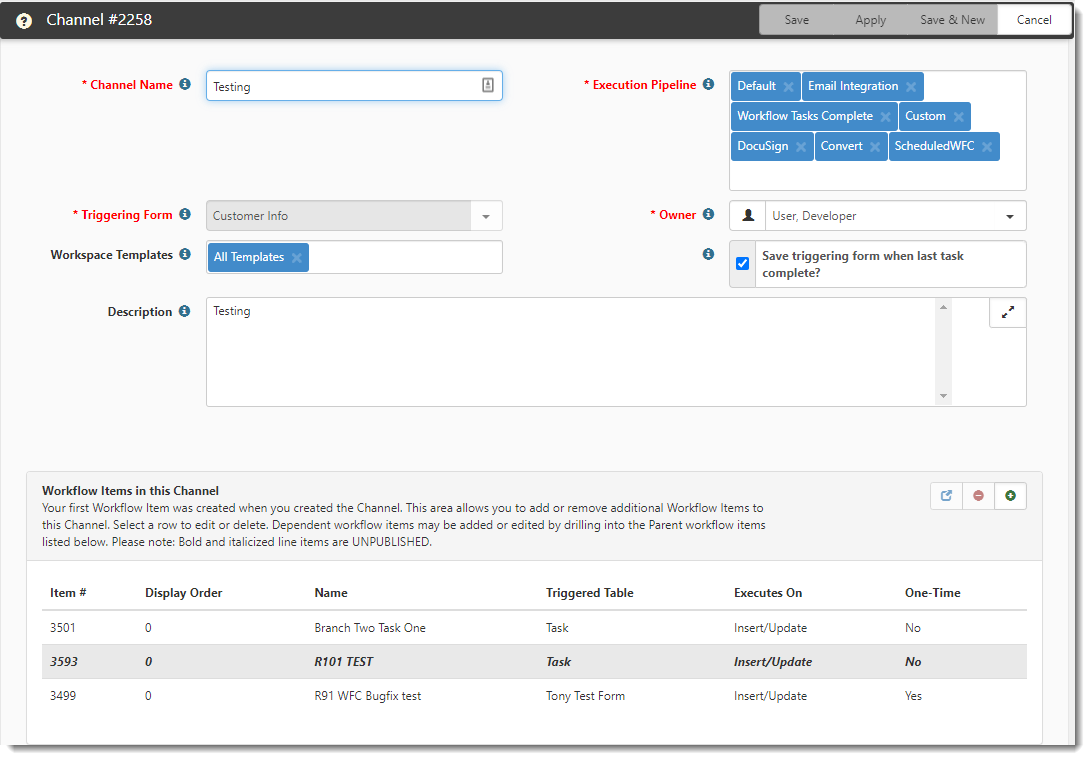
Note: You can also check or uncheck the Published checkbox on the Workflow Items dashboard to publish or unpublish a workflow item.
Workflow Items Dashboard
A global admin user can click the Workflow Items button on the Workflow Channels dashboard to access the Workflow Items dashboard. A global admin user can use the Workflow Items dashboard to find and then edit workflow items without drilling into each individual workflow channel. The Workflow Items dashboard provides an efficient mechanism for workflow item maintenance. For example, a global admin user can use the More search option to find all workflow items for a specific pipeline and apply edits to those workflow items. Or, they could check or uncheck the Published checkbox on the Workflow Items dashboard to publish or unpublish a workflow item. For more information, see workflow items or Searching Workflow Items.
The following graphic illustrates the Workflow Items dashboard.