Searching in ClientSpace
There are multiple ways to search in ClientSpace:
-
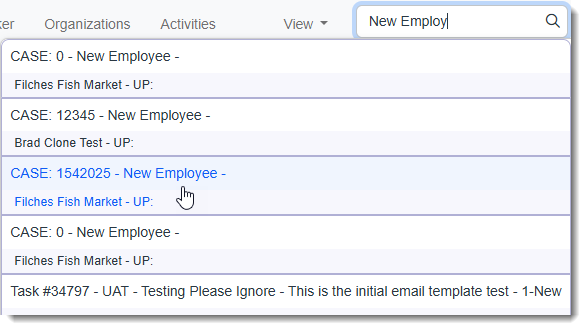
Global Search: When the Global Search bar is enabled, it displays on the Modules bar:

It is always visible, allowing you to search the ClientSpace system by keyword or phrase from one location for related cases, tasks, activities, attachments and more. If results are found, they display in a drop-down list. You can click an item in the list to open the record.
-
Quick Search/More Search: Quick Search and More Search functionality is available for individual module dashboards and pages. Quick Search is a keyword or phrase search while the More search allows for advanced filter searches, including "equals" searches, date range searches and more. All search pages in ClientSpace are arranged in a similar fashion. The following Case search example represents search options. Individual Quick Search and More search options can vary.
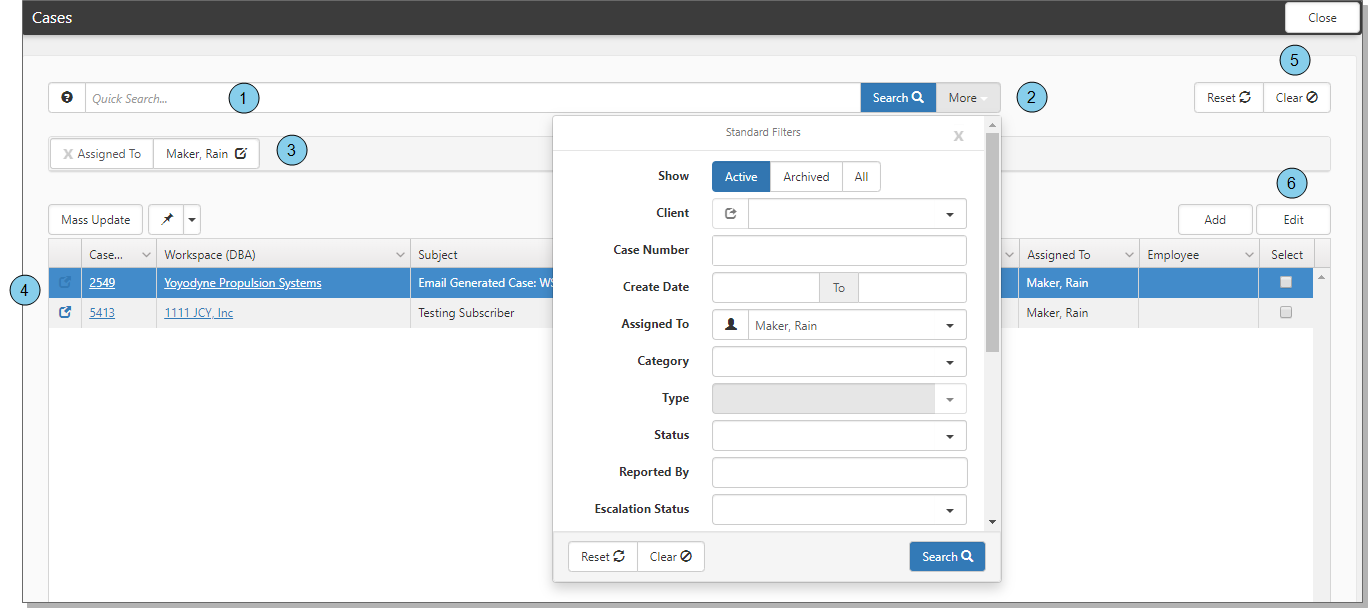
The numbered items in the example correspond to the following list:
| 1. | Quick Search: Quickly search a few of the most commonly searched fields. |
| 2. | More: Detailed search can include the same fields as Quick search, but More searches are always equals searches. |
| 3. | Filter chiclets: Chiclets represent the currently selected filters. |
| 4. | Search results: Filtered records list. |
| 5. | Clear search filters: Clears all search filters. |
| 6. | Edit record: Select a record in the search results and click Edit to open the record. |
Topics in this section