Master Survey Recipients Dashboard
Use the Master Survey Recipients Dashboard to manage survey recipient "Unsubscribe" statuses. Recipients are displayed in the dashboard by their email address in the Recipient Address column. An Unsubscribe All column is also displayed indicating whether the recipient is currently unsubscribed from all surveys:
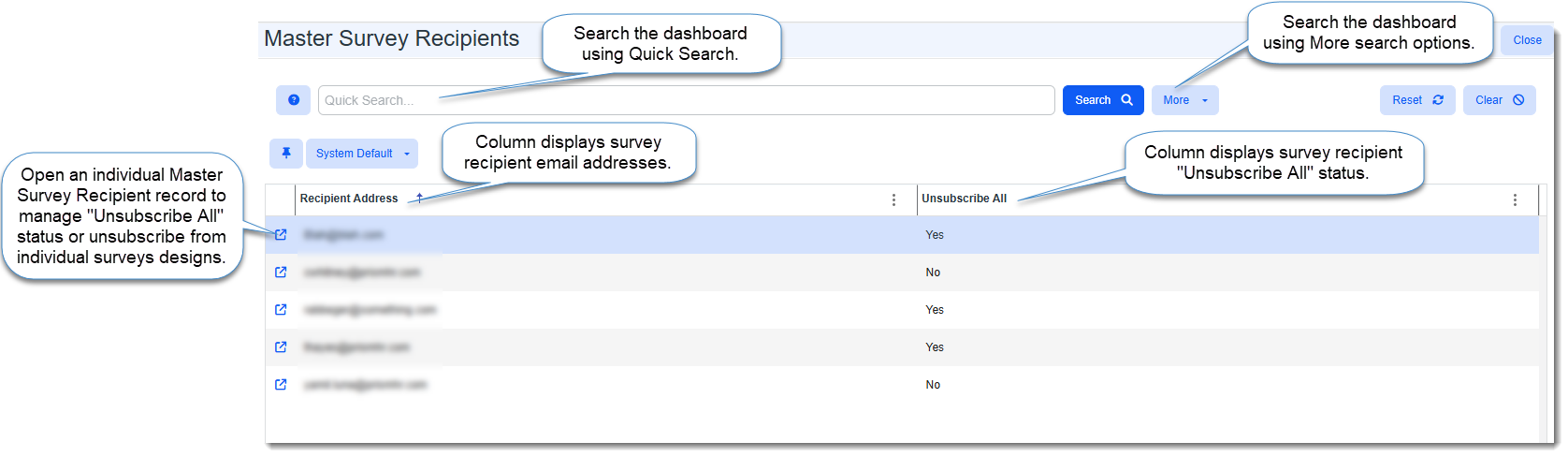
You can open an individual Master Survey Recipient record to set or remove global "unsubscribe from all surveys" or manage the unsubscribe flag for specific survey designs.
Accessing the Master Survey Recipients Dashboard
To access the Master Survey Recipients dashboard:
-
Go to System Admin
 > Email Admin.
 -
Click the Master Survey Recipients link.

The Master Survey Recipients dashboard displays.
Managing Unsubscribe Statuses
To manage unsubscribe statuses:
-
From the Master Survey Recipients dashboard, double-click a selected row or click
 (Open)next to the individual Survey Recipient record you want to edit.
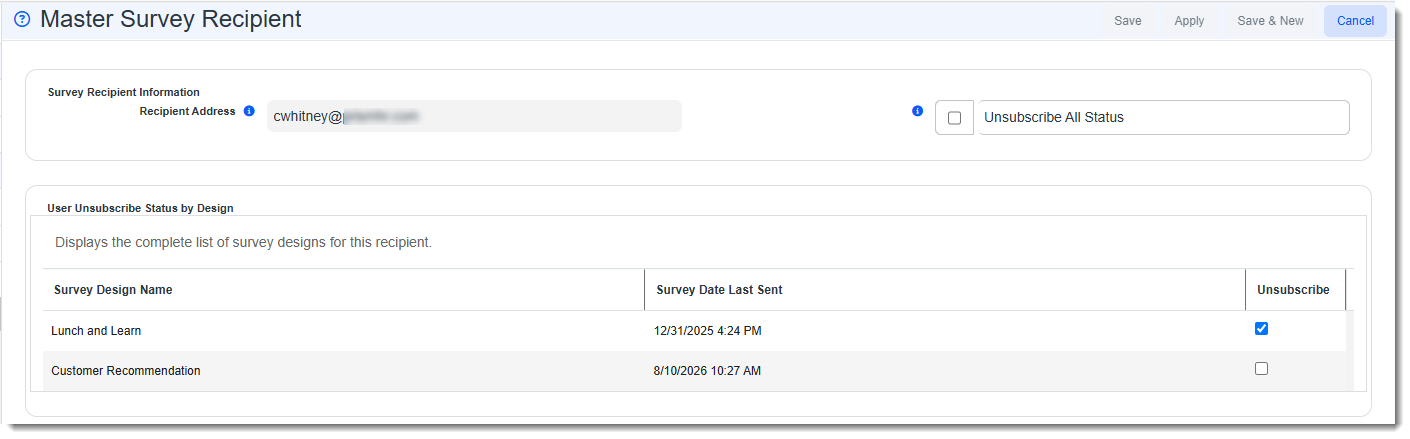
The select Master Survey Recipient record opens.
-
What do you want to do?
-
To unsubscribe the recipient from individual survey designs: In the "User Unsubscribe Status by Design" grid, click the Unsubscribe checkbox on the line items of the survey designs that should no longer be sent to the recipient.
-
To unsubscribe the recipient from all surveys: Click the Unsubscribe All Status checkbox in the "Survey Recipient Information" section.
Note:
-
The "User Unsubscribe Status by Design" section is hidden when Unsubscribe All Status is checked. If you later need to manage "Unsubscribe" statuses of individual survey designs, simply uncheck Unsubscribe All Status to display the section.
-
You can safely toggle Unsubscribe All Status on or off without losing any previously applied "Unsubscribe" settings in the "User Unsubscribe Status by Design" section.
-
-
-
Click Save.