Email Admin
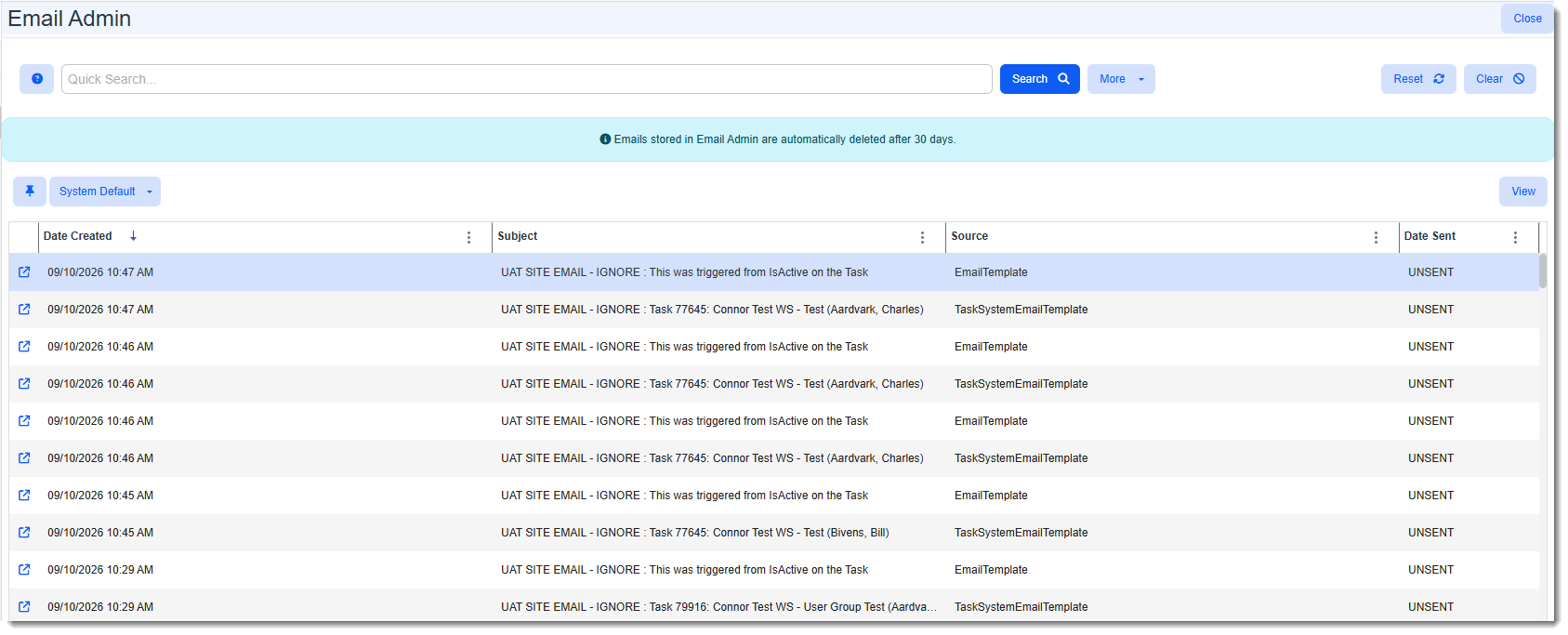
The Email Admin dashboard lists emails generated from calendar events, activities, emails, tasks, email templates, and dataforms. The scheduled process looks at this table, and for any UNSENT items, it sends them. The Date Sent column reflects the status as either a date or UNSENT, which indicates the email cannot or has not yet been sent. For emails generated from the INCIDENT template, the dashboard displays TaskSystemEmailTemplate in the Source column.
Important: Emails (as well as associated attachments) stored in Email Admin are automatically deleted after 30 days. To retain this information in ClientSpace for a longer period, select the Include as Activity checkbox in Step 1: Initial of Email Template configuration. This will store the email and any related attachments on the record from which it was triggered. Alternatively, in Step 3: Addresses of Email Template configuration, you can send the email to a company mailbox by entering the address under “Addresses.”
You can open an Email Admin record on the dashboard to view the details. When there are attachments, you can view them in the Attachments pane of the open record.
To access Email Admin:
- Go to System Admin
 > Email Admin.
The Email Admin dashboard opens with a list of entries. You can view entries and search them using Quick Search and More search.
- To search using More search, click More.
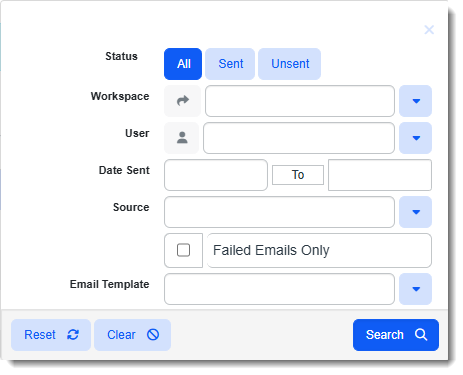
The More search dialog box opens. You can search by Status, Workspace, User, Date Sent range, Source, Failed Emails Only, and Email Template.
- After you have entered the search criteria, click Search.
The results are displayed on the dashboard. - To change the column view, on a column header, click the Column Settings icon:
 .
.
A list of columns displays where you can add or remove to customize the view. By default, the Email Template and Failed columns are hidden. From the Email Template column, you can link to the email template. - To view a dashboard entry, select and click
 (Open).
The item opens.
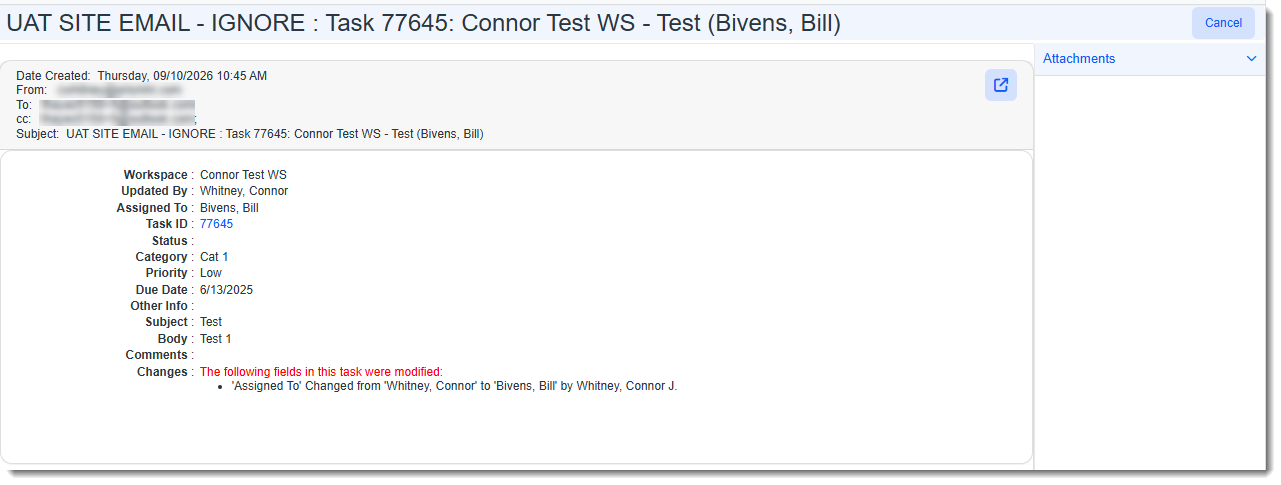
- If there are any attachments for the opened item, you can view them from Attachments in the right pane.
- For entries that are still active tasks, to view the task, click
 (Open) in the gray banner.
