A Global Administrator with an Advanced Administration certificate can add tabs to a parent dataform in Dataform Admin. Each tab displays a child dataform on the parent form.
Before you add a tab, create the tabbed dataform in Dataform Admin. Include a field with the Parent Form element type (i.e., datatype) that points at the parent form where you want the tab to appear. See Configuring parent form datatypes.
Note:
-
By default, you can add up to five tabs to a parent dataform. If you need more tabs, please log an extranet case or contact Professional Services for assistance.
-
A dataform that is itself a tab, or that is used for lookup group metadata, cannot have tabs. A dataform that has its own tabs cannot be added as a tab.
-
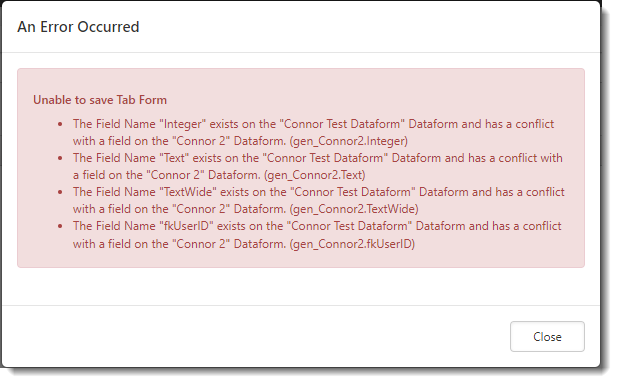
If the tabbed dataform has a field (other than its Parent Form field) with the same field name as a field on the parent form or on one of its existing tabs, a validation error message similar to the following displays listing all conflicts that must be cleared before the tab relationship can be saved:
To add dataform tabs:
- Go to System Admin
 > Advanced > Dataform Admin.
The Dataform Admin dashboard opens. - Search for the parent dataform and open the form.
The Dataform Properties form opens. - In the Action Center, click Tabbed Forms.
The Tabbed Forms list displays. - Click Add.
The Tabbed Form dialog box opens.
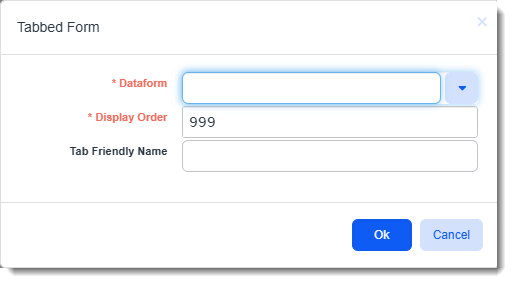
- In the Dataform list, select the tabbed dataform.
- Provide a Display Order. This is the order in which the tabs will appear at the top of the dataform. The display order is numeric.
- Optionally, enter a Tab Friendly Name. This is the alias name that displays as the tab label in place of the dataform name.
- Click Ok.