Generating an AI Case Analysis
Note: If you are interested in using this feature, contact your ClientSpace Professional Services representative or submit an extranet case.
You can generate an AI Case Analysis from the Action Center of a Client Service Case record. The system automatically gathers relevant case details, notes, and activities to produce an AI-driven analysis, including a priority assessment and recommended next steps.
To generate an AI Case Analysis:
-
Open a client workspace.
-
In the Action Center, click the Cases link.
-
On the Cases dashboard, click Add to add a case.

To edit an existing case:
-
Locate the entry and click
 (Open).
Or
-
Select a row and click the Edit button
-
-
In the Action Center, click Generate in the AI Case Analysis panel.
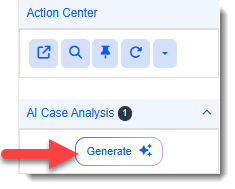
Once an AI analysis is generated, it is saved as a child record on the AI Case Analysis form and the counter next to the AI Case Analysis link is incremented by 1.
-
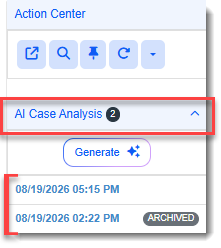
Click the AI Case Analysis link to expand the list of links to the AI Case Analysis forms associated with the case. They are ordered by date and time created with the most recent analysis on top. Older AI Case Analysis forms are marked "Archived" as shown below:
-
Click the date/time link of the analysis you want to view.
An example analysis is provided below:
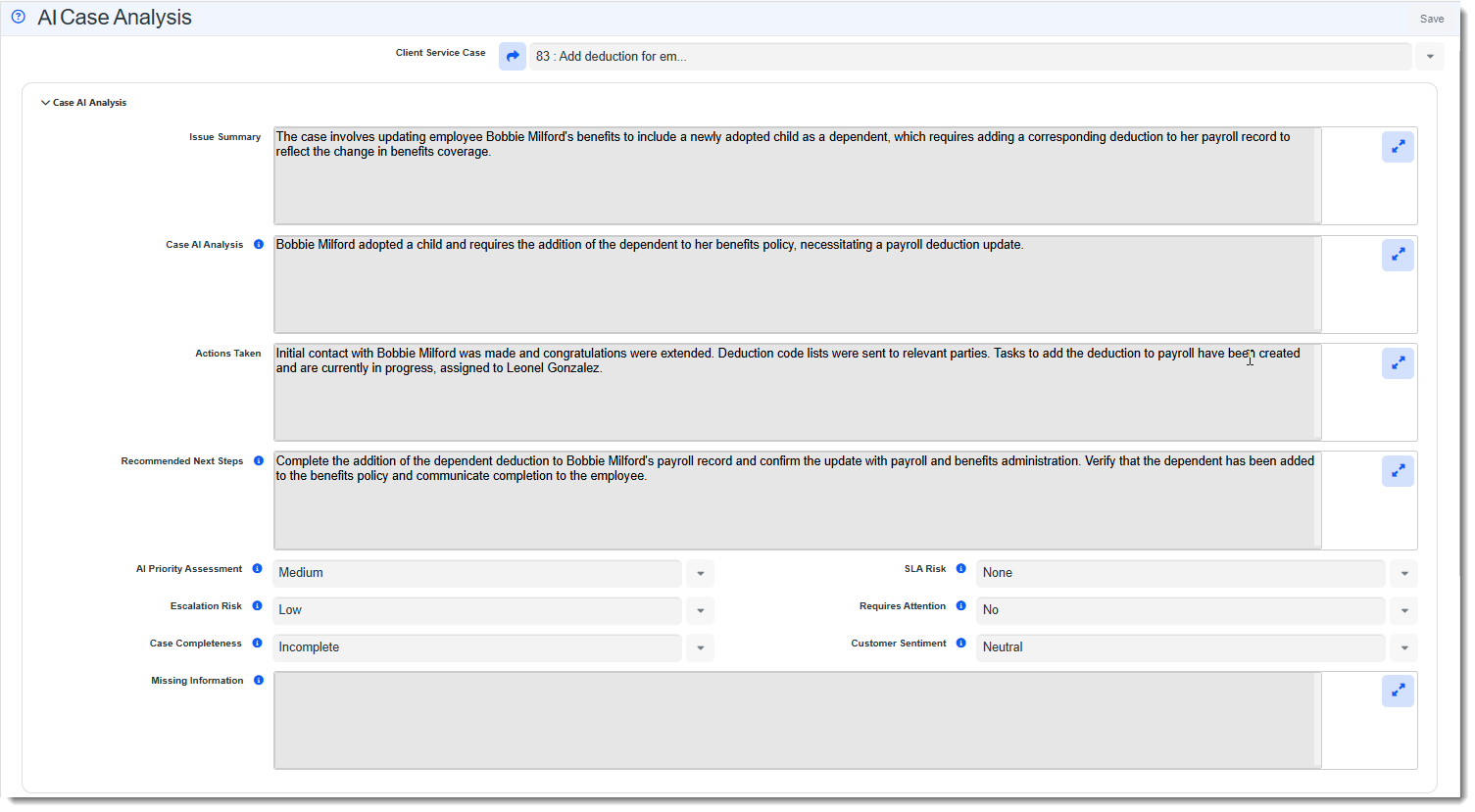
The AI Case Analysis form displays the following fields:
Client Service Case Displays the Case Number and Subject. Click Jump to Related Form  to go to the related Client Service Case record.
Issue Summary Brief overall summary of the case. Case AI Analysis Roll-up summary of the case covering the case background/context and where the case currently stands. Actions Taken Summary of the actions taken on the case to date, such as tasks assigned, communication instances with the client, etc.. Recommended Next Steps Internal operational guidance detailing the recommended next steps to move the case forward. AI Priority Assessment The priority is selected from the AI Priority Assessment lookup group based on an AI analysis of case details, urgency, impact and available activity.
Note: Lookup group values for this field and all of the lookup groups in this section can be customized by a Global Admin (System Admin
 > Lookups) if edits or additions to the default values are needed.
SLA Risk The SLA risk is selected from the AI SLA Risk lookup group based on an AI analysis of case details. It indicates whether the case may be approaching or exceeding the service length agreement (SLA) timelines. Escalation Risk The escalation risk is selected from the AI Escalation lookup group based on an AI analysis of case details and indicates whether the case may need additional review, ownership or prioritization. Requires Attention The value is selected from the AI Requires Attention lookup group and indicates whether the case may need prompt action based on an AI analysis of case details. Case Completeness The value is selected from the AI Case Completeness lookup group based on an AI analysis of case details and indicates whether the case appears to include enough information to continue investigation or resolution. Customer Sentiment The value is selected from the AI Customer Sentiment lookup group based on an AI analysis of customer or client-facing language available on the case. Missing Information This is a text summary of any missing or incomplete information based on an AI analysis of case details. Analysis Status This is AI metadata used to classify the AI Case Analysis as Generated, Archived or Failed. The values are selected from the AI Analysis Status lookup. Language This is AI metadata used to record the language the AI Case Analysis was created in. The values are selected from the AI Language lookup group.
Note: Currently, the feature translates the AI Case Analysis in English only.
Warning/Error Log This field stores warnings or error details from the AI generation process, including empty optional content sections, request validation issues, endpoint failures or invalid response values. -
Click X on the Work Center AI Case Analysis work item to close it when you are finished viewing the analysis.