Scheduling a PrismHR Special Process
The Special PrismHR Processes form is accessed in the Admin Workspace and works in both multi-tenant and single-tenant environments. It allows you to run PrismHR custom import and export processes separate from the PrismHR Initial and Ongoing API processes.
When you create a Special PrismHR Process form in the Admin Workspace, setting the values related to the import or export API you selected in the Process Type field, the record is set to "New" by default. Set it to "Queued" status to queue the record for the scheduled process to pick up. When the scheduled process runs, it references only the API configuration, Import mapping, and client Import IDs associated with queued, Active Special PrismHR Process forms.
Note: You can queue the same form more than once. For example, if the process failed the first time due to an incorrect entry on the form, you can correct it and run it again by changing its status to "Queued". Date and time stamped status changes are tracked in the Process Log field at the bottom of the form.
Accessing the Admin Workspace
PrismHR Special Process forms are added and scheduled from the Admin Workspace.
To access the Admin Workspace:
There is more than one way to access the Admin Workspace:
-
From the modules bar, click
 Workspaces.
The Workspace Search dashboard opens.
-
Type %Admin in the search box to filter the list of workspaces and locate Admin Workspace.
OR
-
On the modules bar, on the right side, click <username> > Modules.
The Modules Search dashboard opens. If the Admin Workspace has been saved as a module for easy access, it is listed at the top of the dashboard.
Double-click the row of the Admin Workspace in the Workspace Search or Modules Search grid or click  (Open) next to the workspace name.
To access the Special PrismHR Processes dashboard:
-
Once in the Admin Workspace, type "Special" in the "search for dataform" box and then press Enter or click the magnifying glass icon
 to display the Special PrismHR Processes tile.
 -
Click the tile to open the dashboard.
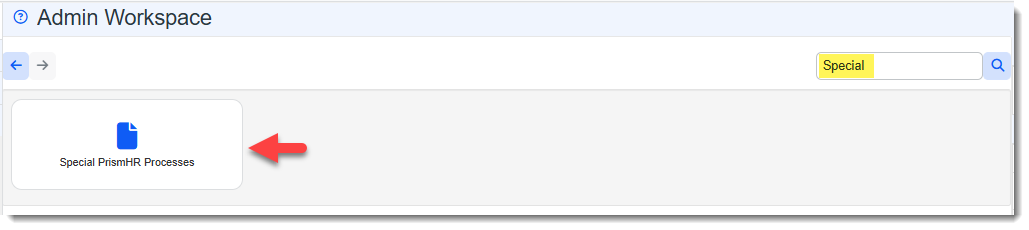
Note: Alternatively, you can access the dashboard from the Modules Search dashboard by selecting Special PrismHR Processes Search.
Completing the Special PrismHR Processes Form
To complete the Special PrismHR Processes form:
-
Click Add on the Special PrismHR Processes dashboard.
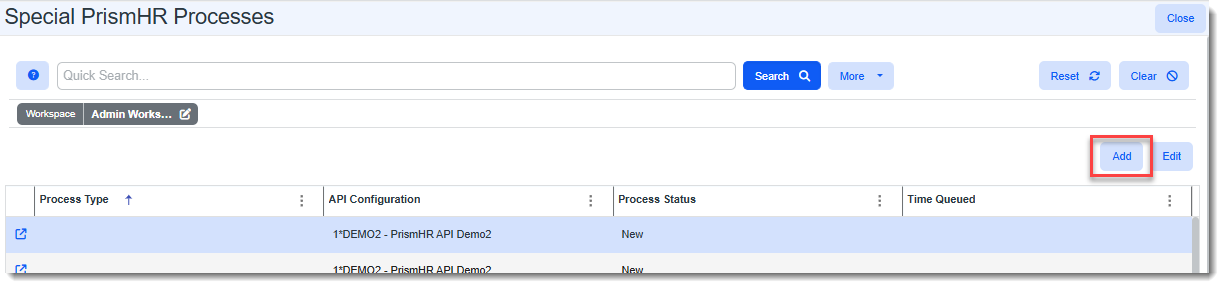
The SpecialPrismHRProcesses: Add window displays.
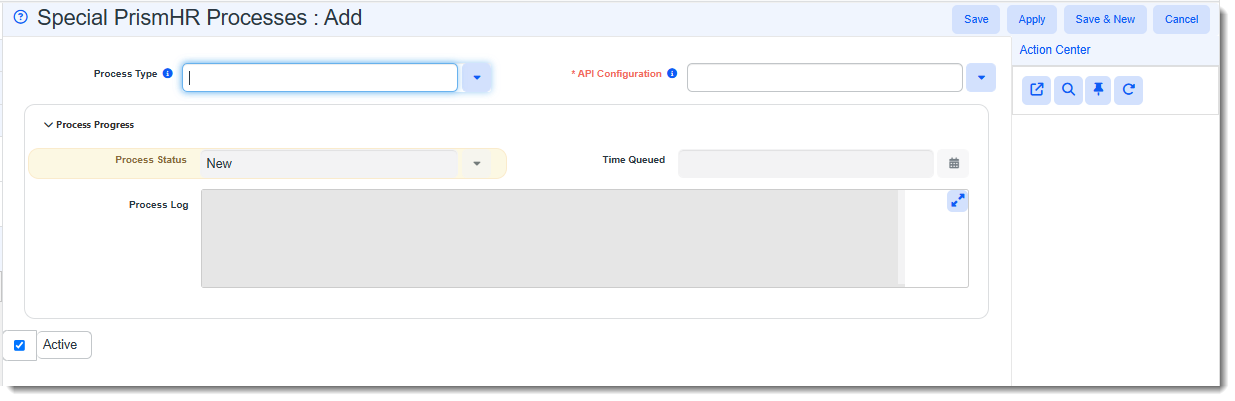
-
Select the process to run in the Process Type field. EX: Group Benefit Import.
The fields for the selected process display.
-
Select the PrismHR tenant you want to use in the API Configuration field. This field is required.
Note: Only active PrismHR API configurations are listed.
-
Complete process-related fields based on the Process Type you selected in Step 2:
Note: Currently, "Group Benefit Import" is the only process type available. The Special PrismHR Process dataform will be used for multiple PrismHR processes as the framework is designed to support more PrismHR import and export processes in future releases.
|
Process Type: Group Benefit Import |
|
| Effective Date |
Required. Enter the Effective Date to stamp on newly imported benefit plan records. Ensure a date that prevents duplicate benefit plan records from being created. |
| Status | This is the plan status that you want the system to stamp on new benefit plan records in ClientSpace once they are imported. |
|
Filter by Offer Type |
Offer types come from the Employment Benefit Types lookup group. Note:
|
|
Filter by Insurance Class |
If you only want to import benefit plans for a certain PrismHR Insurance Class, select the insurance class. Valid values are: Medical, Dental, Vision, Life, Long-Term Disability, Short-Term Disability, Bond, and Other. Note: If you filter by Insurance Class, you cannot filter by Offer Type. |
|
Filter by Carrier |
Leave this blank if you want to import plans for all carriers or for all carriers within a selected Insurance Class or Offer Type. Select a Carrier to only import plans for the selected carrier. Note: The carrier must have a PrismHR Payee ID on the Other Info tab of its related Organization detail record. Otherwise the process fails with the message 'Carrier selected does not have valid payee ID in Org Other Info.'" |
| Filter by Plan ID | Type one or more PrismHR Plan IDs, separated by commas or semicolons. All other filters are ignored. |
|
Process Status |
Read-only. The record's current status: New, Queued, In Progress, Completed, or Failed. New records are saved as New. |
|
Time Queued |
Read-only. The date and time the record was last queued. |
|
Process Log |
Read-only. Newest entries first. Each status change the scheduled process makes is logged with a date and time stamp, along with any messages about the results |
- Click Save. The Special PrismHR Processes form is automatically saved in "New" status.
- When you are ready to queue the record to be picked up by the scheduled process (named PrismHR Special Processes), click the Queue Record link in the "Workflow" section of the Action Center.
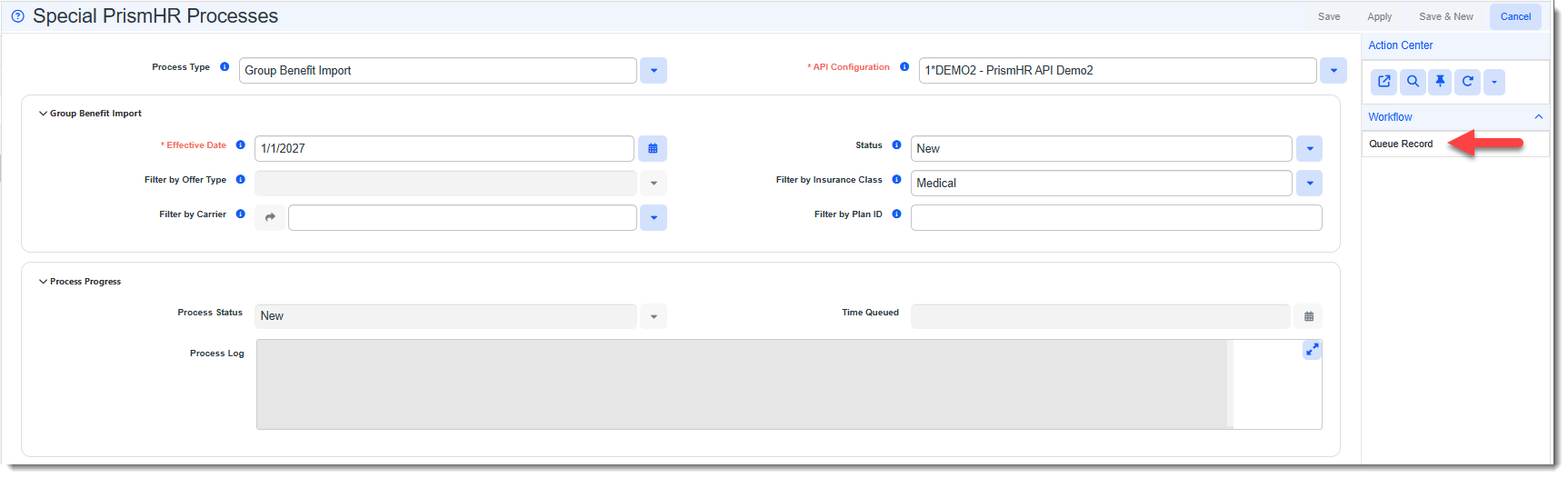
The Process status changes from "New" to "Queued". Once the scheduled process picks up the queued record, the status will change to "In Progress". If the import is successful, the status is changed to "Completed".
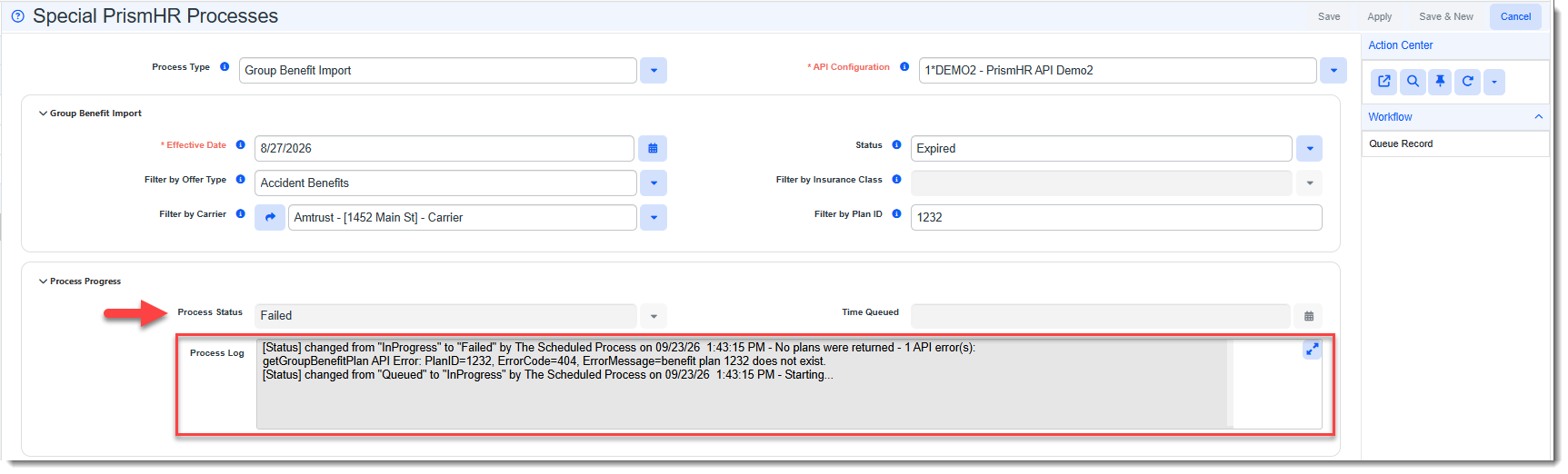
The Process Log is updated by the system from "Queued" status to either "Completion" or failure as shown in the examples below:
Completed
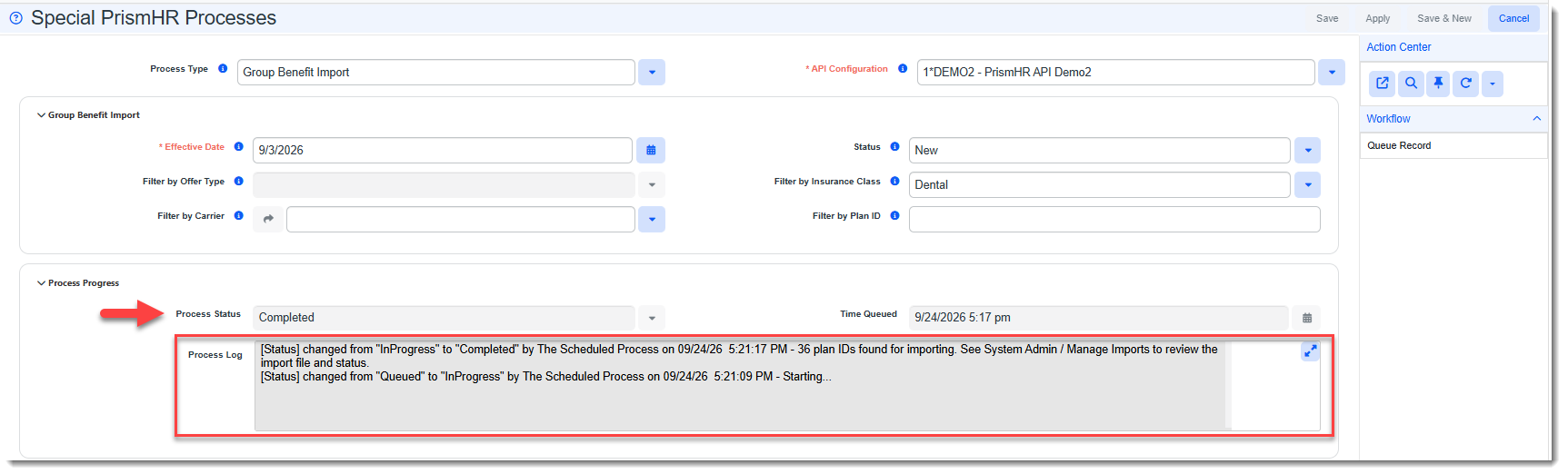
Note: To review the import file or log details, go to Manage Import (System Admin > Imports > Manage Import), open the import record and click the desired Action Center link.
Failed
Resetting a Record to Queued Status
If Special PrismHR Processes record fails to process and you need to place the form back in "Queued" status after correcting the issue, click the Queued link in the "Workflow" section of the Action Center again. This allows the form to be placed back into "Queued" status and picked up by the scheduled process for reprocessing.
You can also go to Manage Import (System Admin > Imports > Manage Import), open the import record and click the Reset link in the Action Center.
Status Flow, Log Messages and Troubleshooting
Status definitions are as follows:
-
New: The record has been saved but not queued.
-
Queued: The record is waiting for the next hourly run of the PrismHR Special Processes scheduled process.
-
In Progress: The scheduled process has picked up the record. The log shows "Starting...".
-
Completed or Failed: The process has finished. The log explains the result.
| Log Message | Status | What to do... |
|---|---|---|
| {n} plan IDs found for importing. See System Admin / Manage Imports to review the import file and status. | Completed | Completed means that the import file processing is complete. It does not mean that all records in the import file were sucessfully import. You should review the import in Manage Import (System Admin > Imports > Manage Import). Plans skipped by the import (i.e., missing category or carrier) are listed in the import's status log. |
| No Plan IDs found with selected criteria. | Completed | This means nothing matched the filter criteria. Check your filters as this can mean that your filter criteria was too restrictive. |
| Selected Process Type not Valid. | Failed | Select a Process Type on the Special PrismHR Processes form. |
| API Configuration '…' was not found. | Failed | Check that the API Configuration identified on the on the Special PrismHR Processes form is still active. |
| Carrier selected does not have valid payee ID in Org Other Info. Update the Carrier and try again. | Failed | Add the carrier's PrismHR Payee ID on the Other Info tab of the Organization Detail record and then re-queue. |
| getBenefitPlanList API Error=… / getGroupBenefitPlan API Error=… | Failed | PrismHR returned an error. Check the API Configuration credentials, or contact support. |
| Import Configuration 'PHRAPIspecialgroupBenefits*.csv' was not found. Contact your administrator. | Failed | The import map header is missing or inactive. |
|
Unable to build/upload the Group Benefit Plan import file. See System Admin / Manage Imports for details. |
Failed |
Review the import in Manage Import (System Admin |