Using Swagger with ClientSpace APIs
Use Swagger to view, create, update, and test API data in ClientSpace. Swagger is most commonly used to look up information, validate data, support integrations, and troubleshoot missing or incorrect data.
When to Use Swagger
-
Look up, create, or update specific records, such as employees or locations.
-
Verify that data is being returned correctly.
-
Support a third-party integration or request.
-
Troubleshoot missing or incorrect API data.
Interested in Using Swagger?
Swagger access is available by request and is billable. Create an Extranet case and include the forms you want to make available through Swagger.
Getting Started with Swagger
Before You Begin
Once you have Swagger access, your ClientSpace team provides the following setup information:
|
Item |
Description |
|---|---|
|
API User |
The user account that can access Swagger. |
|
API User Access |
The procedures or workspaces the API user can access. |
|
API Pipeline |
The pipeline used when API activity creates or updates a form. These actions can trigger business rules, email templates, and/or workflow channels based on the pipeline configuration. |
|
API-enabled forms and fields |
The specific forms and fields (that you identify to the ClientSpace team) the API user can access, as configured by the ClientSpace team. |
Glossary
If you are new to Swagger, familiarize yourself with the following terms or method definitions:
|
Term or Method |
Meaning |
|---|---|
|
GET |
Method used to view information. |
|
POST |
Method used to create new records. |
|
PATCH |
Method used to update existing fields. |
|
PUT |
Method used to update existing records. |
|
DELETE |
Method used to delete information. |
|
Payload |
The data transmitted in the body of an API request or response. Payload example: { "ID": 5437, "BusinessPhone": "(555) 555-5555", "City": "", "Email": "dkingston@netwisetech.com.fake", "MobilePhone": "(941) 266-1029", "Name": { "First": "David", "Last": "A. Kingston", "Middle": null, "Display": "A. Kingston, David" }, Tip: The last line of the payload does not include a comma, but all other lines do. |
Other Swagger Specifics
-
Swagger uses JSON.
-
Swagger uses basic authentication.
Logging In to Swagger and Validating Access
To log in to Swagger:
-
Add /Swagger to the end of your ClientSpace URL.
EX: https://metrohr.clientspace.net/next/Swagger
-
Enter the username and password provided by your ClientSpace team in the green Swagger login bar and then select Explore.

Tip: Keep Swagger open in one browser tab and your regular ClientSpace instance open in another tab so you can compare API activity with the data in ClientSpace.
-
To confirm that you authenticated successfully, expand Dataform, then expand the GET endpoint for /api/dataform/v3.0/describe/{tableName}.
-
In tableName, enter the API-enabled form name. EX: gen_ClientMaster.
-
Select Try it out!
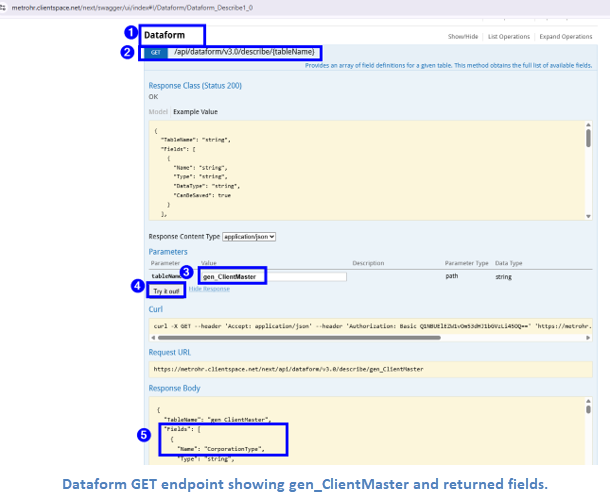
If fields are returned in the response body, you have successfully authenticated and can access the API-enabled form.
Troubleshooting
Invalid Access
Issue: If the sign-in prompt appears or Swagger does not authenticate, the username or password may not have been accepted.
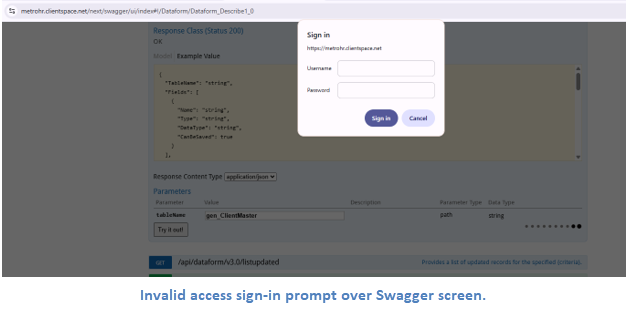
Possible Resolution: Return to the green Swagger login bar, re-enter the username and password, and select Explore again. If access still fails, contact your ClientSpace team.
Invalid Form
Issue: If the response returns "no content" or a similar result, the table or form name may be incorrect.
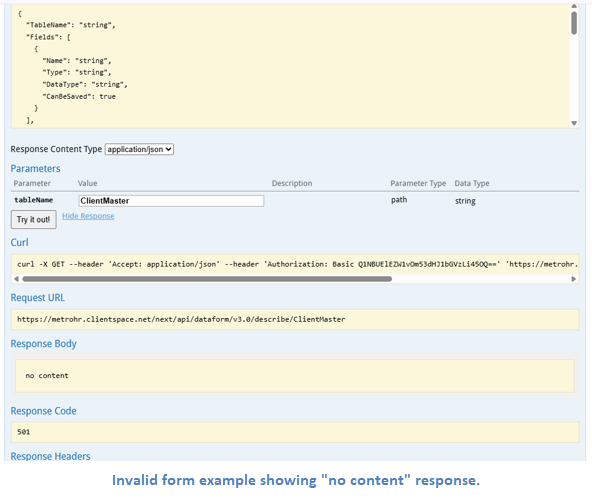
Possible Resolution: Verify that you entered the API-enabled table name in the expected gen_{form} format. EX: gen_ClientMaster.